
How to Remove Photos From Google
Are you tired of seeing unwanted photos from Google? Do you want to know how to remove them? Look no further! In this article, we will guide you through the steps on how to remove photos from Google.
What Can You Remove From Google?
Before we dive into the process, let’s first understand what can be removed from Google. You can remove:
- Photos that violate your copyright or privacy
- Photos that contain sensitive information
- Photos that you no longer want to appear in search results
Step 1: Contact The Website Owner
If the photo is hosted on a website, the first step is to contact the website owner. You can do this by using the “Contact Us” page or sending an email to the webmaster.
Step 2: Request Removal From Google
If the website owner doesn’t respond or doesn’t remove the photo, you can request removal from Google. To do this:
1. Go to www.Google.Com and sign in with your Google account.
2. Search for the image by clicking on “Images” and entering the URL of the image.
3. Click on the three dots next to the image and select “Report an issue.”
4. Follow the prompts to fill out the form and submit it.
Step 3: Remove Photo From Your Website
If you want to remove a photo from your website, you can do this by:
1. Logging in to your Google Search Console account.
2. Selecting the website that hosts the image.
3. Clicking on “Remove” next to the image URL.
4. Confirming the removal by clicking “Confirm.”
Removing Photos From Google Foto
If you want to remove photos from Google Foto, you can do this by:
1. Opening the Google Foto app on your device.
2. Selecting the photo you want to remove.
3. Clicking on the three dots next to the photo and selecting “Delete.”
4. Confirming the removal by clicking “OK.”
Removing Photos From Google Maps
If you want to remove photos from Google Maps, you can do this by:
1. Opening the Google Maps app on your device.
2. Selecting the photo you want to remove.
3. Clicking on the three dots next to the photo and selecting “Delete.”
4. Confirming the removal by clicking “OK.”
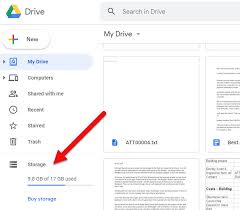
Removing Photos From Google Drive
If you want to remove photos from Google Drive, you can do this by:
1. Opening the Google Drive app on your device.
2. Selecting the file you want to remove.
3. Clicking on the three dots next to the file and selecting “Delete.”
4. Confirming the removal by clicking “OK.”
Removing Photos From Google My Business
If you want to remove photos from Google My Business, you can do this by:
1. Opening the Google My Business app on your device.
2. Selecting the photo you want to remove.
3. Clicking on the three dots next to the photo and selecting “Delete.”
4. Confirming the removal by clicking “OK.”
Conclusion
Removing photos from Google is a straightforward process that can be completed in just a few steps. Whether it’s removing a photo that violates your copyright or privacy, or simply wanting to remove an old photo that you no longer want to appear in search results, this guide has shown you how to do it.
Frequently Asked Questions
- Q: How do I Remove Photos From Google?
A: To remove photos from Google, follow the steps outlined above. This includes contacting the website owner, requesting removal from Google, and removing the photo from your website. - Q: What Are The Consequences of Not Removing Unwanted Photos From Google?
A: If you don’t remove unwanted photos from Google, they may continue to appear in search results. This can lead to embarrassment or even harm to your reputation if the photos contain sensitive information.
- Q: Can I Appeal a Decision Made by Google Regarding Photo Removal?
A: Yes, you can appeal a decision made by Google regarding photo removal. To do this, follow the steps outlined above and fill out the form to submit an appeal.
Conclusion
Removing unwanted photos from Google is a simple process that can be completed in just a few steps. By following these steps, you can ensure that your personal information and photos are protected and not shared with others without your consent.
- Q: What Should I do if I See Unwanted Photos of Myself on Google?
A: If you see unwanted photos of yourself on Google, you can take the steps outlined above to remove them. This includes contacting the website owner, requesting removal from Google, and removing the photo from your website. - Q: Can I Use Other Methods to Remove Photos From Google Besides Contacting The Website Owner or Submitting a Form?
A: While there may be other methods to remove photos from Google, these steps are the most effective and efficient way to do so.
By following these steps, you can ensure that your personal information and photos are protected and not shared with others without your consent.


