
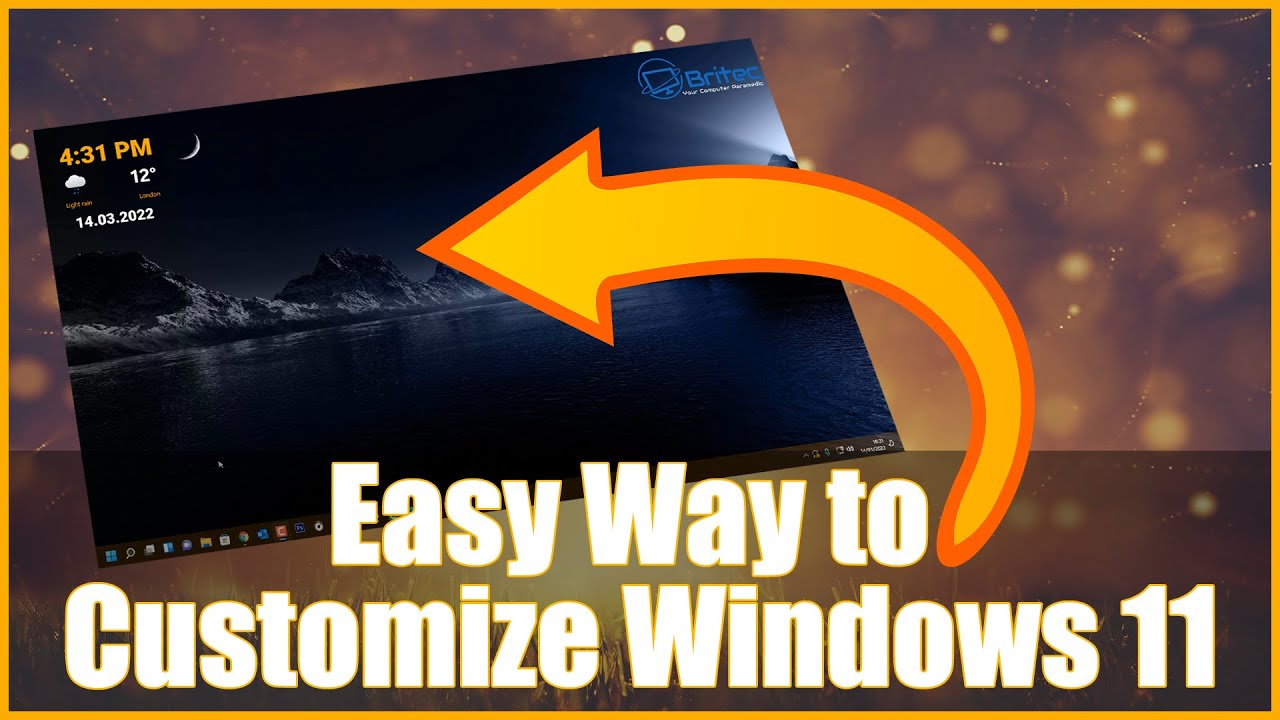
How to Personalize Windows 11: A Step-by-step Guide
Are you tired of the default look and feel of your Windows 11 desktop? Do you want to make it more personalized and practical according to your needs? You’ve come to the right place! In this article, we’ll show you how to personalize Windows 11 like a pro.
Introduction
Windows 11 is an excellent operating system that offers many features and customization options. However, some users may find the default settings too bland or unappealing. That’s why we’re here to help you personalize your Windows 11 experience and make it more enjoyable and functional for you.
Personalizing Your Desktop
One of the first things you can do to personalize your Windows 11 desktop is to change its background. You can choose from a variety of options, including images, colors, or even a slideshow. To do this:
- Click on an empty area of the desktop with your right mouse button.
- Select “Personalize” from the context menu.
- In the Settings window that opens, click on the “Background” tab.
- Choose from the various options available, such as “Image,” “Color,” or “Slideshow.”
Changing The Background Color
If you prefer a solid background color, follow these steps:
- Click on an empty area of the desktop with your right mouse button.
- Select “Personalize” from the context menu.
- In the Settings window that opens, click on the “Background” tab.
- Choose the “Color” option and select a color from the palette.
Adding a Slideshow
If you want to add some visual interest to your desktop, follow these steps:
- Click on an empty area of the desktop with your right mouse button.
- Select “Personalize” from the context menu.
- In the Settings window that opens, click on the “Background” tab.
- Choose the “Slideshow” option and select a folder containing images you want to use.
Changing The Background Image
If you prefer to use an image as your background, follow these steps:
- Click on an empty area of the desktop with your right mouse button.
- Select “Personalize” from the context menu.
- In the Settings window that opens, click on the “Background” tab.
- Choose the “Image” option and select a folder containing images you want to use.
Adding a Theme
If you want to add some flair to your desktop, follow these steps:
- Click on an empty area of the desktop with your right mouse button.
- Select “Personalize” from the context menu.
- In the Settings window that opens, click on the “Themes” tab.
- Choose a theme from the palette and customize it according to your preferences.
Customizing Colors
Windows 11 allows you to customize colors for various elements, such as the taskbar, start menu, and windows. To do this:
- Click on an empty area of the desktop with your right mouse button.
- Select “Personalize” from the context menu.
- In the Settings window that opens, click on the “Colors” tab.
- Choose a color scheme or customize colors for individual elements.
Customizing The Start Menu
If you want to change the look and feel of the start menu, follow these steps:
- Click on an empty area of the desktop with your right mouse button.
- Select “Personalize” from the context menu.
- In the Settings window that opens, click on the “Start” tab.
- Choose a layout or customize individual elements.
Customizing Folders
If you want to change the look and feel of folders, follow these steps:
- Right-click on a folder with your mouse button.
- Select “Properties” from the context menu.
- In the Properties window that opens, click on the “Customize” tab.
- Choose a layout or customize individual elements.
Customizing Widgets
If you want to change the look and feel of widgets, follow these steps:
- Click on an empty area of the desktop with your right mouse button.
- Select “Personalize” from the context menu.
- In the Settings window that opens, click on the “Widgets” tab.
- Choose a layout or customize individual elements.
Conclusion
Customizing Windows 11 is a great way to personalize your computing experience and make it more enjoyable and functional for you. With these simple steps, you can change the look and feel of your desktop, start menu, folders, and widgets. Remember to explore other customization options available in Windows 11 to get the most out of your operating system.
Faqs
- Q: How do I Personalize my Windows 11 Desktop?
A: To personalize your Windows 11 desktop, click on an empty area with your right mouse button and select “Personalize” from the context menu. - Q: How do I Change The Background Color of my Windows 11 Desktop?
A: To change the background color of your Windows 11 desktop, follow the steps outlined above under “Changing the Background Color.” - Q: How do I Add a Slideshow to my Windows 11 Desktop?
A: To add a slideshow to your Windows 11 desktop, follow the steps outlined above under “Adding a Slideshow.” - Q: How do I Change The Background Image of my Windows 11 Desktop?
A: To change the background image of your Windows 11 desktop, follow the steps outlined above under “Changing the Background Image.” - Q: How do I Add a Theme to my Windows 11 Desktop?
A: To add a theme to your Windows 11 desktop, follow the steps outlined above under “Adding a Theme.” - Q: How do I Customize Colors in Windows 11?
A: To customize colors in Windows 11, follow the steps outlined above under “Customizing Colors.” - Q: How do I Customize The Start Menu in Windows 11?
A: To customize the start menu in Windows 11, follow the steps outlined above under “Customizing the Start Menu.” - Q: How do I Customize Folders in Windows 11?
A: To customize folders in Windows 11, follow the steps outlined above under “Customizing Folders.”


