
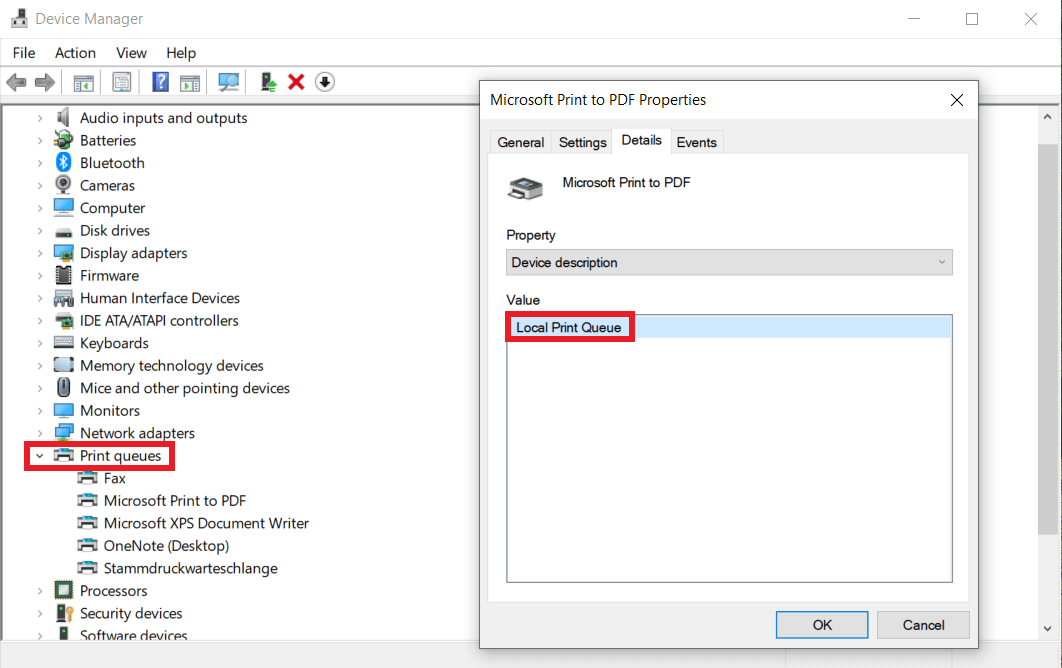
Canceling a Printer Queue: A Step-by-step Guide
Are you stuck with an unsaved printer queue? Don’t worry, we’ve got you covered! Canceling a printer queue can be a frustrating experience, but it’s often easily resolved by following the right steps.
In this article, we’ll walk you through the process of canceling a printer queue on different devices, including Windows and macOS computers, smartphones, and tablets. We’ll also provide some troubleshooting tips to help you resolve any issues that may arise during the process.
Understanding Printer Queues
Before we dive into the step-by-step guide, let’s quickly understand what a printer queue is. A printer queue is a list of print jobs waiting to be printed by your printer. When you initiate a print job, it’s added to the queue and waits for its turn to be printed.
If something goes wrong during printing, such as a paper jam or a connectivity issue, the printer queue can become stuck, preventing any new print jobs from being initiated.
Canceling a Printer Queue on Windows
If you’re using a Windows computer, follow these steps to cancel a printer queue:
Method 1: Cancel Individual Print Jobs
- Click on the Start button and select Devices and Printers.
- Right-click on your printer and select Properties.
- In the printer properties window, click on the Printing Preferences tab.
- Click on the Cancel All Documents button to cancel all print jobs in the queue.
Method 2: Suspend And Delete Print Jobs
- Press the Windows key + R to open the Run dialog box.
- Type “services.Msc” and press Enter to open the Services window.
- Scroll down and find the Print Spooler service.
- Right-click on the Print Spooler service and select Stop to suspend it.
- Navigate to the C:\Windows\System32\Spool\Printers folder and delete all files in this folder.
- Go back to the Services window and start the Print Spooler service again.
Canceling a Printer Queue on Macos
If you’re using a macOS device, follow these steps to cancel a printer queue:
Method 1: Cancel Individual Print Jobs
- Click on the Apple menu and select System Preferences.
- Click on Printers & Scanners.
- Select your printer from the list of available printers.
- Click on the Open Printer Queue button to open the print queue window.
- Select the print job you want to cancel and click on the Cancel button.
Method 2: Use Terminal
- Open the Terminal app on your macOS device.
- Type “cancel -to” followed by a space, then the name of your printer (e.G., “HP LaserJet”).
- Press Enter to execute the command.
Canceling a Printer Queue on Android And Ios Devices
If you’re using an Android or iOS device, follow these steps to cancel a printer queue:
Method 1: Cancel Individual Print Jobs
- Swipe down from the top of the screen to access the notification shade.
- Look for the print job notification and tap on it.
- Tap on the Cancel button to cancel the print job.
Method 2: Use an App
If you’re using a dedicated printing app (e.G., HP Smart), follow these steps:
- Open the app and navigate to the Print Queue section.
- Select the print job you want to cancel and tap on the Cancel button.
Troubleshooting Tips
If the above methods don’t work, try the following troubleshooting tips:
- Restart your printer and device.
- Check for any connectivity issues between your device and printer.
- Try canceling individual print jobs instead of deleting all print jobs in the queue.
- If you’re using a dedicated printing app, try uninstalling and reinstalling it.
Conclusion
Canceling a printer queue can be a frustrating experience, but it’s often easily resolved by following the right steps. We hope this article has provided you with a step-by-step guide to canceling a printer queue on different devices.
Remember to always restart your printer and device after attempting to cancel a print job, as this may resolve any connectivity issues that were preventing the job from being cancelled.
Frequently Asked Questions
- Q: Why is my Printer Not Responding?
A: There could be several reasons why your printer is not responding, including connectivity issues or a paper jam. - Q: How do I Cancel All Print Jobs in The Queue?
A: To cancel all print jobs in the queue, follow Method 1 on Windows or Method 1 on macOS. - Q: Can I Cancel Individual Print Jobs Instead of Deleting All Print Jobs?
A: Yes, you can cancel individual print jobs by following Method 1 on Windows or Method 1 on macOS. - Q: What if The Above Methods Don’t Work?
A: Try restarting your printer and device, checking for connectivity issues, or using a dedicated printing app to resolve any issues. - Q: How do I Prevent Print Jobs From Getting Stuck in The Queue?
A: To prevent print jobs from getting stuck in the queue, ensure that your printer is connected properly and there are no paper jams or other issues preventing the job from being printed. - Q: Can I Cancel a Print Job on my Android Device?
A: Yes, you can cancel a print job on your Android device by following Method 1. - Q: How do I Cancel a Print Job on my Ios Device?
A: Yes, you can cancel a print job on your iOS device by following Method 1. - Q: What if I’m Using a Dedicated Printing App And It’s Not Working?
A: Try uninstalling and reinstalling the app or contacting the manufacturer for further assistance.
We hope this article has provided you with a comprehensive guide to canceling a printer queue on different devices!


