
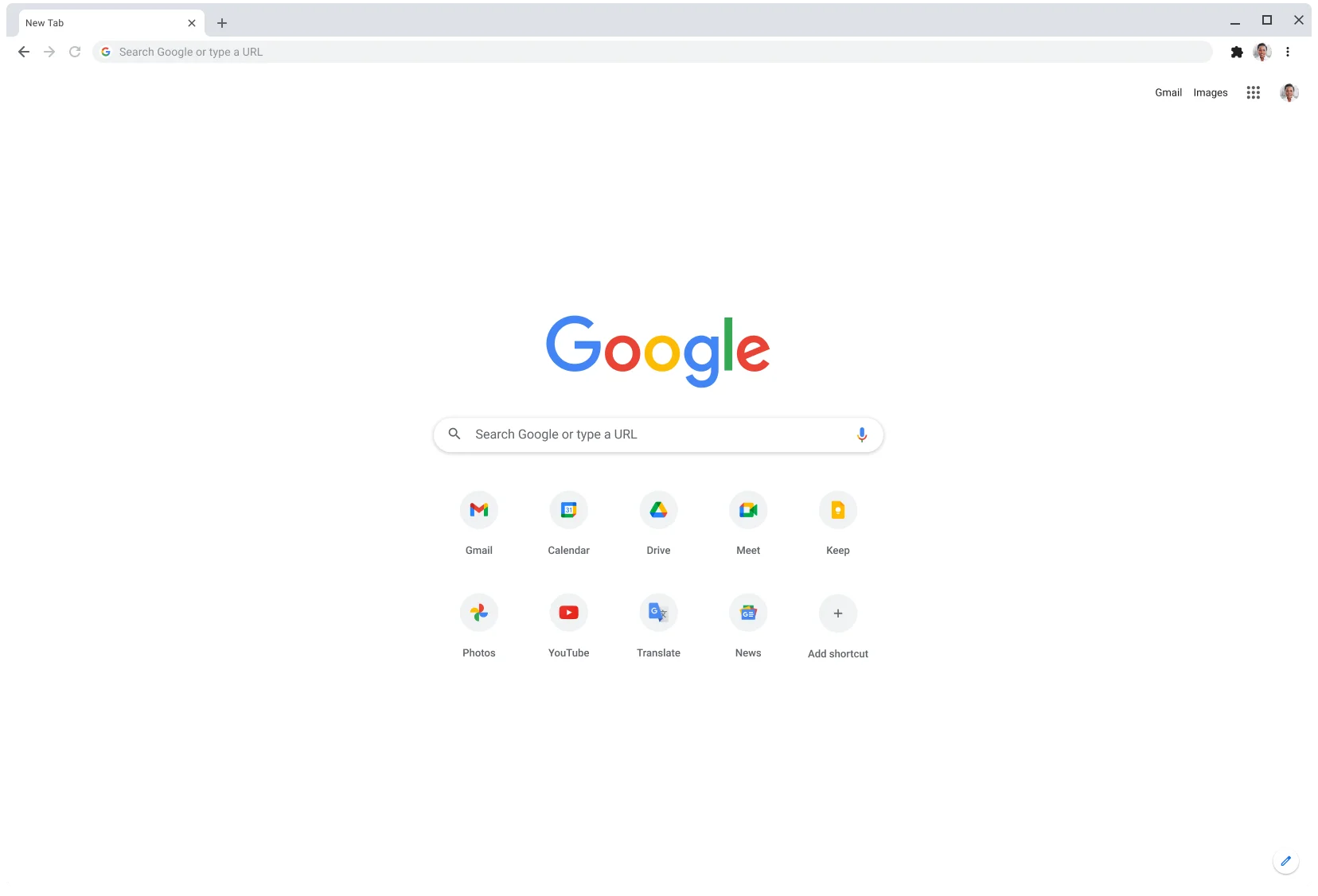
How to Use Google Chrome: A Step-by-step Guide
Are you tired of using a browser that’s slow, cluttered, or difficult to navigate? Look no further than Google Chrome! As one of the most popular browsers on the market, Chrome offers a sleek, user-friendly interface and lightning-fast performance. In this article, we’ll take you through the process of downloading, installing, and setting up Google Chrome on your computer or mobile device.
Why Choose Google Chrome?
Before we dive into the nitty-gritty, let’s talk about why Google Chrome is such a great choice for browsing the web. Here are just a few reasons why:
- Speed: Chrome is known for its lightning-fast performance, making it perfect for heavy users or those who spend hours online.
- Security: With automatic updates and robust security features, you can rest assured that your data is protected when using Google Chrome.
- Customization: Chrome offers a wide range of extensions and themes to customize your browsing experience.
- Cross-platform Compatibility: Whether you’re on Windows, macOS, Android, or iOS, Chrome has got you covered.
How to Download And Install Google Chrome
Now that we’ve established why Chrome is an excellent choice, let’s get started with the download and installation process!
PC And Mac
To start using Google Chrome on your PC or Mac, follow these simple steps:
- Open a New Browser Window: Open a new browser window (e.G., Microsoft Edge or Safari) and navigate to the Google Chrome website (www.Google.Com/chrome).
- Click The Download Button: Click the “Download” button to initiate the download process.
- Wait For The Download to Complete: Wait for the download to complete, which may take a few minutes depending on your internet speed.
- Run The Installer: Once the download is complete, run the installer and follow the prompts to install Chrome.
Android
To get started with Google Chrome on your Android device:
- Open The Play Store: Open the Play Store app (or navigate to play.Google.Com).
- Search For Chrome: Search for “Chrome” in the search bar.
- Click The Install Button: Click the “Install” button to download and install Chrome.
Iphone And Ipad
To get started with Google Chrome on your iPhone or iPad:
- Open The App Store: Open the App Store app (or navigate to www.Appstore.Com).
- Search For Chrome: Search for “Chrome” in the search bar.
- Click The Install Button: Click the “Get” button to download and install Chrome.
How to Use Google Chrome: Tips And Tricks
Now that you’ve got Chrome installed, here are some tips and tricks to help you get started:
- Sync Your Data: Sync your Chrome data across all your devices using your Google account.
- Customize Your Browser: Customize your browser with extensions, themes, and settings to suit your needs.
- Use Incognito Mode: Use incognito mode to browse privately and securely.
- Access Your Bookmarks: Access your bookmarks by clicking the three dots in the top right corner of the browser window.
How to Make Google Chrome Your Default Browser
Want to make Google Chrome your default browser? Here’s how:
PC And Mac
To set Google Chrome as your default browser on a Windows or macOS computer, follow these steps:
- Click The Three Dots: Click the three dots in the top right corner of the browser window.
- Select Settings: Select “Settings” from the menu.
- Scroll Down to Advanced Settings: Scroll down to the “Advanced” section.
- Click on Set Google Chrome as Default Browser: Click the button that says “Set Google Chrome as default browser”.
Android
To set Google Chrome as your default browser on an Android device:
- Go to Settings: Go to the Settings app on your device.
- Scroll Down to Apps: Scroll down to the “Apps” section.
- Select Google Chrome: Select Google Chrome from the list of apps.
- Set as Default: Set Google Chrome as the default browser.
Iphone And Ipad
To set Google Chrome as your default browser on an iPhone or iPad:
- Go to Settings: Go to the Settings app on your device.
- Scroll Down to Safari: Scroll down to the “Safari” section.
- Select Open in Chrome: Select the option to open links in Chrome.
Conclusion
And there you have it! With these simple steps, you can get started with Google Chrome and experience the speed, security, and customization that comes with using this fantastic browser. Whether you’re on a PC, Mac, Android device, or iPhone/iPad, Chrome has got you covered.
Frequently Asked Questions (FAQs)
Here are some frequently asked questions about Google Chrome:
- Q: How do I Download Google Chrome?
A: To download Google Chrome, visit the Chrome website (www.Google.Com/chrome) and click the “Download” button. - Q: Is Google Chrome Safe to Use?
A: Yes! Google Chrome is a secure browser that protects your data with automatic updates and robust security features. - Q: Can I Customize my Browser Experience?
A: Absolutely! Google Chrome offers a wide range of extensions, themes, and settings to customize your browsing experience. - Q: How do I Sync my Chrome Data Across Devices?
A: To sync your Chrome data, sign in with your Google account on all your devices. - Q: Can I Make Google Chrome my Default Browser?
A: Yes! On a PC or Mac, go to Settings > Advanced > Set Google Chrome as default browser. On an Android device, go to Settings > Apps > Select Google Chrome and set it as the default browser.
Bonus Tips
Here are some additional tips to help you get started with Google Chrome:
- Use Keyboard Shortcuts: Use keyboard shortcuts to quickly access frequently used features.
- Customize Your Bookmarks Bar: Customize your bookmarks bar by adding or removing bookmarks.
- Take Advantage of Extensions: Take advantage of the vast library of extensions available for Chrome.
- Stay Up-to-date: Stay up-to-date with automatic updates and security patches.
I hope this article has helped you get started with Google Chrome!


