
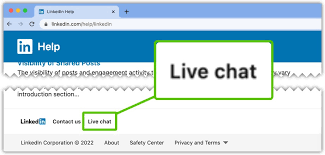
How to Contact Linkedin: A Step-by-step Guide
Are you searching for work on the internet and stumbled upon this guide on how to contact LinkedIn? You’ve come to the right place! In this tutorial, we’ll show you how to get in touch with the professional training platform dedicated to professionals.
Introduction
Don’t worry if you’re having trouble accessing your profile or need assistance. This guide will walk you through a step-by-step procedure on how to contact LinkedIn using various methods.
Table 1: Contacting Linkedin From Computer
| Method | Description |
|---|---|
| Accessing Account | Log in to your LinkedIn account by going to the official website and clicking on “Access” |
| Creating a Ticket | Click on the “Create a request for assistance” button located at the bottom of the page |
| Forwarding Email | Fill out the form providing detailed information about your problem, including an email address alternative |
| Sending Message | Attach any necessary documents or files to support your request |
The Procedure: Contacting Linkedin
To get in touch with LinkedIn’s customer support team:
- Access your account by logging in to the official website and clicking on “Access.”
- Click on the “Create a request for assistance” button located at the bottom of the page.
- Select the relevant category or topic that best describes your issue.
- Fill out the form providing detailed information about your problem, including an email address alternative.
- Attach any necessary documents or files to support your request.
Contacting Linkedin From Mobile App
If you want to contact LinkedIn using a mobile app:
- Open the LinkedIn app on your Android device (available on Google Play Store) or iOS/iPadOS device (available on Apple App Store).
- Tap on the profile icon located at the top right corner of the screen.
- Select “Settings” and then tap on “Help.”
- Choose the relevant category or topic that best describes your issue.
- Fill out the form providing detailed information about your problem, including an email address alternative.
Contacting Linkedin Through Social Media
You can also contact LinkedIn using social media platforms:
- Facebook: Access Facebook’s official page and click on “Message” to send a message to LinkedIn’s support team.
- Twitter: Tweet @linkedinhelp and include your question or issue in the tweet.
- Instagram: Send a direct message to LinkedIn’s official account, or use the “Message” feature located at the top right corner of the screen.
How to Contact Another User on Linkedin
If you want to contact another user on LinkedIn:
- Access your account by logging in to the official website and clicking on “Access.”
- Search for the person’s name using the search bar located at the top right corner of the page.
- Click on their profile icon to access their information.
- Select “Message” from the drop-down menu.
- Type your message and send it.
Note: You can only send messages to first-degree connections or users within your cluster group. If you’re not connected, you’ll need to use LinkedIn’s premium feature, InMail, which costs €30.23/Month but offers a free trial period.
Conclusion
Contacting LinkedIn is a straightforward process that can be completed using various methods, including contacting customer support directly, reaching out through social media platforms, or even messaging another user on the platform. Remember to follow these steps carefully to ensure you get the assistance you need in a timely manner.
Faqs: Contacting Linkedin
- Q: How do I access my LinkedIn account from computer?
A: Log in to your account by going to the official website and clicking on “Access.” - Q: What is InMail, and how much does it cost?
A: InMail is a premium feature that allows you to send messages to users outside of your first-degree connections or cluster group. It costs €30.23/Month but offers a free trial period. - Q: Can I contact LinkedIn through social media platforms?
A: Yes, you can contact LinkedIn using Facebook, Twitter, or Instagram by sending a direct message to their official account. - Q: How do I contact another user on LinkedIn?
A: Access your account, search for the person’s name, click on their profile icon, and select “Message” from the drop-down menu. - Q: Can I send messages to users outside of my connections?
A: No, you can only send messages to first-degree connections or users within your cluster group using the free messaging feature. If you need to contact another user, use InMail. - Q: How long does it take for LinkedIn’s customer support team to respond?
A: The response time varies depending on the volume of requests received by LinkedIn. However, most responses are typically sent out within a few hours or days. - Q: Can I contact LinkedIn through their mobile app?
A: Yes, you can access your account and contact LinkedIn using their mobile app available for Android and iOS/iPadOS devices. - Q: What if I’m not connected to the user I want to contact?
A: If you’re not connected to the user, use InMail or send a message through one of the social media platforms mentioned above.
I hope this guide has helped you understand how to contact LinkedIn using various methods!


