
How to Download Photos From Your Smartphone to a Usb Drive: A Step-by-step Guide
Are you tired of taking photos on your smartphone only to have them scattered across different devices? Do you want to transfer all your cherished memories to a single, convenient location? Look no further! In this article, we’ll show you how to download photos from your smartphone to a USB drive using various methods.
Why Transfer Photos to a Usb Drive?
Before we dive into the nitty-gritty, let’s talk about why transferring photos to a USB drive is a great idea. For starters, it’s a convenient way to store and share your memories with friends and family. You can simply plug in the USB drive to any computer or device and access all your photos at once. It’s also a great way to free up space on your smartphone, which can be especially useful if you’re running low on storage.
Method 1: Transferring Photos From Android Smartphone to PC
If you have an Android smartphone and want to transfer photos to a USB drive using a computer, here’s what you need to do:
- Step 1: Connect your Android smartphone to the PC using a USB cable.
- Step 2: Open the Settings app on your smartphone and select “Connected devices” or “USB connections.”
- Step 3: Select the option that says “MTP” (Media Transfer Protocol) or “Camera (PTP).”
- Step 4: Open File Explorer on your PC and look for the phone’s drive, usually labeled as “My Phone” or “Android Phone.”
- Step 5: Navigate to the DCIM folder on your smartphone and select all the photos you want to transfer.
- Step 6: Copy and paste the selected photos to a folder on your PC.
- Step 7: Insert the USB drive into the PC and copy the photos from the PC to the USB drive.
Method 2: Transferring Photos From Iphone to PC
If you have an iPhone and want to transfer photos to a USB drive using a computer, here’s what you need to do:
- Step 1: Connect your iPhone to the PC using a Lightning cable.
- Step 2: Open iTunes on your PC and select the option that says “Transfer photos from iPhone.”
- Step 3: Select the photos you want to transfer and click “Import” to copy them to your PC.
- Step 4: Insert the USB drive into the PC and copy the transferred photos to the USB drive.
Method 3: Transferring Photos From Android Smartphone to Usb Drive Using Otg Adapter
If you don’t have a computer or want to transfer photos directly to a USB drive, you can use an OTG (On-The-Go) adapter. Here’s how:
- Step 1: Check if your smartphone has the OTG feature by looking for a “USB” icon in the settings app.
- Step 2: Purchase an OTG adapter that matches your smartphone’s USB type (e.G., Micro-USB, Type-C).
- Step 3: Connect the OTG adapter to your smartphone and insert the USB drive into the adapter.
- Step 4: Transfer photos from your smartphone to the USB drive by opening the Files app or Photo Gallery on your smartphone.
Method 4: Transferring Photos From Iphone to Usb Drive Using an Adapter
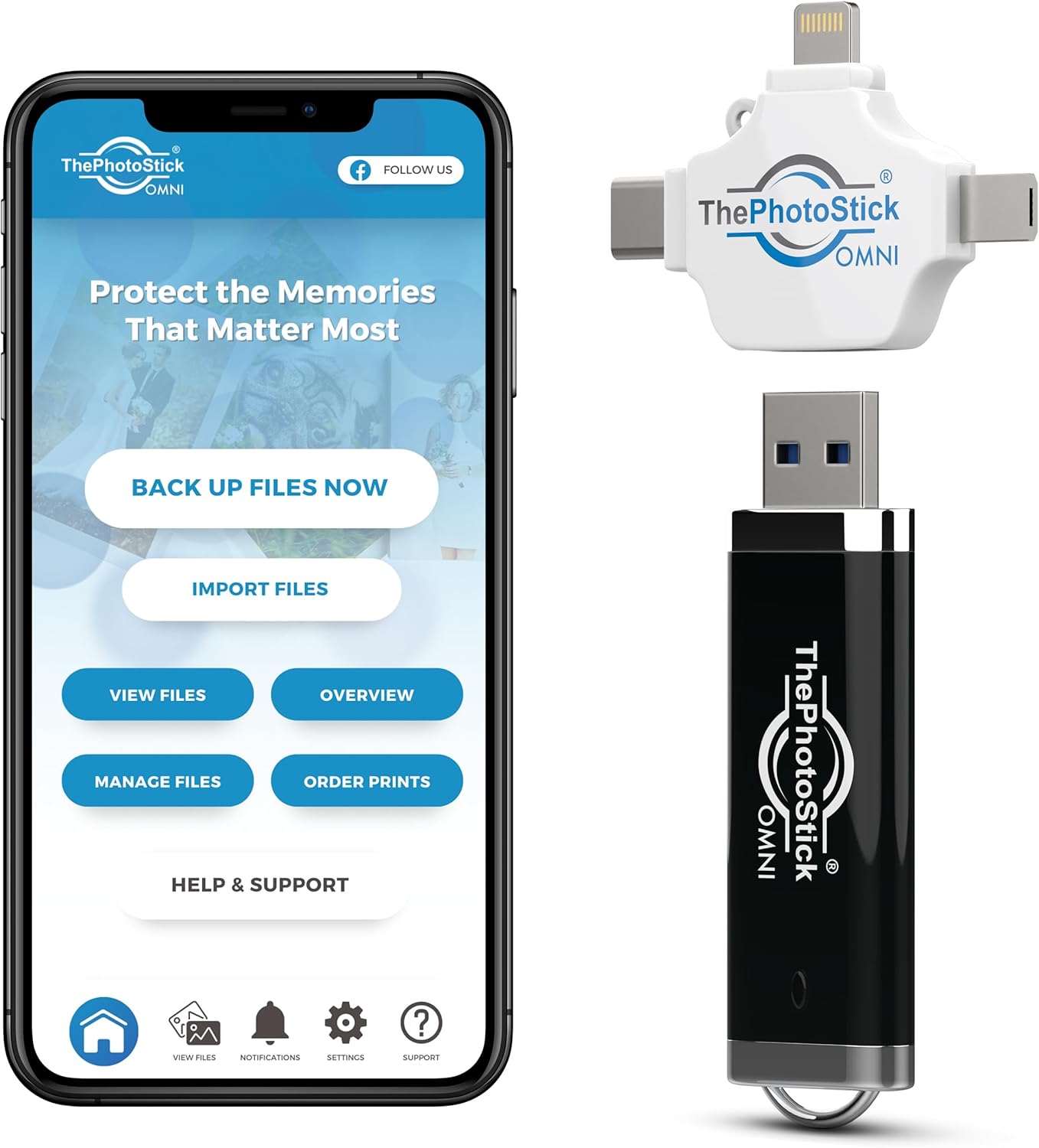
If you don’t have a computer and want to transfer photos directly to a USB drive, you can use an adapter that converts your iPhone’s Lightning port to a USB-C or Micro-USB connection. Here’s how:
- Step 1: Check if your iPhone is running iOS 13 or later.
- Step 2: Purchase an adapter that matches your smartphone’s Lightning type (e.G., Lightning to USB-C).
- Step 3: Connect the adapter to your iPhone and insert the USB drive into the adapter.
- Step 4: Transfer photos from your iPhone to the USB drive by opening the Photos app on your iPhone.
Conclusion
Transferring photos from your smartphone to a USB drive is easier than you think. Whether you’re using an Android or iPhone, there are various methods you can employ to get the job done. With these step-by-step guides, you’ll be able to transfer all your cherished memories to a single location and enjoy them whenever you want.
Frequently Asked Questions
- Q: Can I transfer photos from my smartphone to a USB drive without using a computer?
A: Yes, you can use an OTG adapter for Android smartphones or an adapter that converts the Lightning port to a USB-C or Micro-USB connection for iPhones. - Q: Do I need to have iTunes installed on my PC to transfer photos from my iPhone to a USB drive?
A: No, you don’t need to install iTunes if your iPhone is running iOS 13 or later and you’re using an adapter that converts the Lightning port to a USB-C or Micro-USB connection. - Q: Can I transfer videos from my smartphone to a USB drive as well?
A: Yes, you can transfer videos from your smartphone to a USB drive using any of the methods mentioned above. - Q: How do I know if my smartphone has the OTG feature?
A: Check the settings app on your smartphone for a “USB” icon or look for an option that says “MTP” (Media Transfer Protocol) or “Camera (PTP).” - Q: Can I use a USB drive of any capacity to transfer photos from my smartphone?
A: Yes, you can use a USB drive of any capacity to transfer photos from your smartphone. - Q: Will transferring photos from my smartphone to a USB drive affect the original quality of the photos?
A: No, transferring photos from your smartphone to a USB drive will not affect the original quality of the photos. - Q: Can I transfer photos from multiple smartphones to a single USB drive?
A: Yes, you can transfer photos from multiple smartphones to a single USB drive using any of the methods mentioned above. - Q: How do I know if my smartphone is compatible with an OTG adapter or an adapter that converts the Lightning port to a USB-C or Micro-USB connection?
A: Check the specifications of your smartphone and the compatibility of the adapter you’re purchasing to ensure it’s designed for your device.


