
Configuring Face Id: A Step-by-step Guide
Are you excited about acquiring a new iPhone or iPad that features the innovative Face ID technology? As you’ve probably heard, Face ID is an advanced form of facial recognition that allows you to unlock your device with just a glance. However, like any complex feature, configuring Face ID can be a bit tricky, especially for first-time users.
What You Need to Know
Before we dive into the configuration process, let’s cover some essential information about Face ID and its compatibility. The technology is available on iPhone X and later models, as well as iPad Pro devices with A12 Bionic chip or later. So, if you’ve recently purchased one of these devices, you’re probably eager to try out Face ID.
Configuring Face ID During Initial Setup
If this is your first time setting up a new device, you’ll be prompted to configure Face ID during the initial setup process. Here’s what you need to do:
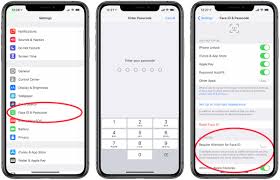
- Access Settings: Tap on the “Settings” icon on your iPhone or iPad.
- Select Face ID & Passcode: Choose “Face ID & Passcode.”
- Configure Manually: Select “Configure manually” and choose your Wi-Fi network.
- Start Scanning: Tap “Start” and align your face with the camera, ensuring it’s within the visible frame.
- Scan Your Face: Move your head in a circular motion to allow the scanning process to capture all areas of your face.
- Complete Scanning: Tap “Continuous” to initiate the second scan, repeating the same process as before.
Activating Face ID After Initial Setup
If you’ve already set up your device but want to activate Face ID, follow these steps:
- Access Settings: Open the “Settings” app.
- Select Face ID & Passcode: Choose “Face ID & Passcode.”
- Configure Face ID: Tap on “Configure Face ID” and select “Start Scanning.”
- Scan Your Face: Align your face with the camera and move your head in a circular motion to complete the scanning process.
Configuring Alternative Appearance
If you want to use Face ID with accessories like glasses or a mask, follow these steps:
- Access Settings: Open the “Settings” app.
- Select Face ID & Passcode: Choose “Face ID & Passcode.”
- Configure Alternative Appearance: Tap on “Configure an alternative appearance.”
- Scan Your Face With Accessory: Align your face with the camera while wearing the accessory and complete the scanning process.
Troubleshooting Common Issues
If you’re experiencing issues with Face ID, don’t worry! Here are some common problems and their solutions:
- Face ID Not Working After Rebooting Device: Try restarting your device or resetting Face ID.
- Configuration Issue Due to Blockage of Infrared Light: Check if any accessories are blocking the infrared light used by Face ID.
- Face ID Not Working With Glasses: Follow the steps to configure Face ID with glasses.
Conclusion
Configuring Face ID might seem daunting, but following these step-by-step guides will ensure you’re able to unlock your device with just a glance. Whether you’re setting up a new device or updating an existing one, this guide has got you covered. Happy configuring!
Frequently Asked Questions (FAQs)
- What Devices Are Compatible With Face Id?
- IPhone X and later models, as well as iPad Pro devices with A12 Bionic chip or later.
- Can I Configure Face ID With Accessories Like Glasses or a Mask?
- Yes, follow the steps to configure an alternative appearance for Face ID.
- What Should I do if Face ID is Not Working Properly?
- Try restarting your device or resetting Face ID.
- How Can I Troubleshoot Issues With Face Id?
- Check if any accessories are blocking infrared light, try configuring Face ID again, or restart your device.
- Can I Use Face ID on Whatsapp?
- Yes, follow the steps to configure Face ID on WhatsApp.
- What Should I do if I’m Experiencing Issues With Face Id?
- Contact Apple Support for assistance.
By following these simple steps and troubleshooting common issues, you’ll be able to enjoy the convenience of Face ID on your iPhone or iPad. Happy unlocking!


