
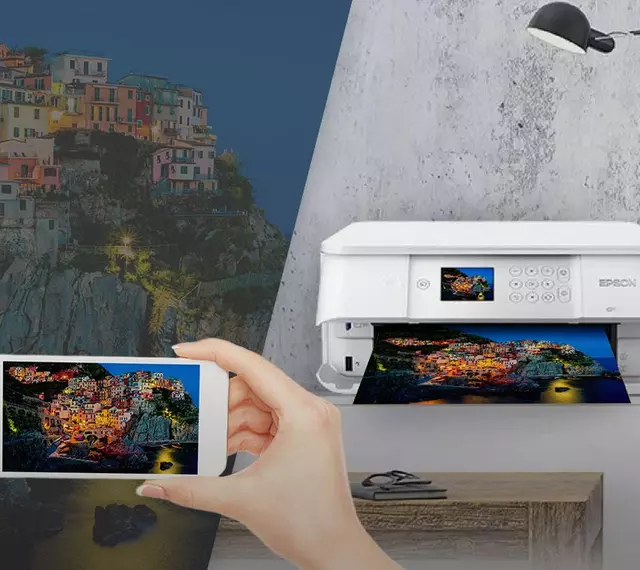
How to Print From Your Smartphone to an Epson Printer
Are you tired of using a computer or printer cable to print documents or photos from your smartphone? Look no further! In this article, we will guide you through the process of printing directly from your mobile device to an Epson printer using various methods.
Printing From Android Devices
If you’re an Android user, you can print directly from your phone to an Epson printer without needing a computer or cable. Here’s how:
Method 1: Using Wi-fi Connectivity
To print wirelessly from your Android device, make sure that both the printer and your smartphone are connected to the same Wi-Fi network. Then:
- Open the document or photo you want to print.
- Tap on the “Share” icon (three dots) and select “Print.”
- Choose your Epson printer from the list of available printers.
- Select the number of copies, orientation, and other printing options as desired.
- Tap “Print” to start the printing process.
Method 2: Using a Usb Cable
If your Epson printer is not connected to Wi-Fi or you prefer to use a cable, you can print from your Android device using a USB OTG (On-The-Go) adapter. Here’s how:
- Purchase a USB OTG adapter compatible with your smartphone model.
- Connect the printer to the adapter and then connect the adapter to your phone.
- Open the document or photo you want to print.
- Tap on the “Share” icon and select “Print.”
- Choose your Epson printer from the list of available printers.
- Select the number of copies, orientation, and other printing options as desired.
- Tap “Print” to start the printing process.
Printing From Ios Devices
If you’re an iOS user, printing directly from your iPhone or iPad to an Epson printer is also possible using various methods.
Method 1: Using Airprint
AirPrint is a built-in feature on iOS devices that allows you to print wirelessly without needing a computer or cable. Here’s how:
- Make sure both the printer and your iPhone are connected to the same Wi-Fi network.
- Open the document or photo you want to print.
- Tap on the “Share” icon (box with an arrow coming out) and select “Print.”
- Choose your Epson printer from the list of available printers.
- Select the number of copies, orientation, and other printing options as desired.
- Tap “Print” to start the printing process.
Method 2: Using The Epson Smart Panel App
If your Epson printer does not support AirPrint or you prefer to use a dedicated app, you can print wirelessly from your iOS device using the Epson Smart Panel app. Here’s how:
- Download and install the Epson Smart Panel app from the App Store.
- Open the document or photo you want to print.
- Tap on the “Share” icon (box with an arrow coming out) and select “Print.”
- Choose your Epson printer from the list of available printers.
- Select the number of copies, orientation, and other printing options as desired.
- Tap “Print” to start the printing process.
Tips And Troubleshooting
- Make sure both your smartphone and Epson printer are connected to the same Wi-Fi network for wireless printing.
- If you encounter any issues with the Epson Smart Panel app or AirPrint, try restarting your device and reconnecting to the Wi-Fi network.
- For Android devices using a USB cable, ensure that the OTG adapter is compatible with your phone model.
Conclusion
Printing from your smartphone to an Epson printer is now easier than ever. With these methods, you can print wirelessly or using a cable without needing a computer. Try out the steps outlined in this article and enjoy the convenience of mobile printing!
Frequently Asked Questions (FAQs)
- Q: Do I Need a Computer to Print From my Smartphone?
A: No, you can print directly from your smartphone to an Epson printer using various methods. - Q: Can I Print Wirelessly From my Android Device?
A: Yes, if both the printer and your phone are connected to the same Wi-Fi network. - Q: How do I Install The Usb Otg Adapter on my Android Device?
A: Purchase a compatible OTG adapter, connect it to the printer, and then connect the adapter to your phone. - Q: Can I Print Wirelessly From my Ios Device?
A: Yes, using AirPrint or the Epson Smart Panel app. - Q: Do I Need to Download Any Apps to Print Wirelessly?
A: For Android devices, you’ll need the USB OTG adapter; for iOS devices, use AirPrint or the Epson Smart Panel app. - Q: What if my Printer Doesn’t Support Airprint?
A: Use the Epson Smart Panel app instead. - Q: Can I Print Multiple Documents at Once?
A: Yes, select the number of copies and orientation as desired when printing. - Q: How do I Troubleshoot Issues With Mobile Printing?
A: Restart your device, reconnect to the Wi-Fi network, or try using a different method.


