
How to Erase Calendar on Iphone: A Step-by-step Guide
Are you tired of cluttered calendars on your iPhone? Do you want to erase a calendar that’s no longer needed or delete unwanted events? Look no further! In this article, we’ll guide you through the process of erasing a calendar on your iPhone.
Why Erase a Calendar on Iphone?
Before we dive into the steps, let’s talk about why you might want to erase a calendar on your iPhone. Perhaps you’ve created a duplicate calendar by accident, or maybe you’ve added events that are no longer relevant. Whatever the reason, erasing a calendar can help declutter your device and make it easier to manage your schedules.
Step 1: Access The Calendar App
To erase a calendar on your iPhone, you’ll need to access the Calendar app first. This is easy – simply tap on the Calendar icon on your home screen or in the App Store.
Step 2: Select The Calendar You Want to Erase
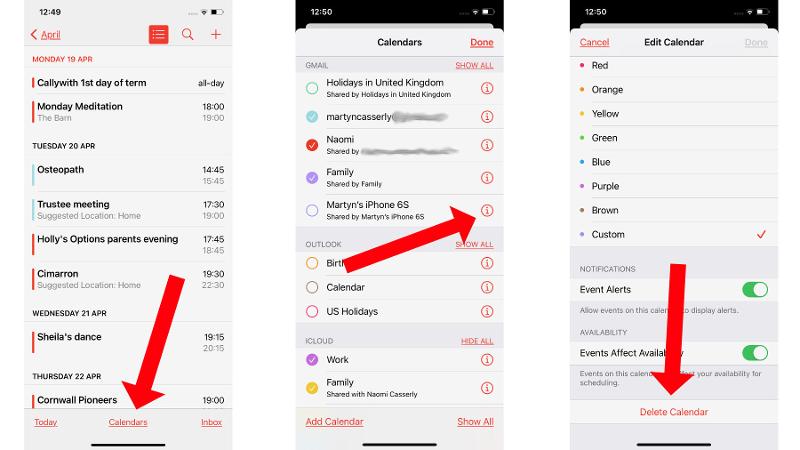
Once you’re in the Calendar app, tap on the “Calendars” tab at the bottom of the screen. Here, you’ll see a list of all the calendars associated with your Apple ID. Find the calendar you want to erase and tap on it.
Step 3: Delete The Calendar
Now that you’ve selected the calendar you want to erase, tap on the “Delete Calendar” button at the bottom of the screen. Confirm that you want to delete the calendar by tapping “Delete Calendar” again.
Important Note: Before deleting a calendar, be aware that all events associated with this calendar will also be deleted. If you want to keep specific events from this calendar, consider moving them to another calendar first.
What Happens When You Erase a Shared Calendar?
If the calendar you’re trying to erase is shared with others, deleting it won’t remove it from their calendars entirely. However, it will no longer be visible in your list of calendars, and you’ll need to re-invite them if you want to share it again.
How to Erase Birthdays Calendar on Iphone
Unfortunately, the Birthdays calendar on your iPhone can’t be deleted outright. However, you can manually remove birthdays from individual contacts or conceal all birthdays using the Calendar app’s settings.
Step 4: Access Settings to Conceal All Birthdays
To conceal all birthdays, go to Settings > Calendar and toggle off the “Birthdays” option. You can also do this within the Calendar app itself by selecting “Calendars” at the bottom of the screen and removing the checkmark beside “Birthdays.”
How to Erase Spam Calendar on Iphone
Spam calendars might contain unwanted events or invitations that you didn’t ask for. To delete these, follow these steps:
- Open the Calendar app.
- Tap on the event or invitation you want to delete.
- Select the option “Delete” and confirm.
What If I Want to Delete a Shared Account?
If you’re having trouble deleting a shared account that’s causing issues with your calendar, try accessing Settings > Calendar > Accounts and removing the checkmark beside the problematic account.
How to Erase Calendars on Computer?
Yes, you can also erase calendars associated with your iCloud account on your computer. Simply log in to the iCloud website using your Apple ID credentials, select the “Calendar” option, and choose the calendar you want to delete.
Conclusion:
Erasing a calendar on your iPhone might seem daunting, but it’s actually quite straightforward once you know where to look. Remember to back up any events or data that you want to keep before deleting a calendar. If you have any questions or issues along the way, feel free to ask!
FAQs:
Q: Can I erase multiple calendars at once?
A: Yes, you can select multiple calendars and delete them together.
Q: What happens if I delete a shared calendar?
A: The calendar will still be visible on other users’ devices but won’t appear in your list of calendars.
Q: How do I conceal all birthdays?
A: Go to Settings > Calendar and toggle off the “Birthdays” option, or select “Calendars” within the Calendar app and remove the checkmark beside “Birthdays.”
Q: Can I delete spam events from my calendar?
A: Yes, simply tap on the event and select “Delete.”


