
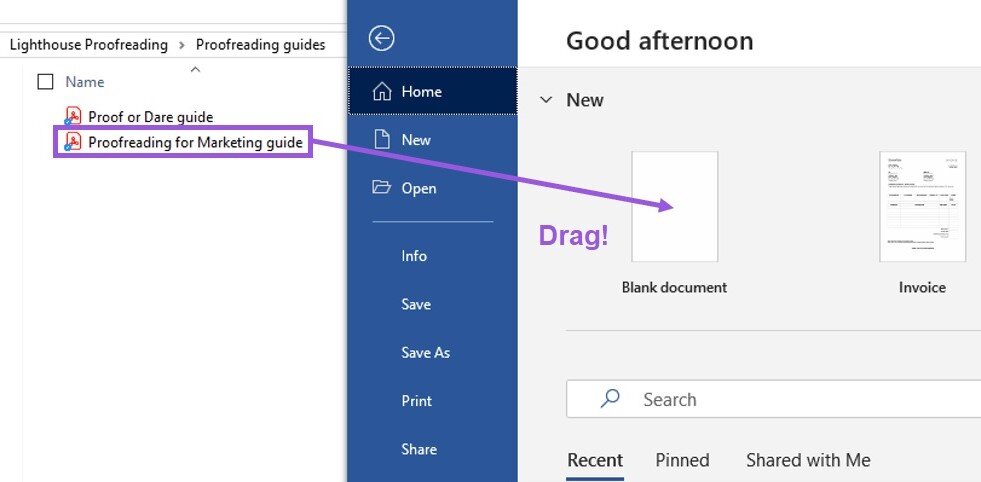
Transforming a Pdf File Into Word: A Step-by-step Guide
Are you tired of struggling to convert a PDF file into a Word document? Look no further! In this article, we will explore the best ways to transform a PDF file into a Word document, complete with step-by-step instructions and helpful tips.
Why Convert a Pdf File to Word?
Converting a PDF file to Word can be incredibly useful for various reasons. Perhaps you received a PDF file from someone else and need to edit it, or maybe you created a PDF file yourself but want to make changes to the text. Whatever your reason, converting a PDF file to Word is a straightforward process that can save you time and effort.
Best Methods to Convert a Pdf File to Word
Fortunately, there are several methods to convert a PDF file to Word, both online and offline. Let’s take a look at some of the best options:
1. Doxillion Document Converter (Windows/Mac)
Doxillion is an excellent tool that allows you to convert PDF files to Word documents with ease. Here’s how to do it:
- Download and install Doxillion on your Windows or Mac computer.
- Open the program and click on “Add rows” in the top-left corner of the window.
- Select the PDF file you want to convert by clicking on “Choose folder of output…” and selecting the desired location.
- Choose the format for the converted Word document (e.G., DOCX, DOC, HTML, EPUB, etc.).
- Click on “Convert” in the bottom-right corner of the window.
2. Microsoft Word (Windows/Mac)
Microsoft Word is another popular option to convert PDF files to Word documents. Here’s how:
- Open Microsoft Word and click on “File” > “Open” (or press Ctrl+O on Windows or Command+O on Mac).
- Navigate to the location of your PDF file and select it.
- Once the file is open, you can edit and modify the text as needed.
3. Libreoffice (Windows/Mac/Linux)
LibreOffice is a free and open-source productivity suite that includes a word processor. Here’s how to convert a PDF file to Word using LibreOffice:
- Download and install LibreOffice on your computer.
- Open LibreOffice Writer and click on “File” > “Open” (or press Ctrl+O on Windows or Command+O on Mac).
- Navigate to the location of your PDF file and select it.
4. Cloudconvert
CloudConvert is a cloud-based service that allows you to convert various file formats, including PDF files. Here’s how to use it:
- Visit the CloudConvert website and click on “Convert” in the top-right corner.
- Select the format for the converted document (e.G., DOCX, DOC).
- Click on “Select rows” and choose the PDF file you want to convert.
- Wait for the conversion process to complete.
5. Google Drive
Google Drive is a cloud-based storage service that also includes a word processor called Google Docs. Here’s how to use it:
- Visit the Google Drive website and sign in with your account credentials.
- Click on “New” > “File upload” and select the PDF file you want to convert.
- Once the file is uploaded, click on “Open” and then “Edit.”
- You can now edit and modify the text as needed.
6. Free Online Ocr
Free Online OCR is a web-based service that allows you to extract text from images, including scanned PDF files. Here’s how to use it:
- Visit the Free Online OCR website and click on “Select rows” in the top-right corner.
- Select the PDF file you want to convert by clicking on “Choose folder of output…” and selecting the desired location.
- Choose the format for the converted Word document (e.G., DOCX, DOC).
- Click on “Convert” and wait for the process to complete.
7. Ilovepdf (iOS/Android/iPadOS)
ILovePDF is a popular mobile app that allows you to convert PDF files to Word documents using your smartphone or tablet. Here’s how:
- Download and install iLovePDF on your device.
- Open the app and select the PDF file you want to convert.
- Choose the format for the converted document (e.G., DOCX, DOC).
- Wait for the conversion process to complete.
8. Able2doc Pdf to Word Converter (iOS/Android/iPadOS)
Able2Doc is another mobile app that allows you to convert PDF files to Word documents using your smartphone or tablet. Here’s how:
- Download and install Able2Doc on your device.
- Open the app and select the PDF file you want to convert.
- Wait for the conversion process to complete.
9. Converter Pdf to Word (iOS/Android/iPadOS)
Converter PDF to Word is another mobile app that allows you to convert PDF files to Word documents using your smartphone or tablet. Here’s how:
- Download and install Converter PDF to Word on your device.
- Open the app and select the PDF file you want to convert.
Conclusion
Converting a PDF file to Word can be incredibly useful for various reasons, whether it’s for editing purposes or preserving the original document format. The methods outlined above provide a range of options, from online services like CloudConvert and Google Drive to offline software like Doxillion and Microsoft Word.
While some services may have limitations, such as image-based PDFs or scanned documents, there are still various alternatives available, including cloud-based services like Free Online OCR and mobile apps like iLovePDF and Able2Doc.
Frequently Asked Questions
- Q: What is The Best Method to Convert a Pdf File to Word?
A: The best method depends on your specific needs and preferences. CloudConvert and Google Drive are excellent options for online services, while Doxillion and Microsoft Word offer offline solutions. - Q: Can I convert scanned PDF files using these methods?
A: Unfortunately, some services may not work well with scanned PDF files or those containing images with text. However, Free Online OCR and cloud-based services like CloudConvert can help extract text from scanned documents. - Q: Are there any limitations to consider when converting a PDF file to Word?
A: Yes, some methods might have limitations, such as image-based PDFs or scanned documents. Always check the service’s terms and conditions before using it. - Q: Can I use these methods on my smartphone or tablet?
A: Yes, many of these services offer mobile apps for iOS and Android devices, making it easy to convert PDF files to Word on-the-go! - Q: Are there any free options available?
A: Absolutely! Services like CloudConvert, Google Drive, and Free Online OCR offer free versions or trials that can help you get started. - Q: Can I use these methods for commercial purposes?
A: Check the terms of service for each method to determine if they are suitable for your specific needs.
Final Thoughts
Converting a PDF file to Word is now easier than ever, thanks to various online and offline services available. Whether you need to edit a document or preserve its original format, these methods can help you achieve your goals quickly and efficiently.
So go ahead, give one (or more) of them a try, and enjoy the benefits of converting PDF files to Word!


