
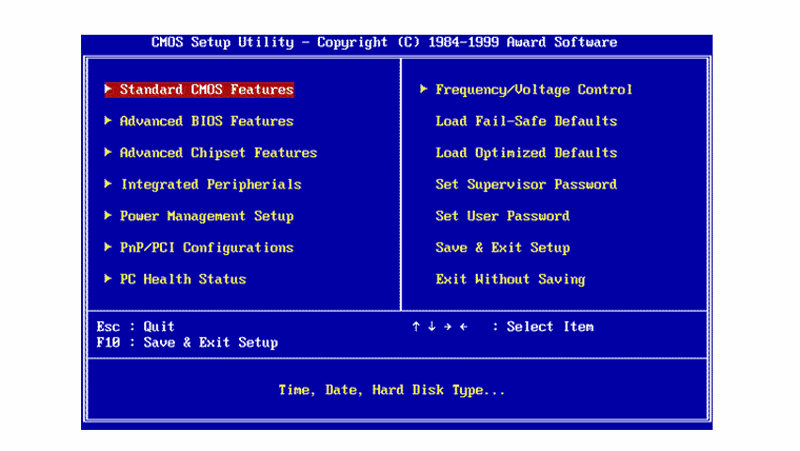
How to Access Bios Settings on Windows 10
Are you wondering how to access BIOS settings on your Windows 10 PC? Look no further! In this article, we will guide you through the process of accessing BIOS settings on different computer models.
Understanding Bios And Uefi
Before we dive into the instructions, let’s briefly explain what BIOS (Basic Input/Output System) and UEFI (Unified Extensible Firmware Interface) are. The BIOS is a software that resides in a chip on the motherboard and contains instructions for initiating the system and communicating between hardware components. On computers running Windows 10, the BIOS has been replaced by UEFI, which offers a more modern and user-friendly interface.
Accessing Bios Settings on Windows 10
To access BIOS settings on your Windows 10 PC, follow these steps:
- Click on The Start Button: Located in the lower-left corner of the screen.
- Hold Down The Shift Key: While clicking on the Start button.
- Select Restart: From the menu that appears.
- Immediately Press The F2 Key: As soon as the computer restarts, you should see a menu with options to access UEFI settings.
Alternative Methods
If the above method doesn’t work for you, try these alternative methods:
- For HP computers: Turn off your computer, then press the F1 or F10 key when it boots up.
- For Lenovo computers: Press the F2 or F12 key during boot-up.
- For Asus computers: Press the F2 or Del key during boot-up.
Accessing Bios Settings on Acer Computers
If you have an Acer computer, follow these steps to access BIOS settings:
- Click on the Start button and hold down the Shift key.
- Select Restart from the menu that appears.
- Immediately press the F2 key when your computer restarts.
Modifying Uefi Settings
Once you’ve accessed the UEFI settings, you can modify them as needed. The available options may vary depending on your computer model. Some common settings to adjust include:
- Secure Boot: Disables or enables secure boot mode.
- Legacy BIOS: Enables or disables legacy BIOS mode.
- Boot Order: Changes the order in which devices are prioritized for booting.
Conclusion
Accessing BIOS settings on Windows 10 can seem intimidating, but it’s a relatively straightforward process. By following these steps and understanding what BIOS and UEFI are, you’ll be able to modify your computer’s settings as needed.
Frequently Asked Questions (FAQs)
- What is The Difference Between Bios And Uefi?
BIOS is an older software that resides in a chip on the motherboard, while UEFI is a more modern firmware interface that offers a user-friendly interface. - How do I Access Bios Settings on my Windows 10 Pc?
To access BIOS settings on your Windows 10 PC, click on the Start button and hold down the Shift key while selecting Restart from the menu. - What Are Some Common Settings to Adjust in Uefi?
Some common settings to adjust include Secure Boot, Legacy BIOS, and Boot Order.
Additional Resources
- For more information on accessing BIOS settings on different computer models, visit the manufacturer’s website for specific instructions.
- Check out our article on modifying UEFI settings for a more detailed guide.


