
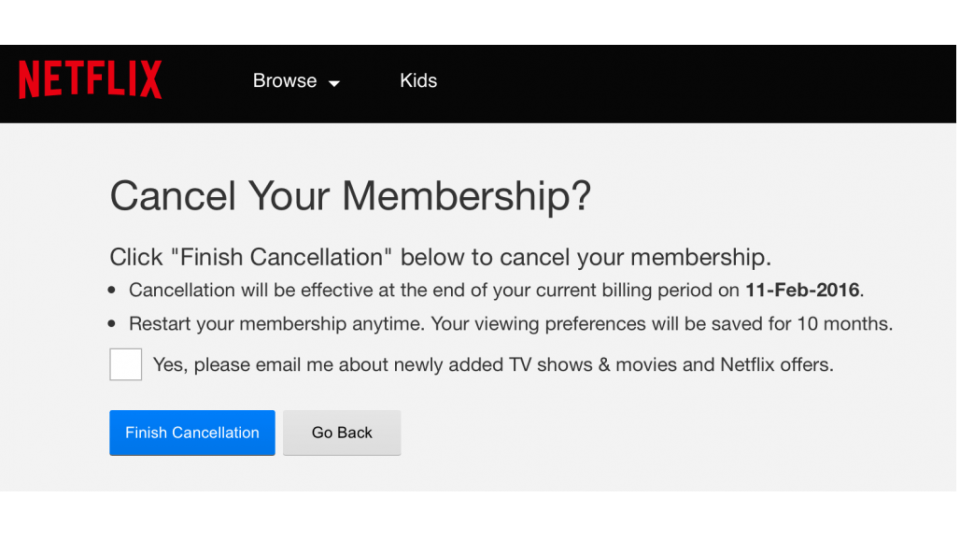
How to Cancel Your Netflix Subscription: A Step-by-step Guide
Are you tired of Netflix and want to cancel your subscription? Look no further! In this article, we will guide you through the process of canceling your Netflix subscription on various devices, including PC, smartphone, tablet, and TV.
Why Cancel Netflix?
Before we dive into the step-by-step guide, let’s talk about why you might want to cancel your Netflix subscription. Maybe you’ve been using it for free during the trial period and don’t want to pay for it anymore. Or perhaps you’re not satisfied with the content available on the platform. Whatever your reason, we’ve got you covered.
How to Cancel Netflix Subscription on PC
To cancel your Netflix subscription on PC, follow these steps:
- Log in to Your Netflix Account: Go to the Netflix website and log in to your account.
- Click on Your Profile Picture: In the top right corner of the screen, click on your profile picture.
- Select “Account”: From the dropdown menu, select “Account”.
- Scroll Down to The Subscription Section: Scroll down to the bottom of the page and find the “Subscription” section.
- Click on “Cancel Subscription”: Click on the “Cancel subscription” button.
How to Cancel Netflix Subscription on Smartphone
To cancel your Netflix subscription on smartphone, follow these steps:
- Open The Netflix App: Open the Netflix app on your Android or iOS device.
- Log in to Your Account: Log in to your Netflix account using your email and password.
- Tap on “Account”: Tap on the “Account” icon (represented by a person) at the bottom of the screen.
- Scroll Down to The Subscription Section: Scroll down to find the “Subscription” section.
- Tap on “Cancel Subscription”: Tap on the “Cancel subscription” button.
How to Cancel Netflix Subscription on TV
To cancel your Netflix subscription on TV, follow these steps:
- Unfortunately, it’s not possible to cancel your Netflix subscription directly from the TV app. You’ll need to use a computer or smartphone to cancel your subscription.
How to Cancel Netflix Subscription With Sky
If you’re a Sky customer and want to cancel your Netflix subscription, follow these steps:
- Log in to Your Sky Account: Log in to your Sky account on their website.
- Click on “Your Subscription”: Click on the “Your subscription” tab.
- Select “Netflix”: Select the Netflix subscription you want to cancel.
- Click on “Cancel Subscription”: Click on the “Cancel subscription” button.
How to Cancel Netflix Subscription With Tim
If you’re a TIM customer and want to cancel your Netflix subscription, follow these steps:
- Contact Tim’s Customer Service: Call TIM’s customer service number (187 for fixed line or 119 for mobile) to request cancellation of your Netflix subscription.
- Deactivate The Decoder: If you have a decoder delivered by TIM, make sure to return it after canceling your Netflix subscription.
How to Cancel Automatic Subscription Renewal
If you want to cancel the automatic renewal of your Netflix subscription, follow these steps:
- Log in to Your Netflix Account: Log in to your Netflix account on their website.
- Click on “Account”: Click on the “Account” icon (represented by a person) at the top right corner of the screen.
- Scroll Down to The Subscription Section: Scroll down to find the “Subscription” section.
- Click on “Cancel Automatic Renewal”: Click on the “Cancel automatic renewal” button.
What Happens After Canceling Subscription?
After canceling your Netflix subscription, you’ll have a 10-month period to reactivate it and retrieve any data associated with your account. If you decide not to reactivate, all data will be deleted.
Frequently Asked Questions (FAQs)
- Can I Cancel my Netflix Subscription on Tv?
Unfortunately, no. You can only cancel your subscription from a computer or smartphone.
2. How do I Cancel my Automatic Subscription Renewal?
Follow the steps outlined in this article to cancel the automatic renewal of your Netflix subscription.
3. Will I Still be Able to Watch Netflix Content After Canceling?
Yes, you’ll still be able to watch Netflix content until the end of the current billing cycle or trial period.
4. What Happens if I Don’t Reactivate my Netflix Subscription Within 10 Months?
All data associated with your account will be deleted, and you won’t be able to access it again.
Conclusion
Canceling your Netflix subscription is a straightforward process that can be done on various devices, including PC, smartphone, tablet, and TV (using a computer or smartphone). Remember to follow the steps outlined in this article to ensure a smooth cancellation experience. If you have any further questions, feel free to ask!


