
Impossible Install Windows on a Disc: A Step-by-step Guide
Are you struggling to install Windows on your computer’s disc? Don’t worry, you’re not alone! Many users face this issue, but fortunately, it’s usually due to a simple problem that can be solved with a few tweaks. In this article, we’ll guide you through the most common reasons why Windows installation fails and provide step-by-step solutions to resolve the issues.
Understanding The Problem
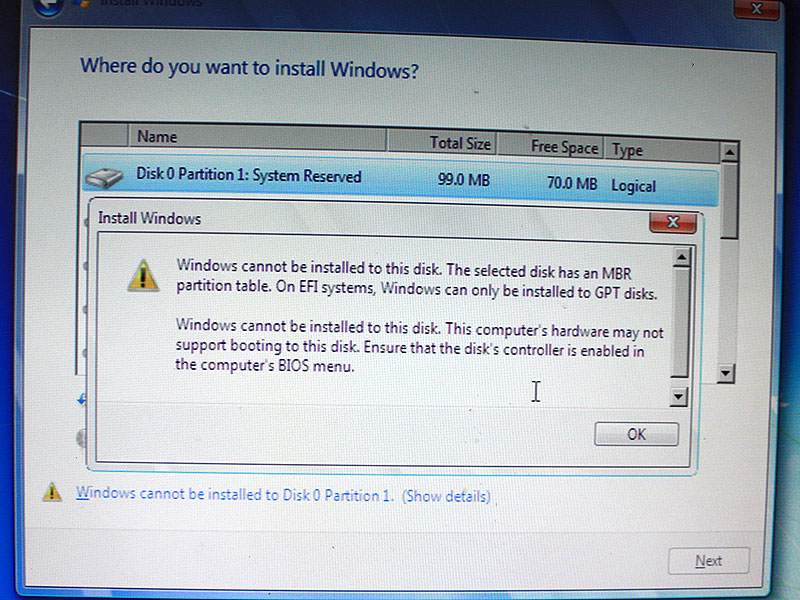
Before we dive into the solutions, let’s first understand what might be causing the problem. When you try to install Windows on your computer’s disc, the operating system fails to recognize or load the necessary drivers, leading to an error message stating that it’s impossible to install Windows on the disc.
Reasons For Failure
The reasons for this failure can vary, but some common causes include:
- Incorrect Boot Mode: Your computer might be set to boot in legacy BIOS mode instead of UEFI.
- Driver Issues: The drivers required for Windows installation are not properly loaded or recognized.
- Partition Type: Your disc might have an incompatible partition type, such as MBR (Master Boot Record), which needs to be converted to GPT (GUID Partition Table) for larger capacity discs.
Solution 1: Change The Boot Mode to Uefi
To resolve this issue, you can try changing your computer’s boot mode from legacy BIOS to UEFI. Here’s how:
How to Change Boot Mode in Bios/uefi
- Restart your computer and enter the BIOS or UEFI settings by pressing F2, F10, or Del (the key may vary depending on your motherboard).
- Select “Boot” or “Advanced” options.
- Choose the UEFI boot mode instead of legacy BIOS.
- Save changes and exit.
How to Change Boot Mode in Windows
If you’re unable to change the boot mode in BIOS/UEFI, you can try using a tool like EasyBCD to modify the boot settings from within Windows.
Solution 2: Load Drivers During Setup
Another possible solution is to load the necessary drivers during the Windows setup process. Here’s how:
How to Load Driver in Windows Setup
- Insert your installation media (CD, DVD, or USB drive).
- Follow the on-screen instructions to initiate the installation process.
- When prompted, click “Load driver” and select the appropriate driver from a previously downloaded package.
Solution 3: Convert Partition Type to Gpt
If you’re using an older disc with a capacity larger than 2TB, it might be necessary to convert the partition type from MBR to GPT. Here’s how:
How to Convert Partition Type in Windows Setup
- Insert your installation media (CD, DVD, or USB drive).
- Follow the on-screen instructions to initiate the installation process.
- Press Shift+F10 during setup to access the Command Prompt.
- Run the command “diskpart,” then list available disks and select the one you want to convert. Type “clean” followed by “convert gpt.”
Solution 4: Reinstall Windows With Clean Installation
If none of the above solutions work, it might be time to perform a clean installation of Windows on a new disc or partition.
How to Perform a Clean Installation
- Back up any important files and data.
- Erase all partitions on your disc (including Windows).
- Create a new primary partition and format it.
- Insert your installation media (CD, DVD, or USB drive) and follow the on-screen instructions to initiate the installation process.
Conclusion
Installing Windows on a disc can be a bit tricky, but with these solutions, you should be able to resolve most issues. Remember to back up any important data before attempting any major changes. If none of the above works, it might be time to consult a professional for further assistance.
Resources And Tools
For more information on testing your hard drive or troubleshooting Windows installation, check out these resources:
- Microsoft’s official documentation: Www.Microsoft.Com
- EasyBCD: A tool to modify boot settings from within Windows.
- AOMEI Partition Assistant: A utility for partition management and conversion.
I hope this comprehensive guide has been helpful in resolving your issues with installing Windows on a disc! If you have any further questions or concerns, feel free to ask.


