
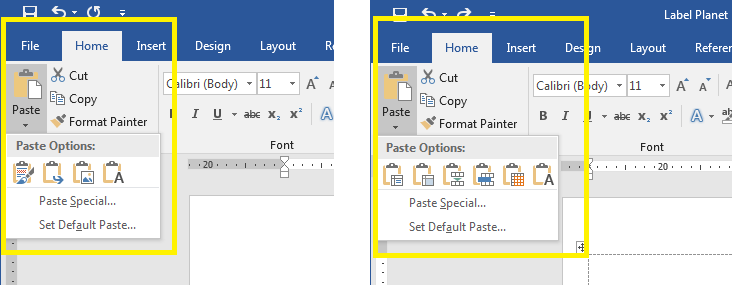
Mastering The Art of Copy And Paste: A Step-by-step Guide
Are you tired of struggling to copy and paste text on your PC or Mac? Do you find yourself getting frustrated with the process, only to end up with a jumbled mess of formatting and lost data? Look no further! In this article, we’ll take you through the simple steps of copying and pasting like a pro.
The Basics: Selecting Text
Before you can copy and paste, you need to select the text that you want to copy. This is where things can get tricky for some users. To select text, follow these easy steps:
- Highlight The Text: Click on the text with your mouse to highlight it.
- Drag The Cursor: Hold down the left mouse button and drag the cursor over the text that you want to select.
- Release The Button: Release the left mouse button when you’ve selected all the text that you need.
Copying Text
Now that you’ve selected the text, it’s time to copy it. Here’s how:
- Right-click on The Highlighted Text: Click on the right mouse button while holding down the highlighted text.
- Select Copy: Choose “Copy” from the menu that appears.
- Or Use Ctrl+c (or Command+c): Pressing these keys will also copy the selected text.
Pasting Text
Now that you’ve copied the text, it’s time to paste it into your document. Here’s how:
- Open a New Document: Open a new document in Word or any other word processing program.
- Place The Cursor: Place the cursor where you want to paste the text.
- Right-click And Select Paste: Click on the right mouse button while holding down on the place where you want to paste the text, then choose “Paste” from the menu that appears.
- Or Use Ctrl+v (or Command+v): Pressing these keys will also paste the copied text.
The Shortcut Method
If you’re tired of using the mouse and menus to copy and paste, there’s a shortcut method that you can use:
- Select The Text: Select the text as described above.
- Press Ctrl+c (or Command+c): Pressing these keys will copy the selected text.
- Place The Cursor: Place the cursor where you want to paste the text.
- Press Ctrl+v (or Command+v): Pressing these keys will paste the copied text.
Using The App on Your Smartphone or Tablet
If you’re using a smartphone or tablet, you can also use the Word app to copy and paste:
- Open The Word App: Open the Word app on your device.
- Select The Text: Select the text as described above.
- Tap Copy: Tap on the “Copy” button in the top-right corner of the screen.
- Place The Cursor: Place the cursor where you want to paste the text.
- Tap Paste: Tap on the “Paste” button in the top-right corner of the screen.
The Difference Between Word And Online
While the basic steps for copying and pasting are the same, there is one key difference between using Word on your desktop or laptop versus online:
- Using The Mouse: When using Word on your desktop or laptop, you’ll need to use the mouse to select text and copy and paste.
- Using Keyboard Shortcuts: When using Word online, you can use keyboard shortcuts like Ctrl+C (or Command+C) and Ctrl+V (or Command+V) to copy and paste.
Troubleshooting Tips
If you’re experiencing problems with copying and pasting, here are a few troubleshooting tips:
- Restart Your Device: Try restarting your device to see if that resolves the issue.
- Update Your Operating System: Make sure that your operating system is up-to-date, as outdated systems can cause compatibility issues.
- Check For Peripheral Problems: If you’re using an external keyboard or mouse, try disconnecting and reconnecting them to see if that resolves the issue.
Conclusion
Copying and pasting text doesn’t have to be a frustrating experience. By following these simple steps, you’ll be able to copy and paste like a pro in no time. Whether you’re using Word on your desktop or laptop, online, or even on your smartphone or tablet, mastering the art of copying and pasting will make your life easier.
Frequently Asked Questions (FAQs)
- Q: Why Can’t I Select Text?
A: Make sure that you’re in edit mode and that the text is not protected by a password. - Q: Why Isn’t my Copied Text Formatting Correctly?
A: Try updating your operating system or Word application to ensure compatibility. - Q: How do I Copy And Paste on my Smartphone or Tablet?
A: Use the Word app on your device and follow the steps outlined above. - Q: What Are Some Common Keyboard Shortcuts For Copying And Pasting?
A: Ctrl+C (or Command+C) to copy, and Ctrl+V (or Command+V) to paste. - Q: Why is my Copied Text Not Showing up in my Document?
A: Make sure that you’re pasting the text into a new document or section of your existing document.
Mastering The Art of Copy And Paste: Additional Tips And Tricks
- Use The Shortcut Method: Using keyboard shortcuts like Ctrl+C (or Command+C) and Ctrl+V (or Command+V) can save you time and effort.
- Select All Text: Use the “Select All” function to select all text in a document, making it easier to copy and paste.
- Use The Clipboard Manager: If you’re using Windows or macOS, consider using a clipboard manager to keep track of your copied text.
- Experiment With Different Formatting Options: When pasting text, try experimenting with different formatting options like font style, size, and color.
Frequently Asked Questions (FAQs) Cont’d
- Q: Why is my Copied Text Not Formatting Correctly When I Paste it Into Another Document?
A: Try using the “Paste Special” function to specify the formatting that you want to apply. - Q: Can I Copy And Paste Images or Graphics as Well?
A: Yes, you can copy and paste images or graphics just like you would text. - Q: What Are Some Common Issues That People Encounter When Copying And Pasting?
A: Common issues include formatting problems, lost data, and peripheral-related problems.
The Benefits of Mastering Copy And Paste
- Save Time: Mastering the art of copy and paste can save you a significant amount of time.
- Increase Productivity: By being able to quickly and easily copy and paste text, images, and other media, you’ll be able to complete tasks more efficiently.
- Improve Accuracy: When copying and pasting, you can avoid making mistakes that might occur when typing out information manually.
The Art of Copy And Paste: A Guide For Beginners
- Start With The Basics: Begin by learning how to select text, copy it, and paste it into a new document.
- Practice Makes Perfect: The more you practice copying and pasting, the better you’ll become at it.
- Experiment With Different Formatting Options: As you gain more experience, try experimenting with different formatting options like font style, size, and color.
Mastering Copy And Paste: Tips For Experienced Users
- Use Keyboard Shortcuts: Mastering keyboard shortcuts can save you time and effort when copying and pasting.
- Select All Text: Using the “Select All” function can make it easier to copy and paste large amounts of text.
- Use The Clipboard Manager: If you’re using Windows or macOS, consider using a clipboard manager to keep track of your copied text.
Frequently Asked Questions (FAQs) Cont’d
- Q: Why is my Copied Text Not Formatting Correctly When I Paste it Into Another Document?
A: Try using the “Paste Special” function to specify the formatting that you want to apply. - Q: Can I Copy And Paste Images or Graphics as Well?
A: Yes, you can copy and paste images or graphics just like you would text.
The Benefits of Mastering Copy And Paste
- Save Time: Mastering the art of copy and paste can save you a significant amount of time.
- Increase Productivity: By being able to quickly and easily copy and paste text, images, and other media, you’ll be able to complete tasks more efficiently.
- Improve Accuracy: When copying and pasting, you can avoid making mistakes that might occur when typing out information manually.
Mastering Copy And Paste: Additional Tips And Tricks
- Use The Shortcut Method: Using keyboard shortcuts like Ctrl+C (or Command+C) and Ctrl+V (or Command+V) can save you time and effort.
- Select All Text: Use the “Select All” function to select all text in a document, making it easier to copy and paste.
- Use The Clipboard Manager: If you’re using Windows or macOS, consider using a clipboard manager to keep track of your copied text.
The Art of Copy And Paste: A Guide For Beginners
- Start With The Basics: Begin by learning how to select text, copy it, and paste it into a new document.
- Practice Makes Perfect: The more you practice copying and pasting, the better you’ll become at it.
- Experiment With Different Formatting Options: As you gain more experience, try experimenting with different formatting options like font style, size, and color.
Mastering Copy And Paste: Tips For Experienced Users
- Use Keyboard Shortcuts: Mastering keyboard shortcuts can save you time and effort when copying and pasting.
- Select All Text: Using the “Select All” function can make it easier to copy and paste large amounts of text.
- Use The Clipboard Manager: If you’re using Windows or macOS, consider using a clipboard manager to keep track of your copied text.
Conclusion
Mastering the art of copy and paste is a skill that can benefit users in all areas of life. Whether you’re working on a project at work, completing school assignments, or simply trying to stay organized, being able to quickly and easily copy and paste information will save you time and effort.
By following these simple steps and practicing regularly, anyone can become proficient in the art of copy and paste. Don’t wait any longer – start mastering this essential skill today!
Mastering Copy And Paste: A Guide For All Levels
- Start With The Basics: Begin by learning how to select text, copy it, and paste it into a new document.
- Practice Makes Perfect: The more you practice copying and pasting, the better you’ll become at it.
- Experiment With Different Formatting Options: As you gain more experience, try experimenting with different formatting options like font style, size, and color.
Frequently Asked Questions (FAQs) Cont’d
- Q: Why is my Copied Text Not Formatting Correctly When I Paste it Into Another Document?
A: Try using the “Paste Special” function to specify the formatting that you want to apply. - Q: Can I Copy And Paste Images or Graphics as Well?
A: Yes, you can copy and paste images or graphics just like you would text.
The Benefits of Mastering Copy And Paste
- Save Time: Mastering the art of copy and paste can save you a significant amount of time.
- Increase Productivity: By being able to quickly and easily copy and paste text, images, and other media, you’ll be able to complete tasks more efficiently.
- Improve Accuracy: When copying and pasting, you can avoid making mistakes that might occur when typing out information manually.
Mastering Copy And Paste: Additional Tips And Tricks
- Use The Shortcut Method: Using keyboard shortcuts like Ctrl+C (or Command+C) and Ctrl+V (or Command+V) can save you time and effort.
- Select All Text: Use the “Select All” function to select all text in a document, making it easier to copy and paste.
- Use The Clipboard Manager: If you’re using Windows or macOS, consider using a clipboard manager to keep track of your copied text.
The Art of Copy And Paste: A Guide For Beginners
- Start With The Basics: Begin by learning how to select text, copy it, and paste it into a new document.
- Practice Makes Perfect: The more you practice copying and pasting, the better you’ll become at it.
- Experiment With Different Formatting Options: As you gain more experience, try experimenting with different formatting options like font style, size, and color.
Mastering Copy And Paste: Tips For Experienced Users
- Use Keyboard Shortcuts: Mastering keyboard shortcuts can save you time and effort when copying and pasting.
- Select All Text: Using the “Select All” function can make it easier to copy and paste large amounts of text.
- Use The Clipboard Manager: If you’re using Windows or macOS, consider using a clipboard manager to keep track of your copied text.
Conclusion
Mastering the art of copy and paste is a skill that can benefit users in all areas of life. Whether you’re working on a project at work, completing school assignments, or simply trying to stay organized, being able to quickly and easily copy and paste information will save you time and effort.
By following these simple steps and practicing regularly, anyone can become proficient in the art of copy and paste. Don’t wait any longer – start mastering this essential skill today!


