
How to Disable Windows Defender: A Step-by-step Guide
Are you tired of Windows Defender’s constant notifications and system slowdowns? Do you want to use an alternative antivirus software on your computer? Look no further! In this article, we will guide you through the process of disabling Windows Defender on various versions of Windows.
Why Disable Windows Defender?
While Windows Defender is a built-in antivirus software that provides decent protection against malware and viruses, it can sometimes interfere with other programs or cause system slowdowns. Additionally, if you already have an alternative antivirus software installed, running two antivirus programs at the same time can lead to conflicts and decreased system performance.
Method 1: Disable Windows Defender on Windows 11
To disable Windows Defender on Windows 11, follow these steps:
- Click on the Start button and select Settings.
- In the Settings window, click on Update & Security.
- Select Windows Security from the left menu.
- Click on Virus & threat protection settings.
- Toggle off the switch next to “Cloud-delivered protection” and “Automatic sample submission.”
- If you want to completely disable Windows Defender, toggle off the switch next to “Virus & threat protection.”
Method 2: Disable Windows Defender on Windows 10
To disable Windows Defender on Windows 10, follow these steps:
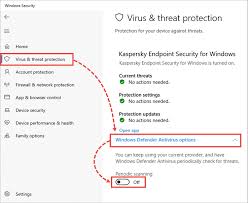
- Click on the Start button and type “Windows Security” in the search bar.
- Open the Windows Security app.
- Select Virus & threat protection from the left menu.
- Toggle off the switch next to “Cloud-delivered protection” and “Automatic sample submission.”
- If you want to completely disable Windows Defender, toggle off the switch next to “Virus & threat protection.”
Method 3: Disable Windows Defender on Windows 8/8.X
To disable Windows Defender on Windows 8/8.X, follow these steps:
- Click on the Start button and type “Windows Defender” in the search bar.
- Open the Windows Defender app.
- Select Settings from the left menu.
- Toggle off the switch next to “Cloud-based protection.”
- If you want to completely disable Windows Defender, toggle off the switch next to “Protection.”
Method 4: Disable Windows Defender on Windows 7
To disable Windows Defender on Windows 7, follow these steps:
- Click on the Start button and type “Windows Defender” in the search bar.
- Open the Windows Defender app.
- Select Options from the left menu.
- Toggle off the switch next to “Real-time protection.”
- If you want to completely disable Windows Defender, toggle off the switch next to “Protection.”
How to Remove Windows Defender Manually
If you want to remove Windows Defender manually, follow these steps:
- Click on the Start button and type “regedit” in the search bar.
- Open the Registry Editor app.
- Navigate to HKEY_LOCAL_MACHINE\SOFTWARE\Policies\Microsoft\Windows Defender.
- Delete the following keys:
- EnableAntiSpyware
- DisableAntiSpyware
- Restart your computer.
Important Note
Removing Windows Defender manually can be a complex process and may require administrative privileges. If you’re not comfortable with editing the registry, it’s recommended to use one of the above methods to disable Windows Defender.
Conclusion
Disabling Windows Defender on various versions of Windows is a straightforward process that can be completed in just a few steps. Whether you want to use an alternative antivirus software or simply don’t need the extra protection, following these methods will help you achieve your goal. Remember to always backup your system before making any changes to the registry.
Frequently Asked Questions (FAQs)
- Can I Disable Windows Defender on Windows 8/8.X?
Yes, you can disable Windows Defender on Windows 8/8.X by following Method 3 above.
2. Will Disabling Windows Defender Affect my System’s Security?
Disabling Windows Defender will leave your system vulnerable to malware and viruses. It’s recommended to use an alternative antivirus software for added protection.
3. Can I Remove Windows Defender Manually?
Yes, you can remove Windows Defender manually by following Method 4 above. However, be careful when editing the registry as it may cause system instability.
4. Will Disabling Windows Defender Affect my Computer’s Performance?
Disabling Windows Defender may not significantly affect your computer’s performance. However, running two antivirus programs at the same time can lead to conflicts and decreased system performance.
5. Can I Disable Windows Defender on Windows 7?
Yes, you can disable Windows Defender on Windows 7 by following Method 4 above.
6. Is it Safe to Remove Windows Defender Manually?
Removing Windows Defender manually requires administrative privileges and may require editing the registry. If you’re not comfortable with this process, it’s recommended to use one of the above methods to disable Windows Defender.
I hope this article has provided you with a clear guide on how to disable Windows Defender on various versions of Windows. Remember to always prioritize system security and consider using an alternative antivirus software for added protection.


