
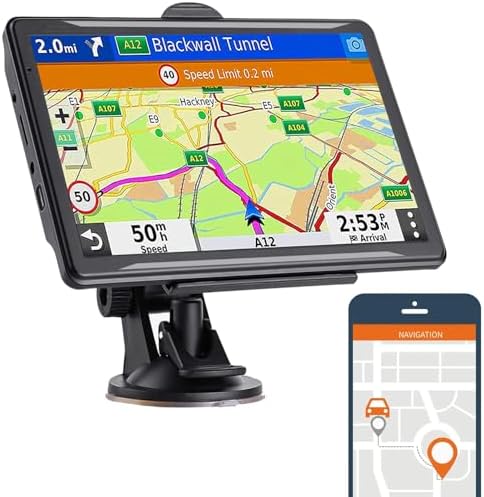
How to Update Your Satellite Browser: A Step-by-step Guide
Are you tired of outdated maps on your satellite browser? Do you want to ensure that your navigation system is always up-to-date with the latest cartographic data? Look no further! In this article, we will guide you through the process of updating your satellite browser, covering various brands such as Garmin, TomTom, Renault, Mercedes, Dacia, Hyundai, BMW, Volkswagen, and Audi.
What to Update in Your Satellite Browser
When updating a satellite browser, it’s essential to understand that several components can be updated, each contributing to the navigation experience. These include:
- Maps: The most critical component, as the calculation of routes is based on these maps.
- Software of System: Regulates the operation of the device, including the graphic interface and automatic algorithm for route calculation.
- Firmware: Ensures that the device operates smoothly and avoids future problems.
How to Update Your Garmin Satellite Browser
To update your Garmin satellite browser:
- Connect to Garmin Express.
- Download and install the program on Windows or Mac.
- Launch Garmin Express, connect your browser via USB, and follow the instructions to match it with Garmin Express.
- Select the updates available for your device and click Install.
How to Update Your Tomtom Satellite Browser
To update your TomTom satellite browser:
- Connect to MyDrive Connect (if compatible).
- Download and install the software on Windows or Mac.
- Launch MyDrive Connect, connect your browser via USB, and follow the instructions to match it with MyDrive Connect.
- Select the updates available for your device and click Install.
How to Update Your Renault Satellite Browser
To update your Renault satellite browser:
- Ensure you have the latest firmware version on your R-Link 2 system.
- Access the Renault website, enter your vehicle’s VIN, and follow the instructions to download the updates.
How to Update Your Mercedes Satellite Browser
To update your Mercedes satellite browser:
- Utilize the Service Update cartography online service.
- Allow automatic updates of cartographic data for your country.
- Download updates manually using a PC and install them on your vehicle.
How to Update Your Dacia Satellite Browser
To update your Dacia satellite browser:
- Use the Dacia Media Nav Toolbox software (available for Windows).
- Connect your browser via USB, save navigation data, and follow the instructions to update.
- Alternatively, use the Dacia Map Update app on your smartphone.
How to Update Your Hyundai Satellite Browser
To update your Hyundai satellite browser:
- Utilize OTA updates (for new Kona, Ioniq 5, or Ioniq 6 models).
- Download and install software using a PC (for other vehicles).
How to Update Your Bmw Satellite Browser
To update your BMW satellite browser:
- Connect to the system via USB.
- Insert the code provided by the retailer or agent.
- Follow the instructions on the official BMW website.
How to Update Your Volkswagen Satellite Browser
To update your Volkswagen satellite browser:
- Access the Volkswagen website and log in with your account.
- Select the updates available for your vehicle.
- Download and install the software according to the provided instructions.
How to Update Your Audi Satellite Browser
To update your Audi satellite browser:
- Use a SD card to download the updates (for compatible vehicles).
- Register on the myAudi platform to access the solution.
- Alternatively, contact an authorized dealer for assistance.
Conclusion
Updating your satellite browser is essential to ensure that you have the most up-to-date maps and navigation system. By following these step-by-step guides, you can keep your navigation experience smooth and efficient. Remember to always refer to the official manufacturer websites for specific instructions tailored to your vehicle’s make and model.
Frequently Asked Questions
- Q: Why is it Essential to Update my Satellite Browser?
A: Updating your satellite browser ensures that you have the latest cartographic data, which is crucial for accurate navigation. - Q: How Often Should I Update my Satellite Browser?
A: It’s recommended to update your satellite browser periodically (usually every 6-12 months) to ensure that you have the most current maps and navigation system. - Q: What if I Don’t Have a PC or Smartphone to Download Updates?
A: In some cases, you can update your satellite browser using a USB device or by visiting an authorized dealer for assistance. - Q: Are There Any Specific Requirements For Updating my Satellite Browser?
A: Yes, ensure that you have the latest firmware version on your vehicle’s system and follow the instructions provided by the manufacturer for successful updates. - Q: Can I Update my Satellite Browser Manually Without Using a PC or Smartphone?
A: In some cases, yes; however, this may require assistance from an authorized dealer or using specific software and tools. - Q: Are There Any Additional Costs Associated With Updating my Satellite Browser?
A: Typically, no; updates are usually included in your vehicle’s warranty or subscription package. However, check with the manufacturer for specifics. - Q: How do I Know if my Satellite Browser Needs an Update?
A: Check the manufacturer’s website for available updates or consult the user manual for instructions on how to verify and install updates. - Q: Can I Still Use my Satellite Browser Without Updating It?
A: Yes, but keep in mind that outdated maps may lead to inaccurate navigation and potentially cause confusion while driving.


