
The Ultimate Guide to Using Free Mail on Mobile Devices And PC
Are you a user of Free Mail and want to access your emails on the go without using a browser? Do you find yourself searching for an app that can help you manage your Free Mail account like a pro? Look no further! In this article, we will guide you through the best apps to use Free Mail on mobile devices and PC.
Free Mail App For Mobile Devices
If you are looking for a native app to manage your Free Mail account on your smartphone or tablet, look no further than the official Free Mail app. Available for both Android and iOS/iPadOS devices, this app is easy to download and use.
How to Use The Free Mail App
To get started with the Free Mail app, simply download it from the store, then access it using the pulsante Access button. Enter your email address and password in the respective boxes, then click on the pulsante Access button. Once you have completed the login process, you will be taken to the Home page of your Free Mail account.
Managing Your Emails With The Free Mail App
With the Free Mail app, you can easily manage your emails by composing new messages using the pencil icon in low. You can add recipients, subject lines, and body text, as well as include attachments using the *graffetta icon. To forward a message, use the aeroplanino of card icon.
Configuring Multiple Email Accounts
If you have multiple email accounts, such as Gmail or Outlook, you can easily configure them to access your Free Mail account using the same app. Simply go to the menu ☰ > Settings > Add *account and follow the prompts to add your other email accounts.
Other Apps For Managing Free Mail on Mobile Devices
While the official Free Mail app is a great option, there are also other apps that can help you manage your Free Mail account on mobile devices. Some popular options include:
- Gmail: A popular email client that integrates well with the Google ecosystem.
- Outlook: A versatile email client that allows for easy management of multiple accounts.
Apps For Managing Free Mail on PC
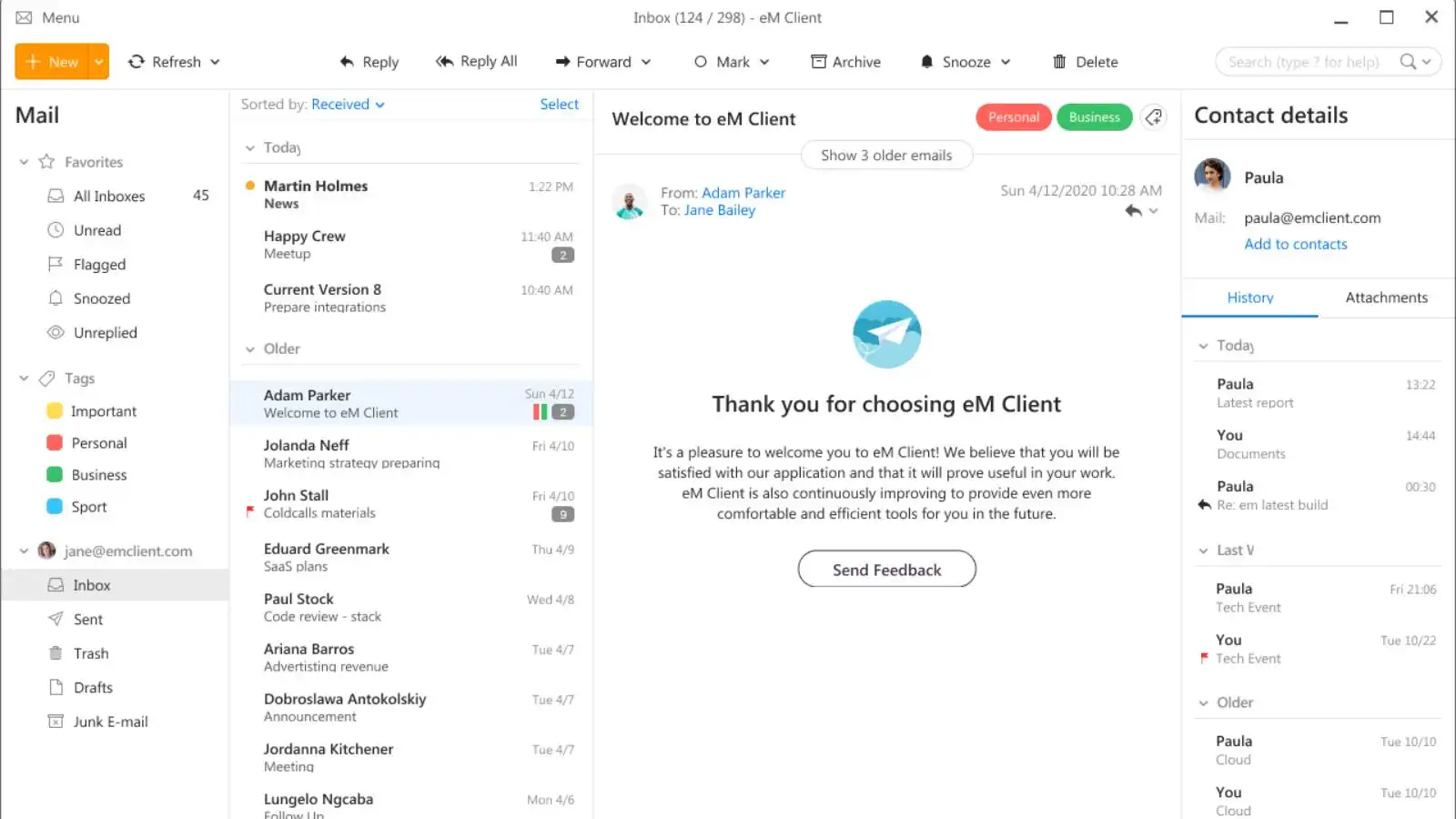
If you prefer to use a desktop computer, there are also several apps available that can help you manage your Free Mail account. Some popular options include:
- Webmail: The official web interface for managing your Free Mail account.
- Outlook: A versatile email client that allows for easy management of multiple accounts.
Configuring The Outlook App on PC
To configure the Outlook app on your PC, simply download and install it, then launch the app. From there, go to the menu ☰ > Settings > Add *account and select the Advanced Configuration option. Enter your Free Mail address and password, as well as the IMAP and SMTP settings.
Configuring The Mail App on Mac
To configure the Mail app on your Mac, simply download and install it, then launch the app. From there, go to the menu > Settings > Add *Account and select the option for adding a new account. Enter your Free Mail address and password, as well as the IMAP and SMTP settings.
Conclusion
Managing your email accounts can be a hassle, but with the right tools, it doesn’t have to be! Whether you’re using a mobile device or PC, there are several apps available that can help you manage your Free Mail account with ease. By following the steps outlined in this article, you can ensure that you’re always connected and up-to-date.
Frequently Asked Questions
- Q: What is the best app to use for managing my Free Mail account on mobile devices?
A: The official Free Mail app is a great option, but other popular choices include Gmail and Outlook. - Q: How do I configure multiple email accounts using the same app?
A: Simply go to the menu ☰ > Settings > Add *account and follow the prompts to add your other email accounts. - Q: What are the IMAP and SMTP settings for my Free Mail account?
A: The IMAP setting is imapmail.Free.It, with a port of 993 and SSL enabled. The SMTP setting is smtp.Free.It, with a port of 465 and SSL enabled.
Conclusion
Managing your email accounts can be a hassle, but with the right tools, it doesn’t have to be! Whether you’re using a mobile device or PC, there are several apps available that can help you manage your Free Mail account with ease. By following the steps outlined in this article, you can ensure that you’re always connected and up-to-date.
Free Mail App Features
- Easy Access: Manage your emails on the go without using a browser.
- Multiple Account Support: Easily configure multiple email accounts using the same app.
- Customization Options: Personalize your email experience with various customization options.
PC Apps For Managing Free Mail
- Webmail: The official web interface for managing your Free Mail account.
- Outlook: A versatile email client that allows for easy management of multiple accounts.
Configuring The Outlook App on PC
- Go to the menu ☰ > Settings > Add *account and select the Advanced Configuration option.
- Enter your Free Mail address and password, as well as the IMAP and SMTP settings.
Configuring The Mail App on Mac
- Go to the menu > Settings > Add *Account and select the option for adding a new account.
- Enter your Free Mail address and password, as well as the IMAP and SMTP settings.


