
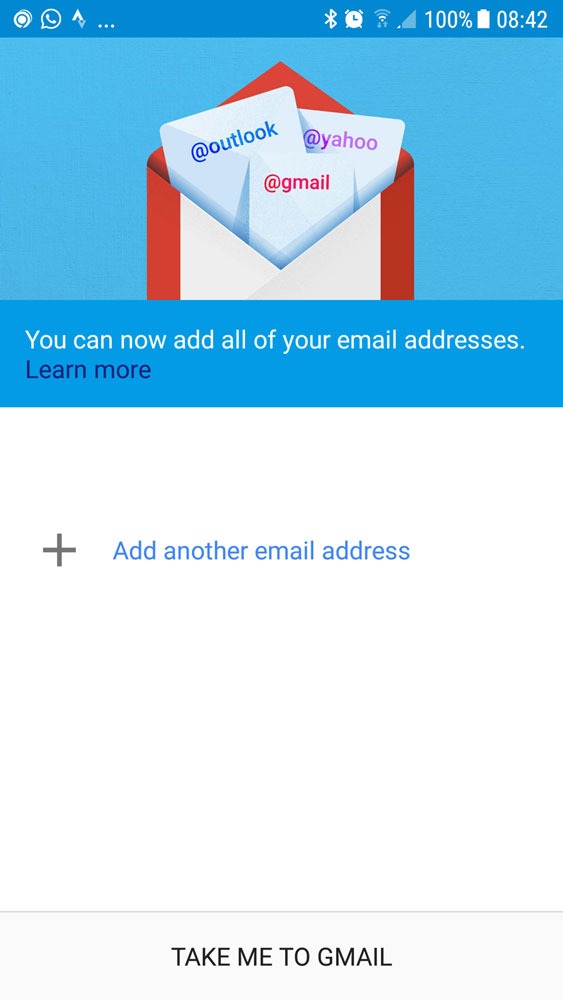
How to Add Another Email Address on Gmail
Are you tired of switching between multiple email accounts? Do you want to simplify your online communication by merging all your emails into one account? Look no further! In this article, we will guide you through the process of adding another email address on Gmail.
Why Add Multiple Email Addresses on Gmail?
Adding multiple email addresses on Gmail allows you to manage all your emails from different accounts in one place. This feature is particularly useful for individuals who have multiple professional or personal email accounts and want to centralize their communication. With this feature, you can access all your emails, contacts, and messages from a single account.
How to Add an Email Address on Gmail (Computer)
To add another email address on Gmail using a computer, follow these steps:
- Access The Google Account Settings: Go to the Google account settings page and sign in with your existing Gmail account credentials.
- Click on The “Account” Tab: In the left-hand menu, click on the “Account” tab.
- Select “Add Another Email Address”: Scroll down to the “Accounts” section and click on the “Add another email address” link.
- Enter The New Email Address: Enter the new email address you want to add in the required field.
- Verify Your Identity: Google will send a verification code to the new email address. Enter this code to verify your identity.
- Confirm The Addition: Confirm that you want to add the new email address by clicking on the “Add” button.
How to Add an Email Address on Gmail (Smartphone And Tablet)
To add another email address on Gmail using a smartphone or tablet, follow these steps:
- Open The Gmail App: Open the Gmail app on your device.
- Tap on The Menu Icon: Tap on the menu icon (three horizontal lines) in the top-left corner of the screen.
- Select “Settings”: Scroll down and tap on the “Settings” option.
- Choose “Add Another Email Address”: Select the “Add another email address” option.
- Enter The New Email Address: Enter the new email address you want to add in the required field.
- Verify Your Identity: Google will send a verification code to the new email address. Enter this code to verify your identity.
How to Add an Existing Gmail Account to Gmail
If you already have another Gmail account, you can add it to your existing account using the following steps:
- Access The Google Account Settings: Go to the Google account settings page and sign in with your existing Gmail account credentials.
- Click on The “Account” Tab: In the left-hand menu, click on the “Account” tab.
- Select “Add Another Email Address”: Scroll down to the “Accounts” section and click on the “Add another email address” link.
- Enter The Existing Gmail Account: Enter the existing Gmail account you want to add in the required field.
- Verify Your Identity: Google will send a verification code to the existing account. Enter this code to verify your identity.
Benefits of Adding Multiple Email Addresses on Gmail
Adding multiple email addresses on Gmail offers several benefits, including:
- Simplified Communication: With all your emails in one place, you can easily manage and respond to messages from different accounts.
- Streamlined Organization: You can categorize your emails by account, making it easier to prioritize and focus on important messages.
- Increased Productivity: By centralizing your communication, you can save time and increase productivity.
How to Remove an Email Address on Gmail
If you no longer want to use a specific email address or need to remove it from your account, follow these steps:
- Access The Google Account Settings: Go to the Google account settings page and sign in with your existing Gmail account credentials.
- Click on The “Account” Tab: In the left-hand menu, click on the “Account” tab.
- Select “Remove an Email Address”: Scroll down to the “Accounts” section and click on the “Remove an email address” link.
- Choose The Email Address to Remove: Select the email address you want to remove from your account.
Conclusion
Adding another email address on Gmail is a straightforward process that can help simplify your online communication. By following these steps, you can merge all your emails into one account and streamline your organization. Whether you’re using a computer or mobile device, this feature makes it easy to manage multiple email accounts in one place.
Frequently Asked Questions (FAQs)
- Q: Can I Add an Email Address on Gmail if I Already Have Another Account?
A: Yes, you can add an existing Gmail account to your existing account using the steps outlined above. - Q: How do I Remove an Email Address From my Gmail Account?
A: To remove an email address from your Gmail account, follow the steps outlined in the “How to Remove an Email Address on Gmail” section. - Q: Can I Add Multiple Email Addresses on Gmail if I’m Using a Smartphone or Tablet?
A: Yes, you can add multiple email addresses on Gmail using a smartphone or tablet by following the steps outlined in the “How to Add an Email Address on Gmail (Smartphone and Tablet)” section. - Q: What Are The Benefits of Adding Multiple Email Addresses on Gmail?
A: Adding multiple email addresses on Gmail offers several benefits, including simplified communication, streamlined organization, and increased productivity.


