
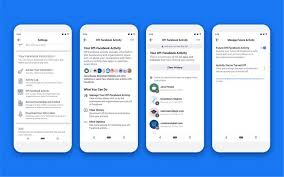
Limiting Vision on Facebook: A Comprehensive Guide
As a Facebook user, you may have had the brilliant idea to add your professors and/or your employer to your friends list, only to realize that you don’t want certain friends to see some photos. You can do this by properly setting up the relative preferences for privacy. But, if you’re not familiar with regulating the settings of privacy on Facebook, it’s easy to get confused. Fear not, dear reader! This guide will walk you through the process of limiting vision on Facebook, both on smartphone and tablet, as well as on computer.
Why Limit Vision on Facebook?
There are several reasons why you might want to limit vision on Facebook. Perhaps you’re concerned about your online security, or maybe you just don’t want certain friends to see some photos. Whatever the reason, limiting vision on Facebook is a relatively simple process that can be completed in a few easy steps.
Limiting Vision on Smartphone And Tablet
If you want to limit vision on Facebook acting on smartphone or tablet, know that it’s possible by means of the official app of the social network. Available for both Android and iOS/iPadOS, the app allows you to control who can see your photos.
Step-by-step Instructions For Smartphone And Tablet
To limit vision on Facebook using your smartphone or tablet, follow these steps:
- Open the Facebook app and access your account.
- Tap on the icon ☰ in high (on Android) or low (on iOS/iPadOS).
- Select your profile name to access your personal diary.
- Choose the Photo option from the menu.
- Scroll down to the Your Photos section and select the specific photo you want to modify.
- Tap on the three dots (…) At the top right corner of the photo.
- Select the “Modify Privacy” option from the dropdown menu.
- Choose an available option based on your requirements, such as restricting visibility only to friends.
Limiting Vision on Computer
If you prefer to limit vision on Facebook acting on computer, know that it’s also possible using the official app or the desktop version of Facebook.
Step-by-step Instructions For Computer
To limit vision on Facebook using your computer, follow these steps:
- Open your browser and access the Facebook website.
- Log in to your account if necessary.
- Click on your profile name in the top left corner to access your personal profile.
- Select the Photo option from the menu.
- Choose the Your Photos section and select the specific photo you want to modify.
- Click on the three dots (…) At the top right corner of the photo.
- Select the “Modify Privacy” option from the dropdown menu.
- Choose an available option based on your requirements, such as restricting visibility only to friends.
Limiting Vision For Old Photos
If you want to limit vision on Facebook for old photos that have already been issued, follow these steps:
- Open your browser and access the Facebook website.
- Log in to your account if necessary.
- Click on your profile name in the top left corner to access your personal profile.
- Select the Photos option from the menu.
- Choose the Your Photos section and select the specific photo you want to modify.
- Click on the three dots (…) At the top right corner of the photo.
- Select the “Modify Privacy” option from the dropdown menu.
- Choose an available option based on your requirements, such as restricting visibility only to friends.
Limiting Vision For Profile Photos
If you want to limit vision on Facebook for profile photos, follow these steps:
- Open your browser and access the Facebook website.
- Log in to your account if necessary.
- Click on your profile name in the top left corner to access your personal profile.
- Select the Photo option from the menu.
- Choose the Profile Photos section and select the specific photo you want to modify.
- Click on the three dots (…) At the top right corner of the photo.
- Select the “Modify Privacy” option from the dropdown menu.
- Choose an available option based on your requirements, such as restricting visibility only to friends.
Conclusion
Limiting vision on Facebook is a relatively simple process that can be completed in a few easy steps. By following the step-by-step instructions outlined above, you can control who sees your photos and maintain your online security. Whether you’re using smartphone or tablet, or computer, the process remains the same. Remember to always prioritize your online security and take necessary precautions to protect your personal data.
Frequently Asked Questions
Q: How do I limit vision on Facebook?
A: You can limit vision on Facebook by following the step-by-step instructions outlined above for smartphone, tablet, and computer.
Q: Can I limit vision on Facebook for old photos?
A: Yes, you can limit vision on Facebook for old photos by following the steps outlined in the “Limiting Vision for Old Photos” section.
Q: How do I limit vision on Facebook for profile photos?
A: You can limit vision on Facebook for profile photos by following the steps outlined in the “Limiting Vision for Profile Photos” section.
Q: Will limiting vision on Facebook affect my online security?
A: Limiting vision on Facebook will not directly affect your online security, but it will help you control who sees your personal data.
Q: Can I use a different image as my profile photo if I’m concerned about privacy?
A: Yes, you can use a different image as your profile photo that doesn’t identify you.


