
Qualifying Siri: A Step-by-step Guide
Are you ready to unlock the full potential of your Apple device? Qualifying Siri is a simple process that can enhance your user experience, making it easier to interact with your phone, watch, TV, and other devices. In this article, we’ll guide you through the steps to qualify Siri on various Apple devices.
Understanding Siri
Siri is an intelligent personal assistant developed by Apple. It allows users to perform tasks, answer questions, and control their device using natural language commands. With Siri, you can ask for directions, send messages, make calls, and more, all with just your voice.
Qualifying Siri on Iphone
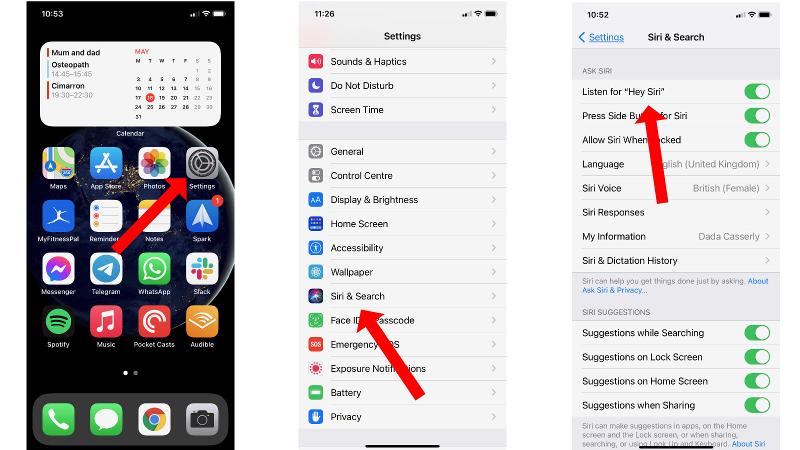
To qualify Siri on your iPhone, follow these steps:
- Access The Settings App: Go to the Home screen and tap on the icon of the gear (Settings).
- Select Siri & Search: Tap on the option that says “Siri & Search.”
- Toggle on “Hey Siri”: Move the switch next to “Hey Siri” from OFF to ON.
- Follow The Prompts: Siri will guide you through a series of prompts to set up your voice assistant.
Qualifying Siri on Iphone X And Later
If you have an iPhone X or later model, follow these steps:
- Access The Settings App: Go to the Home screen and tap on the icon of the gear (Settings).
- Select Siri & Search: Tap on the option that says “Siri & Search.”
- Toggle on “Hey Siri”: Move the switch next to “Hey Siri” from OFF to ON.
- Choose Your Language: Select your preferred language for Siri.
Qualifying Siri on Iphone With Home Button
If you have an iPhone 8 or earlier model, follow these steps:
- Access The Settings App: Go to the Home screen and tap on the icon of the gear (Settings).
- Select Siri & Search: Tap on the option that says “Siri & Search.”
- Toggle on “Hey Siri”: Move the switch next to “Hey Siri” from OFF to ON.
- Follow The Prompts: Siri will guide you through a series of prompts to set up your voice assistant.
Qualifying Siri on Mac
To qualify Siri on your Mac, follow these steps:
- Access System Preferences: Click on the Apple menu and select System Preferences.
- Select Siri: Select the option that says “Siri.”
- Toggle on Ask Siri: Move the switch next to “Ask Siri” from OFF to ON.
Qualifying Siri on Apple Watch
To qualify Siri on your Apple Watch, follow these steps:
- Access The Settings App: Tap on the Digital Crown (the rotating dial) and select Settings.
- Select Siri & Search: Tap on the option that says “Siri & Search.”
- Toggle on “Hey Siri”: Move the switch next to “Hey Siri” from OFF to ON.
Qualifying Siri on Apple TV
To qualify Siri on your Apple TV, follow these steps:
- Access Settings: Go to the Home screen and select Settings.
- Select General: Select the option that says “General.”
- Toggle on Siri: Move the switch next to “Siri” from OFF to ON.
Qualifying Siri With Airpods
To qualify Siri with your AirPods, follow these steps:
- Connect Your Airpods: Connect your AirPods to your iPhone or Mac.
- Access Settings: Go to the Home screen and select Settings (on iPhone) or System Preferences (on Mac).
- Select Siri & Search: Tap on the option that says “Siri & Search” (on iPhone) or Siri (on Mac).
- Toggle on “Hey Siri”: Move the switch next to “Hey Siri” from OFF to ON.
Qualifying Siri on Homepod Mini
To qualify Siri on your HomePod mini, follow these steps:
- Configure Your Homepod Mini: Configure your HomePod mini by following the prompts.
- Access Settings: Go to the Home screen and select Settings.
- Select Siri & Search: Tap on the option that says “Siri & Search.”
- Toggle on “Hey Siri”: Move the switch next to “Hey Siri” from OFF to ON.
Conclusion
Qualifying Siri is a simple process that can enhance your user experience across various Apple devices. By following these steps, you’ll be able to unlock the full potential of your device and enjoy a more seamless interaction with Siri.
Frequently Asked Questions (FAQs)
- What is Siri?
Siri is an intelligent personal assistant developed by Apple. - How do I Qualify Siri on my Iphone?
To qualify Siri on your iPhone, access the Settings app and toggle on “Hey Siri.” - Can I Use Siri With Airpods?
Yes, you can use Siri with your AirPods by qualifying it through the Settings app. - How do I Configure Siri on my Mac?
To configure Siri on your Mac, access System Preferences and select Siri. - What Devices Support Siri?
Siri is supported on various Apple devices, including iPhone, iPad, Apple Watch, Apple TV, and HomePod mini. - Can I Use Siri With my Voice Assistant on Another Device?
Yes, you can use Siri with your voice assistant on other devices by configuring it through the Settings app. - How do I Customize Siri’s Settings?
You can customize Siri’s settings by accessing the Settings app and selecting Siri & Search (on iPhone) or Siri (on Mac). - Can I Turn Off Siri on my Device?
Yes, you can turn off Siri on your device by toggling it off through the Settings app.
We hope this article has helped you understand how to qualify Siri on various Apple devices. If you have any further questions or concerns, please don’t hesitate to reach out!


