
How to Create a Cluster on Telegram: A Step-by-step Guide
Are you ready to take your Telegram experience to the next level? Creating a cluster on Telegram can be a great way to connect with friends, family, or like-minded individuals. In this article, we’ll show you how to create a cluster on Telegram, including secret clusters, closed clusters, public clusters, and anonymous clusters.
Why Create a Cluster on Telegram?
Creating a cluster on Telegram allows you to group people together based on shared interests, topics, or activities. This can be especially useful for:
- Organizing events or meetups
- Sharing information or resources
- Collaborating on projects
- Building communities around specific interests
Step 1: Create a Cluster on Telegram
To create a cluster on Telegram, follow these steps:
- Download And Install Telegram: If you haven’t already, download and install the Telegram app on your smartphone, tablet, or computer.
- Create an Account: Follow the prompts to create a new account using your phone number.
- Open The New Voice Cluster: Tap on the New voice cluster icon in the top-right corner (on Android and Desktop) or the pencil icon in the top-left corner (on iPhone/iPad).
- Add Contacts: Select the contacts you want to add to your cluster (up to 200,000 members). You can also type names or usernames in the text field.
- Name Your Cluster: Enter a name for your cluster and associate an image if desired.
Managing Your Cluster
Once you’ve created your cluster, you can manage it by:
- Adding New Members: Tap on the Add members button to add more people to your cluster.
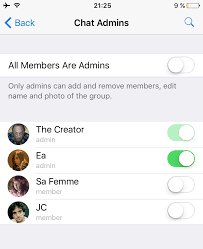
- Assigning Administrators: Tap on the Administrators > Add administrator button to assign administrators to your cluster.
- Modifying Permissions: Use the Gestisci cluster option to modify permissions and settings.
Creating a Secret Cluster
To create a secret cluster, follow these steps:
- Open The Cluster Options: Tap on the name of your cluster in the top-right corner and select the pencil icon (or Modification on iPhone/iPad).
- Select Private Cluster: Choose the Private option to make your cluster private.
- Limit Access: Use the Gestisci cluster option to limit access to your cluster by revoking links or assigning administrators.
Creating a Closed Cluster
To create a closed cluster, follow these steps:
- Open The Cluster Options: Tap on the name of your cluster in the top-right corner and select the pencil icon (or Modification on iPhone/iPad).
- Select Private Cluster: Choose the Private option to make your cluster private.
- Limit Access: Use the Gestisci cluster option to limit access to your cluster by revoking links or assigning administrators.
Creating a Public Cluster
To create a public cluster, follow these steps:
- Open The Cluster Options: Tap on the name of your cluster in the top-right corner and select the pencil icon (or Modification on iPhone/iPad).
- Select Public Cluster: Choose the Public option to make your cluster publicly accessible.
- Share The Link: Share the link to your public cluster with anyone who wants to join.
Creating an Anonymous Cluster
To create an anonymous cluster, follow these steps:
- Open The Cluster Options: Tap on the name of your cluster in the top-right corner and select the pencil icon (or Modification on iPhone/iPad).
- Select Remain Anonymous: Choose the Remain anonymous option to keep your presence anonymous.
- Repeat For Administrators: Repeat the process for administrators to keep their presence anonymous as well.
Conclusion
Creating a cluster on Telegram can be a great way to connect with others, share information, and collaborate on projects. Whether you choose a secret, closed, public, or anonymous cluster, we’ve shown you how to create and manage your cluster like a pro!
Frequently Asked Questions (FAQs)
- Q: What is a Cluster on Telegram?
A: A cluster is a group of people connected by shared interests or activities. - Q: How do I Create a Cluster on Telegram?
A: Follow the steps outlined in this article to create a cluster on Telegram. - Q: Can I Create a Secret Cluster?
A: Yes, you can create a secret cluster by selecting the Private option and limiting access. - Q: Can I Create a Public Cluster?
A: Yes, you can create a public cluster by selecting the Public option and sharing the link with others. - Q: How do I Add New Members to my Cluster?
A: Tap on the Add members button to add more people to your cluster. - Q: Can I Assign Administrators to my Cluster?
A: Yes, you can assign administrators by tapping on the Administrators > Add administrator button. - Q: How do I Limit Access to my Cluster?
A: Use the Gestisci cluster option to revoke links or assign administrators to limit access. - Q: Can I Create an Anonymous Cluster?
A: Yes, you can create an anonymous cluster by selecting the Remain anonymous option and keeping your presence anonymous.
We hope this article has been helpful in guiding you through the process of creating a cluster on Telegram!


