
The Ultimate Guide to Playing Minecraft Lan: A Step-by-step Tutorial
Are you tired of playing Minecraft solo? Do you want to join forces with your friends and create an epic gaming experience together? Look no further! In this article, we’ll show you how to play Minecraft LAN (Local Area Network) without using any third-party programs or services like Hamachi.
What is Lan in Minecraft?
LAN stands for Local Area Network, which means playing on the same network as your friends. This is different from online multiplayer, where players connect through the internet. To play LAN, all players must be connected to the same network, either via Wi-Fi or an Ethernet cable.
How to Play Minecraft Lan Without Hamachi
Playing Minecraft LAN without Hamachi is easy and straightforward. Here’s a step-by-step guide:
- Connect All Devices to The Same Network: Make sure all players have their devices connected to the same network, whether it’s through Wi-Fi or an Ethernet cable.
- Open Minecraft on The Host Device: The player who will be hosting the game should open Minecraft and create a new world.
- Initiate The Lan World: On the host device, go to the multiplayer menu, select “LAN” as the server type, and initiate the game.
- Join The Game on Other Devices: Each player should then join the game by opening Minecraft on their own device, going to the multiplayer menu, selecting “Join Server,” and entering the LAN world’s IP address or name.
How to Play Minecraft Lan on PE And Console
Playing Minecraft LAN on PE (Pocket Edition) and console is a bit different than playing on PC. Here’s what you need to do:
- Initiate The Game: On each device, open Minecraft and create a new world or join an existing one.
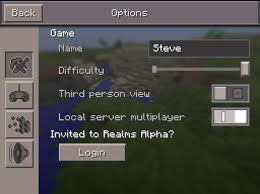
- Select The Multiplayer Menu: Go to the multiplayer menu on each device and select “LAN” as the server type.
- Join The Game: Each player should then join the game by going back to the main menu, selecting “Play,” and joining the LAN world.
Tips And Tricks
To ensure a smooth gaming experience, keep in mind these tips:
- Use the same platform (e.G., All on PC or all on mobile devices) to avoid any potential problems.
- Make sure all players have the same version of Minecraft installed.
- If you’re using the Bedrock edition, you might not encounter any issues playing across different platforms.
Conclusion
Playing Minecraft LAN with your friends is a great way to experience the game in a new and exciting way. With this guide, you should be able to set up a LAN world without any third-party programs or services like Hamachi. Happy gaming!
Frequently Asked Questions (FAQs)
- What is The Difference Between Lan And Online Multiplayer?
LAN stands for Local Area Network, which means playing on the same network as your friends. Online multiplayer, on the other hand, involves connecting through the internet.
- Do I Need Hamachi to Play Minecraft Lan?
No, you don’t need Hamachi to play Minecraft LAN. You can use the native function of Minecraft for multiplayer gaming.
- How do I Join a Lan World on PE And Console?
To join a LAN world on PE and console, each player should initiate Minecraft, go to the multiplayer menu, select “LAN” as the server type, and enter the LAN world’s IP address or name.
- Can I Play Across Different Platforms Using The Bedrock Edition?
Yes, you can play across different platforms using the Bedrock edition. However, keep in mind that there might be some variables involved in the game, so it’s not always possible to provide precise instructions.
- What Are The System Requirements For Playing Minecraft Lan?
The system requirements for playing Minecraft LAN vary depending on the platform you’re using. Make sure each device meets the minimum system requirements for Minecraft.
- Can I Use Third-party Programs or Services Like Hamachi For Minecraft Lan?
Yes, you can use third-party programs or services like Hamachi for Minecraft LAN if you prefer to use them. However, keep in mind that this article provides a guide on how to play Minecraft LAN without using any such programs or services.
- How do I Troubleshoot Issues With my Minecraft Lan Game?
If you encounter any issues with your Minecraft LAN game, try restarting the game, checking the network connection, and ensuring all players have the same version of Minecraft installed.


