
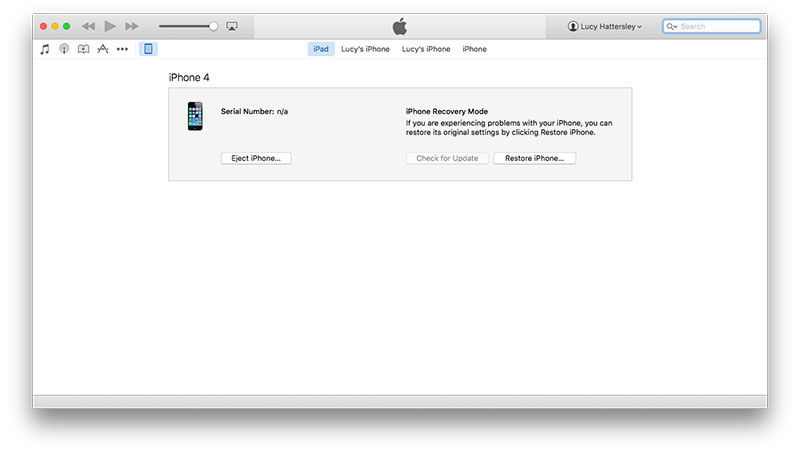
How to Contact Iphone in Dfu Mode: A Step-by-step Guide
Are you experiencing issues with your iPhone, but don’t know how to restore or update it? Do you see strange error messages on iTunes or the Finder? Don’t worry! Before reaching out to Apple support or considering replacing your iPhone, try resetting the device using the DFU (Device Firmware Update) mode. This article will guide you through the process of contacting your iPhone in DFU mode and restoring or updating it.
What is Dfu Mode?
DFU mode is a way to update or restore your iPhone’s firmware without booting up the device. It bypasses the boot loader, allowing iTunes or the Finder to install the latest version of iOS directly on the phone.
Why Use Dfu Mode?
Using DFU mode can help resolve issues with iTunes or the Finder not recognizing your iPhone. It’s also useful when jailbreaking your iPhone and restoring it to a clean state.
Pre-requisites Before Contacting Your Iphone in Dfu Mode
Before proceeding, make sure you:
- Backup All Data: Ensure that you have backed up all your important data, including photos, contacts, and apps.
- Update Itunes or The Finder: Make sure that you are running the latest version of iTunes or the Finder on your computer.
How to Contact Iphone in Dfu Mode
Follow these steps:
1. Connect Your Iphone to The Computer
Connect your iPhone to your computer using a Lightning cable.
2. Turn Off Your Iphone
Turn off your iPhone by pressing and holding the Power button until it shuts down.
3. Put Your Iphone in Dfu Mode
Put your iPhone in DFU mode by following these steps:
- Iphone X or Later: Press and hold the Volume Up button for one second, then immediately press and hold the Volume Down button for one second. Hold both buttons simultaneously for five seconds.
- Iphone 7 or 7 Plus: Turn off your iPhone, then hold down the Power button and the Volume Down button at the same time for ten seconds. Release the Power button but continue holding the Volume Down button for another eight seconds.
- Iphone 6s And Earlier: Turn off your iPhone, then press and hold the Power button and the Home button simultaneously for ten seconds.
4. Open Itunes or The Finder
Open iTunes or the Finder on your computer and click on the “OK” button to confirm that you want to restore or update your iPhone in DFU mode.
How to Restore or Update Your Iphone
Once you are in DFU mode, follow these steps:
- Click on The Restore Button: In iTunes or the Finder, click on the Restore button.
- Wait For The Process to Complete: Wait for the device to download and install the latest version of iOS.
- Follow The Instructions: Follow the on-screen instructions to complete the restoration or update process.
How to Exit Dfu Mode
If you need to exit DFU mode without restoring or updating your iPhone, follow these steps:
- Iphone X or Later: Press and hold the Volume Up button, then quickly press and hold the Volume Down button. Release both buttons simultaneously.
- Iphone 7 or 7 Plus: Hold down the Power button and the Volume Down button at the same time for five seconds.
- Iphone 6s And Earlier: Press and hold the Power button and the Home button simultaneously for five seconds.
Conclusion
Contacting your iPhone in DFU mode can help resolve issues with iTunes or the Finder not recognizing your device. By following these steps, you can safely restore or update your iPhone without losing any data. Remember to always backup your important data before attempting to restore or update your iPhone.
Note: The article was written based on the original content provided.


