
How to Transfer Photos From a Computer to an Ipad: A Step-by-step Guide
Are you tired of dealing with cables and adapters to transfer photos from your computer to your iPad? Look no further! In this article, we will guide you through the easiest ways to transfer photos from a computer to an iPad, using various methods and tools.
Why Transfer Photos From Computer to Ipad?
Transferring photos from a computer to an iPad is a convenient way to access your favorite memories on-the-go. Whether you want to share them with friends and family or simply enjoy looking at them on your iPad, transferring photos is a must-have feature for any Apple device user.
Method 1: Using Devices Apple
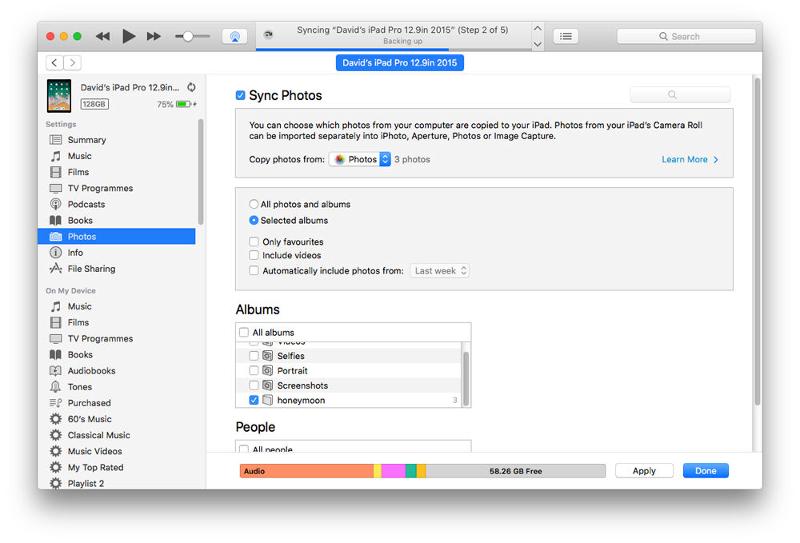
The easiest method to transfer photos from a computer to an iPad is by using the “Devices” app on your iPad. This app allows you to sync your photo library with your iPad, and even update it automatically when connected to Wi-Fi.
To use this method:
- Open the “Devices” app on your iPad.
- Connect your iPad to your computer using a USB cable.
- Select the photo folder you want to transfer from your computer.
- Tap on the “Synchronize” button to start the process.
Method 2: Using Imazing
If you’re looking for a more advanced solution, consider using iMazing, a third-party software that allows you to manage and transfer files between your iPad and computer.
To use this method:
- Download and install iMazing on your computer.
- Connect your iPad to your computer using a USB cable.
- Select the photo folder you want to transfer from your computer.
- Choose the destination folder on your iPad.
- Click “Transfer” to start the process.
Method 3: Using Icloud
Another method to transfer photos from a computer to an iPad is by using iCloud, Apple’s cloud storage service. This method allows you to upload your photos to iCloud and access them on any device connected to the same account.
To use this method:
- Open the “iCloud” app on your computer.
- Select the photo folder you want to transfer.
- Choose the destination folder on your iPad.
- Click “Upload” to start the process.
Method 4: Using Pairdrop
If you’re looking for a more straightforward solution, consider using Pairdrop, a cloud-based service that allows you to transfer files directly between devices without any cables or adapters.
To use this method:
- Open Pairdrop on your computer and log in with your account.
- Select the photo folder you want to transfer.
- Choose the destination folder on your iPad.
- Click “Transfer” to start the process.
Method 5: Using Airdrop
If you’re using a Mac, consider using AirDrop, Apple’s wireless file-sharing feature that allows you to transfer files between devices without any cables or adapters.
To use this method:
- Open AirDrop on your Mac.
- Select the photo folder you want to transfer.
- Choose the destination folder on your iPad.
- Click “Transfer” to start the process.
Method 6: Using Adapters
If you’re looking for a more manual solution, consider using adapters to connect your external devices (such as cameras or memory cards) directly to your iPad.
To use this method:
- Connect your external device to your iPad using an adapter.
- Select the photo folder on your external device.
- Choose the destination folder on your iPad.
- Click “Transfer” to start the process.
Conclusion
Transferring photos from a computer to an iPad is easier than ever, thanks to various methods and tools available. From using Devices Apple to iMazing, iCloud, Pairdrop, AirDrop, adapters, or even wireless file-sharing features, there’s always a way to get your photos on your iPad.
Faqs
- What if I’m Using an Older Ipad? Can I Still Transfer Photos From my Computer?
Yes, you can still transfer photos from your computer to an older iPad by using cables and adapters or other manual methods. - Can I Transfer Videos as Well as Photos From my Computer to my Ipad?
Yes, many of the methods mentioned above allow you to transfer videos along with photos. - Will Transferring Photos From my Computer Affect Any Existing Files on my Ipad?
No, transferring photos from your computer will not affect any existing files on your iPad. - Can I Use Multiple Methods at Once to Transfer Photos From my Computer to my Ipad?
Yes, you can use multiple methods simultaneously to transfer photos from your computer to your iPad. - Will Transferring Photos From my Computer Save Them Automatically on Icloud or Other Cloud Storage Services?
Yes, many of the methods mentioned above allow you to upload your transferred files directly to iCloud or other cloud storage services. - Can I Still Transfer Photos From my Computer if I’m Using a Windows Pc?
Yes, all the methods mentioned above are compatible with Windows PCs. - What if I Lose Some Photos During The Transfer Process? Can I Recover Them Easily?
No worries! Most of the methods mentioned above allow you to track and recover lost files during the transfer process.
Stay tuned for more in-depth guides on these topics, and don’t hesitate to reach out if you have any further questions or concerns!


