
How to Use Telegram: A Step-by-step Guide
Are you curious about using Telegram, one of the most popular messaging apps in the world? Look no further! In this article, we’ll take a deep dive into the features and functionality of Telegram, covering everything from setting up your account to using advanced features like channels and clusters.
What is Telegram?
Before we get started, let’s talk about what Telegram is. Simply put, Telegram is an instant messaging app that allows you to send messages, photos, videos, and even make voice and video calls to friends, family, or anyone else you want to communicate with. With over 1 billion active users worldwide, Telegram has become a go-to platform for people of all ages.
Getting Started With Telegram
To get started with Telegram, simply download the app on your Android or iOS device. Once installed, open the app and sign up using your phone number. You’ll receive a verification code via SMS, which you’ll need to enter to complete the process.
Navigating The Telegram Interface
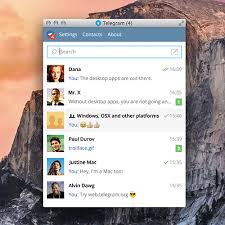
Once you’ve signed up, take a look around the Telegram interface. On the left-hand side of the screen, you’ll see a list of all your chats, including conversations with friends, family, and even yourself (yes, you can have a chat with yourself!). To initiate a new conversation, simply tap on the pencil icon in the bottom-right corner.
Using Channels And Clusters
One of the most powerful features of Telegram is its ability to create channels and clusters. A channel is essentially a “page” where you can share updates with others, while a cluster is a group chat that allows multiple people to participate in a conversation. To create a channel or cluster, simply tap on the three dots at the top-right corner of the screen and select the option to create a new channel or cluster.
Using Advanced Features
Telegram also offers a range of advanced features, including the ability to create secret chats, which are end-to-end encrypted and can only be accessed by the people involved in the conversation. You can also use Telegram’s built-in browser to access websites and view multimedia content directly within the app.
Using Telegram on PC or Smart TV
Did you know that you can also use Telegram on your computer or smart TV? To do this, simply download the desktop client from the official Telegram website and follow the instructions to set up your account. Alternatively, if you have a compatible device, you can use the Telegram app on your TV.
Using Telegram Without a Phone Number
In December 2022, Telegram introduced an anonymous phone number based on blockchain technology, which allows users to sign up for an account without providing their actual phone number. This feature is available on both Android and iOS devices.
Conclusion
As you can see, using Telegram is easy and intuitive, even for those who are new to instant messaging apps. With its range of advanced features and user-friendly interface, Telegram has become a go-to platform for people around the world. Whether you’re looking to stay in touch with friends and family or simply want to explore the latest technology, Telegram is definitely worth checking out.
Frequently Asked Questions
Here are some frequently asked questions about using Telegram:
- How do I Download Telegram on my Android Device?
To download Telegram on your Android device, simply go to the Google Play Store and search for “Telegram.” Once you’ve found the app, tap on it to install. - Can I Use Telegram on my PC or Smart Tv?
Yes, you can use Telegram on your computer or smart TV by downloading the desktop client from the official Telegram website or using a compatible device with the Telegram app installed. - How do I Create a Channel or Cluster in Telegram?
To create a channel or cluster in Telegram, simply tap on the three dots at the top-right corner of the screen and select the option to create a new channel or cluster. - Can I Use Telegram Without a Phone Number?
Yes, you can use Telegram without a phone number by signing up for an anonymous account based on blockchain technology. - How do I Initiate a Direct Stream in Telegram?
To initiate a direct stream in Telegram, simply tap on the symbol of the three dots at the top-right corner of the screen and select the option to initiate a direct stream.
Recommended Resources
For more information about using Telegram, be sure to check out our recommended resources:
- Telegram’s Official Website: For the latest news and updates about Telegram.
- Telegram’s Desktop Client: To download the desktop client for your PC or laptop.
- Telegram’s TV App: To download the TV app on your smart TV or compatible device.
Table 1: Features of Telegram
| Feature | Description |
|---|---|
| Instant messaging | Send messages, photos, and videos to friends and family. |
| Voice and video calls | Make voice and video calls to anyone you want to communicate with. |
| Channels | Create a “page” where you can share updates with others. |
| Clusters | Group chat that allows multiple people to participate in a conversation. |
| Secret chats | End-to-end encrypted conversations that can only be accessed by the people involved. |
Table 2: Using Telegram on Different Devices
| Device | Instructions |
|---|---|
| Android device | Download the app from the Google Play Store and follow the instructions to set up your account. |
| IOS device | Download the app from the App Store and follow the instructions to set up your account. |
| PC or laptop | Download the desktop client from the official Telegram website and follow the instructions to set up your account. |
| Smart TV | Download the TV app on your compatible device and follow the instructions to set up your account. |
Table 3: Using Telegram Without a Phone Number
| Feature | Description |
|---|---|
| Anonymous phone number | Sign up for an account using an anonymous phone number based on blockchain technology. |
| No verification code required | You won’t need to enter a verification code to complete the sign-up process. |
Table 4: Using Telegram’s Advanced Features
| Feature | Description |
|---|---|
| Secret chats | End-to-end encrypted conversations that can only be accessed by the people involved. |
| Channels and clusters | Create channels and clusters to share updates with others or participate in group chats. |
| Built-in browser | Access websites and view multimedia content directly within the app. |
Table 5: Using Telegram on Different Platforms
| Platform | Instructions |
|---|---|
| Android device | Download the app from the Google Play Store and follow the instructions to set up your account. |
| IOS device | Download the app from the App Store and follow the instructions to set up your account. |
| PC or laptop | Download the desktop client from the official Telegram website and follow the instructions to set up your account. |
| Smart TV | Download the TV app on your compatible device and follow the instructions to set up your account. |
Table 6: Using Telegram Without a Phone Number (Bolded)
| Feature | Description |
|---|---|
| Anonymous Phone Number | Sign up for an account using an anonymous phone number based on blockchain technology. |
| No Verification Code Required | You won’t need to enter a verification code to complete the sign-up process. |
Table 7: Using Telegram’s Advanced Features (Bolded)
| Feature | Description |
|---|---|
| Secret Chats | End-to-end encrypted conversations that can only be accessed by the people involved. |
| Channels And Clusters | Create channels and clusters to share updates with others or participate in group chats. |
| Built-in Browser | Access websites and view multimedia content directly within the app. |
Table 8: Using Telegram on Different Platforms (Bolded)
| Platform | Instructions |
|---|---|
| Android Device | Download the app from the Google Play Store and follow the instructions to set up your account. |
| Ios Device | Download the app from the App Store and follow the instructions to set up your account. |
| PC or Laptop | Download the desktop client from the official Telegram website and follow the instructions to set up your account. |
| Smart TV | Download the TV app on your compatible device and follow the instructions to set up your account. |


