
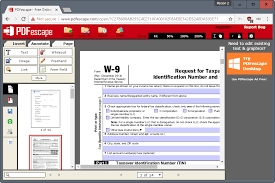
Are you tired of manually copying text from scanned documents? Do you wish there was an easier way to edit and modify scanned texts? Look no further! In this article, we’ll show you how to use various software and apps to modify scanned texts with ease.
What is a Scanned Text?
A scanned text refers to the process of converting physical documents into digital format using a scanner or camera. This allows you to edit and modify the text electronically.
Why Modify a Scanned Text?
Modifying a scanned text can be useful in various situations, such as:
- Editing contracts or agreements
- Updating policies or procedures
- Correcting typos or errors in printed materials
- Translating documents from one language to another
Software And Apps For Modifying Scanned Texts
There are several software and apps available that can help you modify scanned texts. Here are some popular options:
1. Instrument of Capture (Windows)
The Instrument of Capture is a built-in Windows feature that allows you to extract text from images using OCR technology.
- To use this tool, go to the Start menu and search for “Instrument of Capture.”
- Click on the icon to open the app.
- Select the image containing the text you want to modify.
- Draw a rectangle around the area of the image where the text is located.
- Click on the “Actions” button in the top toolbar and select “Text” from the menu.
- Choose the language and font of the text to edit.
2. Microsoft Word (Windows/MacOS)
Microsoft Word is a popular word processing software that can also be used to modify scanned texts.
- Open Microsoft Word and go to the “File” menu.
- Select “Open” and choose the PDF file containing the scanned text.
- Click on the “Edit” tab in the top toolbar and select “OCR” from the menu.
- Choose the language and font of the text to edit.
3. Freeocr (Windows)
FreeOCR is a free software that can be used to extract text from scanned documents.
- Download and install FreeOCR on your computer.
- Open the app and select the PDF file containing the scanned text.
- Choose the language and font of the text to edit.
- Click on the “Save” button to save the edited text as a new PDF file.
4. Adobe Acrobat (Windows/MacOS)
Adobe Acrobat is a popular software for editing and modifying PDF files, including scanned texts.
- Open Adobe Acrobat and go to the “File” menu.
- Select “Open” and choose the PDF file containing the scanned text.
- Click on the “Edit” tab in the top toolbar and select “OCR” from the menu.
- Choose the language and font of the text to edit.
5. Libreoffice (Windows/MacOS/Linux)
LibreOffice is a free and open-source office suite that can be used to modify scanned texts.
- Open LibreOffice Draw and go to the “File” menu.
- Select “Open” and choose the PDF file containing the scanned text.
- Click on the “Edit” tab in the top toolbar and select “OCR” from the menu.
- Choose the language and font of the text to edit.
6. Finereader (Android/iOS)
FineReader is a popular app for extracting text from images using OCR technology.
- Download and install FineReader on your smartphone or tablet.
- Open the app and select the image containing the text you want to modify.
- Draw a rectangle around the area of the image where the text is located.
- Click on the “Save” button to save the edited text as a new PDF file.
7. Camera (iOS/iPadOS)
The Camera app on iOS and iPadOS devices can be used to extract text from images using OCR technology.
- Open the Camera app and select the image containing the text you want to modify.
- Draw a rectangle around the area of the image where the text is located.
- Tap on the “Copy” button to copy the edited text.
- Paste the copied text into a note-taking app or word processing software.
Conclusion
Modifying scanned texts can be a tedious and time-consuming process, but with the right software and apps, it can be done quickly and easily. Whether you’re using Windows, MacOS, Android, or iOS devices, there are plenty of options available to help you edit and modify scanned texts.
Frequently Asked Questions (FAQs)
- Q: What is Ocr Technology?
A: OCR stands for Optical Character Recognition, which is a technology that allows computers to extract text from images using optical scanners. - Q: Can I Use Ocr Technology on my Smartphone or Tablet?
A: Yes, many smartphones and tablets come with built-in OCR capabilities, such as FineReader or the Camera app. - Q: How do I Edit a Scanned Text in Microsoft Word?
A: To edit a scanned text in Microsoft Word, go to the “File” menu, select “Open,” and choose the PDF file containing the scanned text. Click on the “Edit” tab in the top toolbar and select “OCR” from the menu. - Q: Can I Use Adobe Acrobat to Modify Scanned Texts?
A: Yes, Adobe Acrobat is a popular software for editing and modifying PDF files, including scanned texts. - Q: How do I Extract Text From Images Using Ocr Technology on my Smartphone or Tablet?
A: To extract text from images using OCR technology on your smartphone or tablet, open the FineReader app or Camera app, select the image containing the text you want to modify, draw a rectangle around the area of the image where the text is located, and click on the “Save” button to save the edited text as a new PDF file.


