
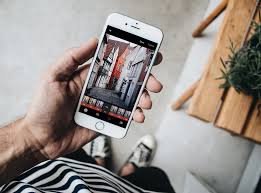
How to Modify Photos on Your Mobile Device: A Comprehensive Guide
Are you tired of editing photos on your mobile device without the desired results? Do you want to give your photos a professional touch without breaking the bank? Look no further! In this article, we will guide you through the process of modifying photos on your mobile device using various apps and tools.
Why Modify Photos on Your Mobile Device?
Modifying photos on your mobile device can enhance their visual appeal, making them more engaging and shareable. With a few taps and swipes, you can transform an ordinary photo into a stunning work of art. Whether you’re a seasoned photographer or a casual snapper, modifying photos can help you achieve the desired look without requiring extensive editing skills.
Google Photos: A Powerful Photo Editing Tool
One of the most popular and powerful photo editing tools is Google Photos. This app offers a range of features that allow you to edit your photos with ease. Here’s how to use Google Photos:
- Download And Install: Download and install Google Photos from the Play Store (Android) or App Store (iOS).
- Accessing The Editing Tools: Tap on the “Photo” option and select the image you want to modify.
- Editing Options: Tap on the “Edit” button to access a range of editing tools, including:
- Suggestions: View improvements and suggested tools.
- Crop and Rotate: Adjust the crop and rotation of your photo.
- Instruments: Access special functions like the magic rubber.
- Rules: Apply rules for luminosity, contrast, and more.
- Filters: Choose from a variety of filters to give your photo a unique look.
- Saving Your Edits: Tap on the “Save” button to save your edits directly to the original photo or create a copy with the edited version.
Other Apps For Photo Editing
While Google Photos is an excellent choice, there are other apps that can help you achieve professional-grade results. Here are some alternatives:
- Snapseed: A powerful photo editing app that offers advanced features like color correction and adjustments.
- Pixlr: A versatile app that allows you to crop, rotate, and apply filters to your photos.
- Vsco: A popular app that provides a range of presets and filters to give your photos a unique look.
Tips For Editing Photos on Your Mobile Device
- Use The Right Tools: Choose an app that suits your editing needs, whether it’s Google Photos or one of the other alternatives listed above.
- Experiment With Filters: Don’t be afraid to try out different filters and effects to give your photo a unique look.
- Pay Attention to Details: Make sure to adjust the crop, rotation, and brightness levels to ensure your photo looks its best.
Conclusion
Modifying photos on your mobile device can be a fun and creative process. With the right tools and techniques, you can transform an ordinary photo into a stunning work of art. Remember to experiment with different filters and effects to find the perfect look for your photo. Happy editing!
Frequently Asked Questions (FAQs)
- Q: What is The Best App For Photo Editing on Mobile Devices?
A: Google Photos, Snapseed, and Pixlr are all excellent choices. - Q: How do I Save my Edited Photos?
A: Tap on the “Save” button to save your edits directly to the original photo or create a copy with the edited version. - Q: Can I Use Multiple Filters on One Photo?
A: Yes, you can apply multiple filters and effects to give your photo a unique look. - Q: How do I Share my Edited Photos on Social Media?
A: Tap on the “Share” button to share your edited photo directly to social media platforms like Instagram or Facebook. - Q: Can I Use These Apps For Video Editing as Well?
A: Some of these apps, like Snapseed and Pixlr, offer video editing capabilities in addition to photo editing features. - Q: Are These Apps Free?
A: Yes, most of these apps are free to download and use, with some offering in-app purchases for additional features. - Q: Can I Edit Photos on my Tablet or Desktop as Well?
A: Yes, many of these apps have desktop versions that allow you to edit photos from the comfort of your own computer. - Q: How do I Access Advanced Editing Features Like Color Correction And Adjustments?
A: Tap on the “Instruments” or “Rules” button in Google Photos or Snapseed to access advanced editing features.
Recommended Reading
- How to Use Google Photos for Photo Editing
- The Ultimate Guide to Using Snapseed for Photo Editing
- Tips and Tricks for Editing Photos with Pixlr


