
Disabling Delivery Reports on Huawei Phones: A Step-by-step Guide
Are you tired of receiving unwanted delivery reports on your Huawei phone? Do you want to avoid the extra costs associated with sending SMS messages? Look no further! In this article, we’ll show you how to disable delivery reports on your Huawei phone in a few simple steps.
Why Disable Delivery Reports?
Disabling delivery reports can help you save money and reduce clutter on your phone. When you send an SMS message, the default setting on most phones is to receive a report back to you indicating whether the message was delivered or not. While this feature can be useful in some cases, it’s not necessary for everyday communication.
Disabling Delivery Reports on Huawei Phones
To disable delivery reports on your Huawei phone, follow these steps:
- Open The Messages App: First, open the Messages app on your Huawei phone. This is usually located on the home screen and has a white comic strip icon on a blue background.
- Tap The Three Dots: Next, tap the three dots in the top-right corner of the screen to access the menu.
- Select Settings: From the menu, select “Settings.”
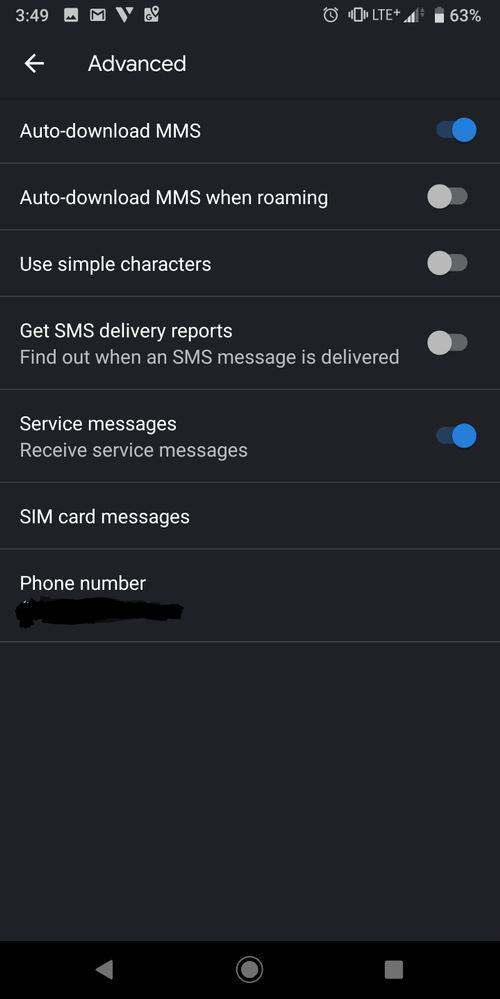
- Choose Advanced Options: In the Settings menu, choose “Advanced options.”
- Disable Delivery Reports: Scroll down and disable the delivery reports option for both SMS and MMS messages.
Alternative: Using Google Messages App
If you’re using the Google Messages app on your Huawei phone, disabling delivery reports is just as easy:
- Open The Google Messages App: Open the Google Messages app on your Huawei phone.
- Tap The Three Dots: Tap the three dots in the top-right corner of the screen to access the menu.
- Select Settings: From the menu, select “Settings.”
- Choose Advanced Options: In the Settings menu, choose “Advanced options.”
- Disable Delivery Reports: Scroll down and disable the delivery reports option for both SMS and MMS messages.
How to Disable Delivery Reports on Google Messages App
If you’re using the Google Messages app on your Huawei phone, disabling delivery reports is just as easy:
- Open The Google Messages App: Open the Google Messages app on your Huawei phone.
- Tap The Three Dots: Tap the three dots in the top-right corner of the screen to access the menu.
- Select Settings: From the menu, select “Settings.”
- Choose Advanced Options: In the Settings menu, choose “Advanced options.”
- Disable Delivery Reports: Scroll down and disable the delivery reports option for both SMS and MMS messages.
Conclusion
Disabling delivery reports on your Huawei phone is a simple process that can help you save money and reduce clutter on your phone. By following these steps, you can easily turn off this feature and enjoy a more streamlined messaging experience.


