
How to Erase Saved Pages on Google: A Comprehensive Guide
Are you tired of having your browsing history saved on Google? Do you want to delete all the pages you’ve visited on your device? Look no further! In this article, we’ll show you how to erase saved pages on Google across various devices and browsers.
Understanding Google’s Browsing History
Google’s browsing history is a record of all the pages you’ve visited on their platform. This information is stored on your device and can be accessed by Google. If you’re concerned about your online privacy, deleting this data is a great step to take.
Erasing Saved Pages on Google: A Step-by-step Guide
Using a PC or Mac
- Open The Google Account Settings: Go to myaccount.Google.Com and sign in with your Google account.
- Access The “Data & Personalization” Tab: Click on this tab, which is located under the “Account” section.
- Select “Activity Controls”: Click on this option, which will display a list of all the activities recorded by Google.
- Choose “Web And App Activity”: Select this option to view your browsing history.
- Delete Specific Entries or Delete Everything: You can choose to delete individual entries or delete everything by clicking on the “Delete” button.
Using an Android Device
- Access The Google Account Settings: Open the Settings app on your device and select “Google” from the list of options.
- Select “Account”: Tap on this option, which will display a list of all the activities recorded by Google.
- Choose “Web And App Activity”: Select this option to view your browsing history.
- Delete Specific Entries or Delete Everything: You can choose to delete individual entries or delete everything by tapping on the “Delete” button.
Using an Iphone or Ipad
- Access The Google Account Settings: Open the Safari browser and go to myaccount.Google.Com. Sign in with your Google account.
- Select “Data & Personalization”: Tap on this option, which is located under the “Account” section.
- Choose “Activity Controls”: Select this option, which will display a list of all the activities recorded by Google.
- Select “Web And App Activity”: Choose this option to view your browsing history.
- Delete Specific Entries or Delete Everything: You can choose to delete individual entries or delete everything by tapping on the “Delete” button.
Erasing Saved Pages on Specific Browsers
Using Google Chrome
- Open Google Chrome: Access the browser and click on the three vertical dots in the top right corner.
- Select “History”: Choose this option, which will display a list of all the pages you’ve visited.
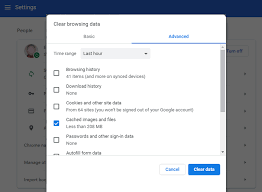
- Click on “Clear Browsing Data”: Select this option to delete your browsing history.
- Choose What to Clear: Select the types of data you want to delete (e.G., Browsing history, cookies, etc.).
Using Safari
- Access The Settings App: Open the Settings app and select “Safari” from the list of options.
- Select “Clear History And Website Data”: Choose this option to delete your browsing history.
- Confirm Deletion: Select “Clear Now” to confirm deletion.
Using Mozilla Firefox
- Open Mozilla Firefox: Access the browser and click on the three horizontal lines in the top right corner.
- Select “History”: Choose this option, which will display a list of all the pages you’ve visited.
- Click on “Clear Recent History”: Select this option to delete your browsing history.
- Choose What to Clear: Select the types of data you want to delete (e.G., Browsing history, cookies, etc.).
Conclusion
Erasing saved pages on Google is a simple process that can be completed across various devices and browsers. By following these step-by-step guides, you can take control of your online privacy and delete any unwanted data.
Frequently Asked Questions (FAQs)
- Q: Will Deleting my Browsing History Affect my Google Account?
A: No, deleting your browsing history will not affect your Google account. - Q: Can I Restore Deleted Browsing History?
A: Unfortunately, no. Once you delete your browsing history, it cannot be restored. - Q: How Often Should I Clear my Browsing History?
A: It’s recommended to clear your browsing history regularly to maintain online privacy and security. - Q: Will Deleting Cookies Affect Any Website Functionality?
A: Possibly. Deleting cookies may cause issues with certain websites, so it’s best to check the site’s cookie policy before clearing them. - Q: Can I Use a Third-party App to Delete Browsing History?
A: Yes, there are several third-party apps available that can help you delete your browsing history. However, be cautious when using these apps and ensure they are reputable and trustworthy. - Q: Will Deleting my Browsing History Affect Any Online Tracking or Analytics?
A: Deleting your browsing history may not affect all online tracking or analytics. Some websites and advertisers may still track your online activities despite deleted browsing history. - Q: Can I Delete Specific Entries From my Browsing History?
A: Yes, most browsers allow you to delete specific entries from your browsing history. Look for the “Delete” button next to each entry. - Q: Will Deleting my Browsing History Affect Any Cloud Backups or Sync Services?
A: Possibly. Deleting your browsing history may not affect cloud backups or sync services, but it’s best to check with your service provider to confirm.
Additional Resources
For more information on erasing saved pages on Google and other browsers, visit the following resources:
Remember to always follow best practices for online security and privacy.


