
How to Cancel Forwarded Mail in Outlook: A Step-by-step Guide
Are you tired of dealing with forwarded emails that were sent by mistake? Do you wish there was a way to cancel them immediately after they’re dispatched? Well, you’re in luck! In this article, we’ll show you how to cancel forwarded mail in Outlook using various methods.
Why Cancel Forwarded Mail in The First Place?
Canceling forwarded mail can save you from embarrassment and avoid unnecessary back-and-forth emails. When you forward an email by mistake, it can lead to confusion and wasted time trying to resolve the issue. By learning how to cancel forwarded mail, you’ll be able to prevent these situations from happening in the first place.
Method 1: Cancel Forwarded Mail Using Webmail
To cancel forwarded mail using Outlook’s web interface, follow these steps:
Step 1: Access Your Account
Open a web browser and sign in to your Outlook account.
Step 2: Click on The Gear Icon
In the top-right corner of the screen, click on the gear icon.
Step 3: Select Settings
From the dropdown menu, select “Settings.”
Step 4: Choose Compose And Answer
In the settings window, click on “Compose and answer.”
Step 5: Cancel Forwarded Mail
In the compose and answer section, you’ll see a button labeled “Cancel forward.” Click on this button to enable it.
Method 2: Cancel Forwarded Mail Using The Desktop App
To cancel forwarded mail using the desktop app, follow these steps:
Step 1: Open The Outlook App
Open the Outlook app on your computer or Mac.
Step 2: Select The Folder With Forwarded Emails
In the left sidebar, select the folder containing the forwarded emails you want to cancel.
Step 3: Double-click on The Email
Double-click on the email you want to cancel.
Step 4: Click on The Three Dots
In the top-right corner of the email window, click on the three dots.
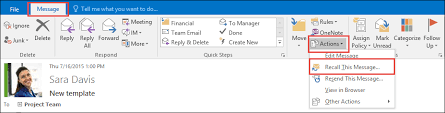
Step 5: Select Recall This Message
From the dropdown menu, select “Recall this message.”
Step 6: Choose Delete Unread Copies or Replace With a New Message
Choose whether you want to delete unread copies or replace them with a new message. Click “OK” to confirm.
Method 3: Cancel Forwarded Mail Using The Mobile App (Not Available)
Unfortunately, the Outlook mobile app does not currently have the feature to cancel forwarded mail. To avoid this situation, it’s best to use the web interface or desktop app to manage your emails.
Why Can’t I Cancel Forwarded Mail on My Phone?
The Outlook mobile app is designed for quick and easy email management, but it doesn’t have all the features of the web interface or desktop app. Unfortunately, canceling forwarded mail is not currently available on mobile devices.
Conclusion
Canceling forwarded mail in Outlook can save you time and prevent unnecessary confusion. By following these step-by-step guides, you’ll be able to cancel forwarded mail using various methods, including the web interface, desktop app, and (unfortunately) not on your phone. Remember, it’s always better to take control of your emails and avoid mistakes in the first place!


