
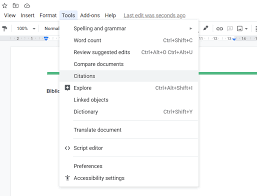
How to Dictate on Google Document: A Step-by-step Guide
Are you tired of typing away on your computer or phone? Do you wish there was a faster way to get your thoughts down on paper? Look no further than dictating on Google Document! In this article, we’ll show you how to use the dictation feature on Google Chrome, Windows 10, macOS, Android, and iOS/iPadOS devices.
What is Dictation in Google Document?
Dictation is a feature that allows you to speak into your device’s microphone and have it transcribed onto a document. It’s a game-changer for anyone who wants to take notes, write emails, or create documents without having to type everything out themselves.
How to Dictate on Google Document Using PC
To get started with dictation on Google Document using a PC, you’ll need to follow these steps:
- Open Google Chrome: First, open the Google Chrome browser on your computer.
- Sign in to Google Account: Next, sign in to your Google account to access Google Documents.
- Create a New Document or Open an Existing One: From the dashboard, click on the “New” button to create a new document or select an existing one you’d like to work with.
- Enable Dictation: Click on the three dots (⋯) in the top-right corner of the screen and select “More tools” > “Extensions”. Search for “Google Docs Dictation” and click on the extension to enable it.
- Start Dictating: Once enabled, click on the microphone icon in the toolbar to start speaking.
Dictation on Google Document Using Windows 10
Windows 10 users can also enjoy the convenience of dictation with their operating system’s built-in feature:
- Press The Windows Key + H: Press the Windows key + H to activate the dictation tool.
- Select The Microphone Icon: Select the microphone icon in the taskbar to start speaking.
Dictation on Google Document Using Macos
MacOS users can also take advantage of the built-in dictation feature:
- Go to System Preferences: Go to System Preferences > Keyboard and select “Use all functions” under the “Text” tab.
- Activate Dictation: Select the microphone icon in the menu bar to start speaking.
Dictation on Google Document Using Android
Android users can use the Gboard or SwiftKey keyboard apps:
- Download And Install Gboard or Swiftkey: Download and install either Gboard or SwiftKey from the Play Store.
- Activate Dictation: Open the app, select the “V” icon, and toggle on dictation.
Dictation on Google Document Using Ios/ipados
IOS and iPadOS users can use the built-in dictation feature:
- Go to Settings: Go to Settings > General > Keyboard.
- Activate Dictation: Toggle on the microphone icon to start speaking.
Tips And Tricks For Effective Dictation
- Use a quiet, distraction-free space to minimize background noise and interruptions.
- Speak clearly and at a moderate pace to ensure accurate transcription.
- Consider investing in a high-quality external microphone for better sound quality.
- Practice makes perfect – get comfortable with the dictation feature by practicing regularly.
Frequently Asked Questions (FAQs)
Q: What is the accuracy of Google’s Dictation feature?
A: The accuracy of Google’s Dictation feature has improved significantly over the years, but it still may not be 100% accurate. You can always review and edit your transcription to ensure accuracy.
Q: Can I use dictation in other apps besides Google Document?
A: Yes, you can use dictation in other apps that support speech-to-text functionality, such as email clients or note-taking apps.
Q: How do I stop the dictation feature?
A: To stop the dictation feature, simply press the microphone icon again to toggle it off.
Q: Can I export my dictated text from Google Document?
A: Yes, you can export your dictated text in various formats, including PDF, Word, and more.
Conclusion
Dictating on Google Document is a convenient and time-saving way to create documents without having to type everything out yourself. With this guide, you should now be able to use dictation with ease across various devices and operating systems. Happy dictating!


