
Windows 7: A Comprehensive Guide to Creating And Using System Recovery Points
In this article, we will delve into the world of Windows 7 system recovery points, a feature that has been around since the inception of the operating system. We’ll explore what these recovery points are, how they work, and most importantly, how to create and use them effectively.
What Are System Recovery Points?
System recovery points, also known as restore points, are snapshots of your computer’s system state at a specific point in time. These points are created automatically by Windows 7 when you install new software or drivers, but they can also be created manually for added protection.
Creating a System Recovery Point in Windows 7
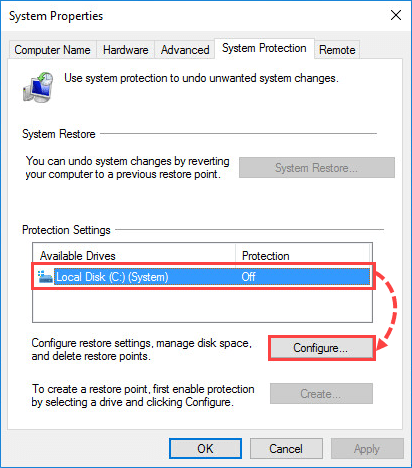
To create a system recovery point in Windows 7, follow these steps:
- Access The System Protection Panel: Click on the Start button and right-click on Computer. Select Properties from the menu.
- Click on System Protection: In the System Properties window, click on the System Protection tab.
- Create a New Recovery Point: Click on the Create button to initiate the recovery point creation process.
- Name Your Recovery Point: Enter a name for your recovery point (e.G., “Before Installing Program X”) and click on Create.
Using a System Recovery Point in Windows 7
To use a system recovery point, follow these steps:
- Access The System Configuration Menu: Click on the Start button and type “system configuration” in the search bar.
- Select The Recovery Option: In the System Configuration window, select the Recovery tab.
- Choose Your Recovery Point: Select the recovery point you want to use from the list of available points.
- Restore to Previous State: Click on the Next button and then click on Finish to restore your system to its previous state.
Backup And Recovery in Windows 7
Windows 7 also includes a feature called Backup and Recovery, which allows you to create an image of your system and save it to an external hard drive or DVD. This can be useful for creating a backup of your system before making significant changes.
To create an image of your system, follow these steps:
- Access The Backup And Recovery Menu: Click on the Start button and type “backup” in the search bar.
- Select The Create Image Option: In the Backup and Recovery window, select the option to create a system image.
- Save Your Image: Choose where you want to save your image (e.G., External hard drive or DVD).
Alternatives to Windows 7 System Recovery Points
If the built-in system recovery point feature in Windows 7 is not sufficient for your needs, there are alternative software solutions available that can create and restore system images. Some popular options include EaseUS Todo Backup, Clonezilla, and Macrium Reflect.
Conclusion
Creating and using system recovery points is an essential part of maintaining a healthy and stable computer system. By following the steps outlined in this article, you’ll be able to create and use system recovery points effectively, ensuring that your system remains protected and recoverable even in the event of a disaster.
Frequently Asked Questions (FAQs)
- Q: How Often Should I Create System Recovery Points?
A: It’s recommended to create system recovery points at least once a week, especially if you’re installing new software or drivers regularly. - Q: Can I Create Multiple Recovery Points?
A: Yes, you can create as many recovery points as you need, but it’s essential to keep them organized and easily accessible. - Q: How do I Know Which Recovery Point to Use?
A: The most recent recovery point will usually be the best option, but if you’re unsure, choose a previous one that matches your system state. - Q: Can I Restore my System to an Earlier Date Using Backup And Recovery?
A: Yes, Backup and Recovery allows you to restore your system to any previously saved image. - Q: Are There Any Third-party Software Solutions For Creating System Recovery Points?
A: Yes, there are several alternative software solutions available that can create and restore system images, such as EaseUS Todo Backup, Clonezilla, and Macrium Reflect.
References
- Microsoft Support: System Recovery Points
- Windows Central: How to Create a System Image in Windows 7
- TechRadar: Best Backup Software for Windows


