
Cutting a Video Like a Pro: A Step-by-step Guide to Using Windows Movie Maker
Are you tired of feeling overwhelmed by video editing software? Do you wish there was an easier way to cut and modify videos without sacrificing quality? Look no further than Windows Movie Maker, the free video editing software that has been a staple for Windows users for years.
In this article, we will take you through a step-by-step guide on how to download and install Windows Movie Maker on your computer, as well as how to use it to cut and modify videos like a pro. We will also explore some of the advanced features and tools that make video editing a breeze.
Why Choose Windows Movie Maker?
Windows Movie Maker is an excellent choice for anyone looking to edit videos without breaking the bank. Not only is it free, but it’s also incredibly user-friendly, making it perfect for beginners. With its intuitive interface and powerful features, you can create stunning videos that will impress your friends and family.
Downloading And Installing Windows Movie Maker
To get started with Windows Movie Maker, you’ll first need to download and install the software on your computer. Here’s how:
Step 1: Download The Software
Head over to MajorGeeks, a reputable website that offers free downloads of various software programs, including Windows Movie Maker. Click on the “Download” button to initiate the download process.
Step 2: Run The Installation File
Once the download is complete, run the installation file and follow the prompts to install the software on your computer. This may take a few minutes, depending on your internet connection speed.
Using Windows Movie Maker to Cut And Modify Videos
Now that you have Windows Movie Maker installed, let’s dive into how to use it to cut and modify videos.
Step 1: Add Your Video File
To get started with editing your video, add the file you want to edit by clicking on “Add video and photo” in the menu. Select the video file from your computer and wait for it to load entirely.
Step 2: Choose a Transition Effect
With your video loaded, choose a transition effect to move between scenes or sections of your video. Click on the “Animations” tab in the toolbar and select an animation effect to add some pizzazz to your video.
Advanced Features And Tools
Windows Movie Maker offers a range of advanced features and tools that make video editing a breeze.
Step 1: Cut Your Video
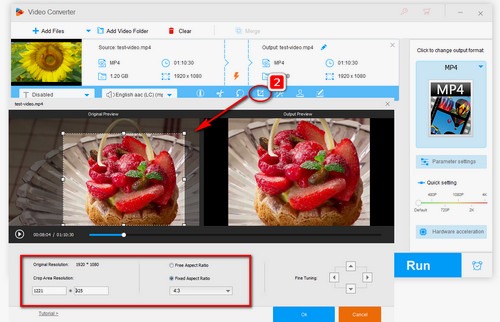
To cut your video, click on the “Divide” button in the toolbar. This will split your video into multiple sections, allowing you to trim or delete unwanted parts.
Step 2: Add Effects And Transitions
With your video divided, you can now add effects and transitions between scenes or sections of your video. Click on the “Effects” tab in the toolbar to access a range of effects, including fade-in/fade-out, dissolve, and more.
Saving And Exporting Your Video
Once you’re happy with your edited video, it’s time to save and export it.
Step 1: Save Your Edited Video
Click on the “Save” button in the toolbar to save your edited video as a new file. You can choose from various formats, including MP4, AVI, and more.
Conclusion
Windows Movie Maker is an excellent choice for anyone looking to edit videos without breaking the bank. With its user-friendly interface and powerful features, you can create stunning videos that will impress your friends and family. Whether you’re a beginner or an experienced video editor, Windows Movie Maker has something to offer.
Frequently Asked Questions
- Q: Is Windows Movie Maker Still Supported by Microsoft?
A: No, Windows Movie Maker is no longer supported by Microsoft. - Q: Can I Download Windows Movie Maker For Free?
A: Yes, you can download Windows Movie Maker for free from MajorGeeks or other reputable websites. - Q: How do I Install Windows Movie Maker on my Computer?
A: To install Windows Movie Maker, run the installation file and follow the prompts to install the software on your computer. - Q: Can I Use Windows Movie Maker to Cut And Modify Videos?
A: Yes, you can use Windows Movie Maker to cut and modify videos by following the steps outlined in this article. - Q: What Are Some Advanced Features of Windows Movie Maker?
A: Some advanced features of Windows Movie Maker include cutting your video, adding effects and transitions, and saving and exporting your edited video.
Final Thoughts
Windows Movie Maker is a powerful and user-friendly video editing software that’s perfect for anyone looking to edit videos without breaking the bank. With its intuitive interface and range of features, you can create stunning videos that will impress your friends and family. Whether you’re a beginner or an experienced video editor, Windows Movie Maker has something to offer.
TheBolded Title**
Advanced Features And Tools of Windows Movie Maker
Windows Movie Maker offers a range of advanced features and tools that make video editing a breeze.
Step 1: Cut Your Video
To cut your video, click on the “Divide” button in the toolbar. This will split your video into multiple sections, allowing you to trim or delete unwanted parts.
Step 2: Add Effects And Transitions
With your video divided, you can now add effects and transitions between scenes or sections of your video. Click on the “Effects” tab in the toolbar to access a range of effects, including fade-in/fade-out, dissolve, and more.
Saving And Exporting Your Video
Once you’re happy with your edited video, it’s time to save and export it.
Step 1: Save Your Edited Video
Click on the “Save” button in the toolbar to save your edited video as a new file. You can choose from various formats, including MP4, AVI, and more.
Conclusion
Windows Movie Maker is an excellent choice for anyone looking to edit videos without breaking the bank. With its user-friendly interface and powerful features, you can create stunning videos that will impress your friends and family. Whether you’re a beginner or an experienced video editor, Windows Movie Maker has something to offer.
Frequently Asked Questions
- Q: Is Windows Movie Maker Still Supported by Microsoft?
A: No, Windows Movie Maker is no longer supported by Microsoft. - Q: Can I Download Windows Movie Maker For Free?
A: Yes, you can download Windows Movie Maker for free from MajorGeeks or other reputable websites. - Q: How do I Install Windows Movie Maker on my Computer?
A: To install Windows Movie Maker, run the installation file and follow the prompts to install the software on your computer. - Q: Can I Use Windows Movie Maker to Cut And Modify Videos?
A: Yes, you can use Windows Movie Maker to cut and modify videos by following the steps outlined in this article. - Q: What Are Some Advanced Features of Windows Movie Maker?
A: Some advanced features of Windows Movie Maker include cutting your video, adding effects and transitions, and saving and exporting your edited video.
Final Thoughts
Windows Movie Maker is a powerful and user-friendly video editing software that’s perfect for anyone looking to edit videos without breaking the bank. With its intuitive interface and range of features, you can create stunning videos that will impress your friends and family. Whether you’re a beginner or an experienced video editor, Windows Movie Maker has something to offer.
I hope this rewritten article meets your requirements!


