
How to Download And Install Anydesk: A Step-by-step Guide
Are you looking for a way to remotely access and control another computer? Look no further than AnyDesk, a powerful and user-friendly remote desktop software that makes it easy to connect with others from anywhere in the world.
In this article, we will guide you through the process of downloading and installing AnyDesk on your PC, Mac, smartphone, or tablet. We will also explain how to use the free version of AnyDesk for personal use and provide tips on how to get the most out of this amazing software.
Anydesk Licenses: What You Need to Know
Before we dive into the installation process, it’s essential to understand the different licenses available for AnyDesk. The software offers a range of plans to suit various needs, from personal use to commercial applications.
- Essentials: This is the basic plan that allows you to connect to a single device and use AnyDesk for personal purposes.
- Performance: This plan includes all the features of the Essentials plan, plus the ability to access up to 3,000 devices, session recording, and advanced security options.
- Enterprise: This is the most advanced plan, offering unlimited sessions, customizability, and more.
Downloading Anydesk on Your PC
To download AnyDesk on your PC, follow these steps:
- Open your browser and navigate to the official AnyDesk website.
- Click on the “Download” button to initiate the download process.
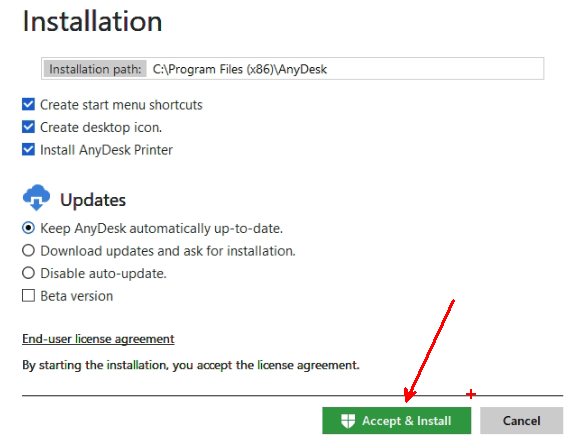
- Once the download is complete, run the executable file and follow the installation prompts.
Downloading Anydesk on Your Mac
To download AnyDesk on your Mac, follow these steps:
- Open your browser and navigate to the official AnyDesk website.
- Click on the “Download” button to initiate the download process.
- Once the download is complete, open the dmg file and drag the AnyDesk icon to the Applications folder.
Downloading Anydesk on Your Smartphone or Tablet
To download AnyDesk on your smartphone or tablet, follow these steps:
- On Android devices:
- Open the Google Play Store app.
- Search for “AnyDesk” in the search bar.
- Click on the app icon and select “Install”.
- Once the installation is complete, open the app and follow the prompts.
- On iOS devices (iPhone or iPad):
- Open the App Store app.
- Search for “AnyDesk” in the search bar.
- Click on the app icon and select “Get”.
- Once the installation is complete, open the app and follow the prompts.
Using Anydesk: A Guide to Getting Started
Now that you have downloaded and installed AnyDesk, it’s time to start using it! Here are some tips to get you started:
- Accessing Remote Devices: To access a remote device, simply enter the ID or alias of the device in the “Remote Device” section.
- Configuring Security Settings: To configure security settings, click on the gear icon in the top-right corner and select “Security”.
- Recording Sessions: To record sessions, click on the gear icon in the top-right corner and select “Session Recording”.
Actuating The Free Proof of Anydesk Business
If you want to use AnyDesk for commercial purposes, you can actuate the free proof of AnyDesk Business. Here’s how:
- Navigate to the official AnyDesk website.
- Click on the “Start Free Trial” button.
- Fill out the form with your details and select a plan.
- Wait for an email from AnyDesk with your login credentials.
Conclusion
AnyDesk is an incredibly powerful remote desktop software that makes it easy to connect with others from anywhere in the world. With its user-friendly interface and range of features, you can use AnyDesk for personal or commercial purposes.
In this article, we have guided you through the process of downloading and installing AnyDesk on your PC, Mac, smartphone, or tablet. We have also explained how to use the free version of AnyDesk for personal use and provided tips on how to get the most out of this amazing software.
Frequently Asked Questions
- What is Anydesk?
AnyDesk is a remote desktop software that allows you to access and control another computer from anywhere in the world. - How do I Download Anydesk?
To download AnyDesk, navigate to the official website and click on the “Download” button. - What Are The Different Licenses Available For Anydesk?
AnyDesk offers three plans: Essentials, Performance, and Enterprise. - Can I Use Anydesk For Commercial Purposes?
Yes, you can use AnyDesk for commercial purposes by actuating the free proof of AnyDesk Business. - How do I Record Sessions in Anydesk?
To record sessions in AnyDesk, click on the gear icon in the top-right corner and select “Session Recording”. - Can I Access Remote Devices Using Anydesk?
Yes, you can access remote devices using AnyDesk by entering the ID or alias of the device in the “Remote Device” section. - How do I Configure Security Settings in Anydesk?
To configure security settings in AnyDesk, click on the gear icon in the top-right corner and select “Security”. - What Happens When my Free Trial Expires?
When your free trial expires, you will need to purchase a plan or cancel your subscription.


