
How to Find Contacts on Gmail: A Step-by-step Guide
Are you having trouble finding contacts on your Gmail account? Do you want to access them from your computer, smartphone, or tablet? Look no further! In this article, we will guide you through the process of finding and managing your contacts on Gmail.
Why is it Important to Find Contacts on Gmail?
Your contacts are a vital part of your online life. They contain important information about your friends, family, and colleagues. Having access to them can help you stay in touch with loved ones, conduct business, or simply keep in touch with people you care about.
How to Find Contacts on Gmail From The Web
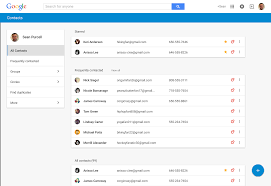
If you want to access your contacts directly from the web, you can do so by following these steps:
- Sign in to Google Contacts: Go to Google Contacts and sign in with your Gmail account.
- Access Your Contact List: Click on the “Contacts” tab and select the contact list you want to view.
How to Find Contacts on Gmail From Windows
If you use a Windows computer, follow these steps:
- Open The People App: Open the People app (also known as the “People” or “Contact” app) and sign in with your Microsoft account.
- Add Your Google Account: Add your Google account to the People app by clicking on “Settings” > “Accounts” > “Google”.
- Synchronize Contacts: Synchronize your contacts from Google by clicking on “Settings” > “Accounts” > “Google” and selecting the option to synchronize contacts.
How to Find Contacts on Gmail From Macos
If you use a Mac, follow these steps:
- Open The Contacts App: Open the Contacts app (also known as the “Contacts” or “Address Book” app) and sign in with your Apple ID.
- Add Your Google Account: Add your Google account to the Contacts app by clicking on “Contact” > “Preferences” > “Accounts” > “Google”.
- Synchronize Contacts: Synchronize your contacts from Google by clicking on “Contact” > “Preferences” > “Accounts” > “Google” and selecting the option to synchronize contacts.
How to Find Contacts on Gmail From Android
If you use an Android device, follow these steps:
- Open The Phone App: Open the phone app (also known as the “Phone” or “Contacts” app) and sign in with your Google account.
- Add Your Google Account: Add your Google account to the phone app by clicking on “Settings” > “Accounts” > “Google”.
- Synchronize Contacts: Synchronize your contacts from Google by clicking on “Settings” > “Accounts” > “Google” and selecting the option to synchronize contacts.
How to Find Contacts on Gmail From Ios/ipados
If you use an iPhone or iPad, follow these steps:
- Open The Contacts App: Open the Contacts app (also known as the “Contacts” or “Phone” app) and sign in with your Apple ID.
- Add Your Google Account: Add your Google account to the Contacts app by clicking on “Settings” > “Accounts” > “Google”.
- Synchronize Contacts: Synchronize your contacts from Google by clicking on “Settings” > “Accounts” > “Google” and selecting the option to synchronize contacts.
How to Export Contacts From Gmail
If you want to export your contacts from Gmail, follow these steps:
- Access Google Contacts: Access Google Contacts and sign in with your Gmail account.
- Export Your Contacts: Click on the three dots (⋯) at the top right corner of the contact list and select “Export”.
- Choose a Format: Choose a format for exporting your contacts, such as CSV or VCF.
How to Recover Deleted Contacts From Gmail
If you have deleted contacts from your Gmail account, follow these steps:
- Access Google Contacts: Access Google Contacts and sign in with your Gmail account.
- Check The Trash: Check the trash bin (also known as the “Basket”) for deleted contacts.
- Recover Deleted Contacts: Select the contact you want to recover and click on the “Recover” button.
Conclusion
Finding contacts on Gmail is a straightforward process that can be completed from any device or platform. Whether you use a computer, smartphone, or tablet, accessing your contacts is just a few clicks away. Remember to export your contacts if you need to transfer them to another service, and recover deleted contacts in case of accidental deletion.
Frequently Asked Questions (FAQs)
- Q: How do I Find my Contacts on Gmail?
A: You can access your contacts by signing in to Google Contacts from the web. - Q: How do I Add a Google Account to my Windows Computer?
A: You can add a Google account to your Windows computer by clicking on “Settings” > “Accounts” > “Google”. - Q: How do I Synchronize Contacts Between Gmail And my Android Device?
A: You can synchronize contacts between Gmail and your Android device by adding your Google account to the phone app. - Q: How do I Export Contacts From Gmail?
A: You can export contacts from Gmail by clicking on the three dots (⋯) at the top right corner of the contact list and selecting “Export”. - Q: How do I Recover Deleted Contacts From Gmail?
A: You can recover deleted contacts from Gmail by accessing the trash bin and selecting the contact you want to recover. - Q: Can I Access my Contacts on Multiple Devices?
A: Yes, you can access your contacts on multiple devices, including computers, smartphones, and tablets. - Q: How do I Add a Google Account to my Ios Device?
A: You can add a Google account to your iOS device by clicking on “Settings” > “Accounts” > “Google”. - Q: Can I Export Contacts From Gmail in Multiple Formats?
A: Yes, you can export contacts from Gmail in multiple formats, including CSV and VCF.
I hope this article has been helpful in answering your questions about finding contacts on Gmail. If you have any further questions or concerns, please don’t hesitate to ask!


