
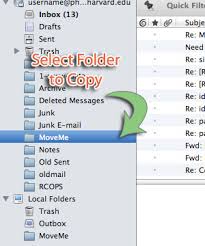
How to Save Email in a Folder on Your Desktop
Are you tired of sifting through your email inbox, searching for specific messages or conversations? Saving emails in folders can help you stay organized and focused. In this article, we’ll show you how to save email from various clients, including Outlook, Gmail, Apple Mail, and Thunderbird.
Why Save Emails in Folders?
Saving emails in folders allows you to categorize and prioritize your messages, making it easier to find what you need when you need it. You can also use folders to back up important emails or create a paper trail for important conversations.
How to Save Email From Outlook
To save email from Outlook, follow these steps:
- Select The Emails: Choose the emails you want to save by selecting them with the mouse or using Ctrl+A (Windows) or Command+A (Mac).
- Right-click: Right-click on the selected emails and choose “Save as” or press Alt+S.
- Choose a Location: Select a folder on your desktop where you want to save the emails.
- Save Format: Choose the file format for saving the emails, such as .Eml or .Msg.
How to Save Email From Gmail
To save email from Gmail, follow these steps:
- Select The Emails: Choose the emails you want to save by selecting them with the mouse or using Ctrl+A (Windows) or Command+A (Mac).
- Click on The Three Dots: Click on the three dots next to each selected email and choose “Save as” or press Ctrl+S (Windows) or Command+S (Mac).
- Choose a Location: Select a folder on your desktop where you want to save the emails.
- Save Format: Choose the file format for saving the emails, such as .Eml or .Msg.
How to Save Email From Apple Mail
To save email from Apple Mail, follow these steps:
- Select The Emails: Choose the emails you want to save by selecting them with the mouse or using Ctrl+A (Windows) or Command+A (Mac).
- Click on The Three Dots: Click on the three dots next to each selected email and choose “Save as” or press Alt+S.
- Choose a Location: Select a folder on your desktop where you want to save the emails.
- Save Format: Choose the file format for saving the emails, such as .Eml or .Msg.
How to Save Email From Thunderbird
To save email from Thunderbird, follow these steps:
- Select The Emails: Choose the emails you want to save by selecting them with the mouse or using Ctrl+A (Windows) or Command+A (Mac).
- Click on File: Click on “File” and choose “Export” or press Alt+E.
- Choose a Location: Select a folder on your desktop where you want to save the emails.
- Save Format: Choose the file format for saving the emails, such as .Eml or .Msg.
Tips And Tricks
- Use folders to categorize and prioritize your emails.
- Save important emails in a “backup” folder for future reference.
- Use the search function to quickly find specific emails.
- Consider using email clients with built-in backup features, such as Outlook or Thunderbird.
Conclusion
Saving email in folders is an easy way to stay organized and focused. By following these simple steps, you can save email from various clients, including Outlook, Gmail, Apple Mail, and Thunderbird. Remember to use folders to categorize and prioritize your emails, and consider using email clients with built-in backup features.
Faqs
- Q: How do I Save a Single Email?
A: To save a single email, select the email and choose “Save as” or press Ctrl+S (Windows) or Command+S (Mac). - Q: What File Format Should I Use to Save Emails?
A: The most common file formats for saving emails are .Eml or .Msg. - Q: Can I Save Multiple Emails at Once?
A: Yes, you can select multiple emails and save them at the same time. - Q: How do I Back up my Emails?
A: You can save your emails in a folder on your desktop for backup purposes. - Q: Can I Use Email Clients With Built-in Backup Features?
A: Yes, some email clients, such as Outlook and Thunderbird, have built-in backup features that you can use to back up your emails.
What’s Next?
- Learn how to use email folders to stay organized.
- Explore the settings in your email client to customize your experience.
- Consider using email clients with built-in backup features for added security.


