
The Ultimate Guide to Switching From Android to Ios: A Step-by-step Tutorial
Are you tired of using an Android device and want to switch to an iPhone or iPad? Look no further! This article will guide you through the process of switching from Android to iOS, including a step-by-step tutorial on how to use Move to iOS.
Why Switch From Android to Ios?
While both Android and iOS have their own strengths and weaknesses, there are several reasons why you might want to switch to an iPhone or iPad. Here are just a few:
- Ease of Use: IPhones and iPads are generally easy to use, with an intuitive interface that makes it simple to navigate.
- Security: IOS is considered to be one of the most secure mobile operating systems available, thanks to its closed ecosystem and strict app review process.
- Integration: If you already have an iPhone or iPad, switching from Android will allow you to integrate your devices seamlessly, making it easy to share files, photos, and more.
What You’ll Need
Before you start the switch, make sure you have:
- An Android device with iOS installed (you can download Move to iOS from the Google Play Store)
- An iPhone or iPad
- A stable internet connection
Step 1: Prepare Your Android Device
To prepare your Android device for switching to iOS, follow these steps:
- Backup Your Data: Before you start the switch, make sure you backup all of your important data, including contacts, photos, and messages.
- Download Move to Ios: Download the Move to iOS app from the Google Play Store on your Android device.
- Install Move to Ios: Follow the instructions provided by Move to iOS to install it on your Android device.
Step 2: Set Up Your Iphone or Ipad
To set up your iPhone or iPad for switching from Android, follow these steps:
- Turn Off Your Iphone or Ipad: Turn off your iPhone or iPad and then turn it back on.
- Select Language And Country: Select the language and country or region you’re in to begin setting up your device.
Step 3: Transfer Data From Android to Ios
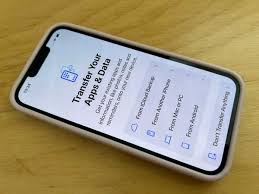
To transfer data from your Android device to your iPhone or iPad using Move to iOS, follow these steps:
- Open Move to Ios on Your Android Device: Open the Move to iOS app on your Android device and select “Transfer Data”.
- Connect Both Devices: Connect both devices to the same Wi-Fi network.
- Scan QR Code: On your iPhone or iPad, go to Settings > General > Transfer or Reset iPhone (or iPad). Tap on “Move Data from Android” and scan the QR code that appears on your Android device with your iPhone or iPad camera.
- Wait For Transfer to Complete: Wait for the transfer to complete. This may take several minutes, depending on the amount of data you’re transferring.
Step 4: Set Up Your Iphone or Ipad
Once the transfer is complete, follow these steps to set up your iPhone or iPad:
- Follow On-screen Instructions: Follow the on-screen instructions to set up your device, including setting up Wi-Fi, Touch ID or Face ID, and other settings.
- Configure Settings: Configure any additional settings you’d like, such as notification settings and app permissions.
Tips For Switching From Android to Ios
Here are a few tips to keep in mind when switching from Android to iOS:
- Get Familiar With The Interface: Take some time to get familiar with the interface of your iPhone or iPad. This will help you navigate through menus and settings more easily.
- Explore Apps: Explore available apps on your iPhone or iPad. You may find that some apps are not available on both platforms, so be sure to download any necessary apps before switching.
Conclusion
Switching from Android to iOS can seem daunting, but with the right guidance, it’s a breeze! By following these steps and tips, you’ll be able to transfer your data from your Android device to your iPhone or iPad using Move to iOS. Remember to backup your data, download Move to iOS, and follow on-screen instructions to set up your new device.
Frequently Asked Questions
Here are some frequently asked questions about switching from Android to iOS:
- Q: How Long Does The Transfer Process Take?
A: The transfer process can take several minutes, depending on the amount of data you’re transferring. - Q: Do I Need to Backup my Data Before Switching?
A: Yes, it’s a good idea to backup your important data before switching to iOS. - Q: Can I Use Move to Ios With an Older Iphone or Ipad?
A: No, Move to iOS is compatible with iOS 13 and later versions.
Additional Tips
Here are some additional tips for using Move to iOS:
- Use Google Photos: Use Google Photos to transfer photos and videos from your Android device to your iPhone or iPad.
- Sync Contacts: Sync your contacts by connecting your iPhone or iPad to your Google account.
- Transfer Messages: Transfer messages from your Android device to your iPhone or iPad.
Final Tips
Here are some final tips for switching from Android to iOS:
- Get Help: If you’re having trouble with the transfer process, don’t hesitate to reach out to Apple support.
- Explore Features: Explore features on your new iPhone or iPad. You may find that you enjoy certain features more than others.
We hope this guide has been helpful in walking you through the process of switching from Android to iOS using Move to iOS. Remember to backup your data, download Move to iOS, and follow on-screen instructions to set up your new device!


