
How to Type a Letter in Word: A Step-by-step Guide
Are you struggling to create a letter in Microsoft Word? Do you find the process daunting or time-consuming? Look no further! In this article, we will guide you through the steps of typing a letter in Word, covering both informal and formal letters.
Creating a Letter in Word For Windows/macos
To start, open Microsoft Word on your computer. If you don’t have it installed, you can download it from the Microsoft website. Once opened, click on the “New” button to create a new document.
Next, select the type of letter you want to create: Informal or formal. For this example, we will use an informal letter.
Step 1: Choose a Template
Word offers various templates for different types of letters. Click on the template that suits your needs. You can also download more templates from the Microsoft website if needed.
Step 2: Customize Your Letter
Once you have selected your template, customize it to fit your needs. This includes adding your personal details, such as name and address, and any other relevant information.
Step 3: Add Content
Now it’s time to add the content of your letter. Start by writing the introduction, followed by the main body of the letter. Don’t forget to include a closing and signature.
Typing an Informal Letter in Word
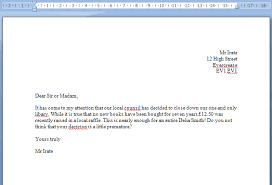
If you want to type an informal letter in Word, follow these steps:
- Date: Type the date in the top right-hand corner.
- Formula of greeting: Use a casual greeting such as “Dear [Name]” or “Hi [Name]”.
- Body of the letter: Write the main content of your letter, including any relevant details.
- Formula of closing: End with a casual closing such as “Best regards” or “Thanks”.
- Signature: Sign off with your name.
Typing a Formal Letter in Word
If you want to type a formal letter in Word, follow these steps:
- Mittente: Include your personal details, including name and address.
- Place and date: Type the place and date in the top right-hand corner.
- Addressee: Write the addressee’s name and address.
- Object: State the purpose of the letter.
- Formula of opening: Use a formal greeting such as “Dear [Name]” or “To Whom It May Concern”.
- Body of the message: Write the main content of your letter, including any relevant details.
- Formula of closing: End with a formal closing such as “Sincerely” or “Yours faithfully”.
Creating a Commercial Letter in Word
If you want to type a commercial letter in Word, follow these steps:
- Header: Include your company’s logo and details.
- Place and date: Type the place and date in the top right-hand corner.
- Addressee: Write the addressee’s name and address.
- Contained: State the purpose of the letter.
- Formula of opening: Use a formal greeting such as “Dear [Name]” or “To Whom It May Concern”.
- Body of the message: Write the main content of your letter, including any relevant details.
- Signature: Sign off with your company’s name and logo.
Alternative Options
If you don’t have Microsoft Word installed on your computer, there are alternative options available. Some popular alternatives include:
- LibreOffice (Windows/MacOS/Linux)
- Google Document (Online/Android/iOS)
- Polaris Office (Android/iOS)
- AndroOpen Office (Android)
Each of these options offers similar features to Microsoft Word and can be used to create letters.
Conclusion
Creating a letter in Word is a straightforward process. Whether you’re typing an informal or formal letter, follow the steps outlined above and customize your document to fit your needs. If you have any questions or need further guidance, don’t hesitate to ask.
Faqs
Q: What is the difference between an informal and formal letter?
A: An informal letter is a personal letter written to someone you know, while a formal letter is a professional letter written to someone you don’t know.
Q: How do I add a template in Word?
A: To add a template in Word, click on the “New” button and select the type of letter you want to create. You can also download more templates from the Microsoft website if needed.
Q: What is the best alternative option to Microsoft Word?
A: The best alternative option to Microsoft Word depends on your needs. Some popular options include LibreOffice, Google Document, Polaris Office, and AndroOpen Office.
Q: How do I save a letter in Word?
A: To save a letter in Word, click on the “File” menu and select “Save As”. Choose a location to save your document and give it a name.
Q: Can I use Microsoft Word online?
A: Yes, you can use Microsoft Word online. Simply sign in to your Microsoft account and access the web version of Word.
Q: How do I share a letter with someone else?
A: To share a letter with someone else, click on the “File” menu and select “Share”. Choose how you want to share the document and enter the recipient’s email address.
Q: Can I type a letter without Microsoft Word?
A: Yes, you can type a letter without Microsoft Word. Some popular alternatives include LibreOffice, Google Document, Polaris Office, and AndroOpen Office.


