
How to Open Ppt Files: A Step-by-step Guide
Are you struggling to open PPT files on your computer? Do you find yourself facing errors and frustrations while trying to view or edit these files? If so, you’re not alone! In this article, we’ll provide a comprehensive guide on how to open PPT files on various devices, including Windows, Mac, Android, and iPhone.
What is a Ppt File?
Before we dive into the solution, let’s first understand what a PPT file is. A PPT file is a presentation file created using Microsoft PowerPoint or other compatible software. These files contain slides with text, images, animations, and other multimedia elements that help presenters convey their ideas effectively.
Opening Ppt Files on Windows
If you’re using a Windows computer, here’s how to open PPT files:
Method 1: Using Powerpoint
To open a PPT file using PowerPoint on Windows:
- Ensure you have the latest version of PowerPoint installed.
- Locate the PPT file on your computer or receive it via email.
- Double-click the PPT file to open it in PowerPoint.
Method 2: Using Powerpoint Mobile
If you don’t have PowerPoint installed, but still want to view a PPT file without installing the full software:
- Download and install PowerPoint Mobile from the Microsoft Store.
- Open PowerPoint Mobile and click on “Open” to select the PPT file.
- You’ll be prompted to sign in with your Microsoft account; simply click “Ignore” for now.
Opening Ppt Files on Mac
If you’re using a Mac, here’s how to open PPT files:
Method 1: Using Powerpoint For Mac
To open a PPT file using PowerPoint on Mac:
- Ensure you have the latest version of PowerPoint installed.
- Locate the PPT file on your computer or receive it via email.
- Double-click the PPT file to open it in PowerPoint.
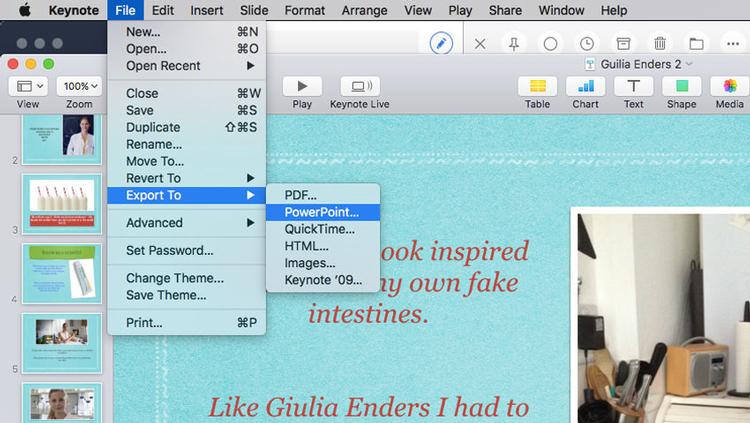
Method 2: Using Keynote
If you don’t have PowerPoint, but still want to view a PPT file:
- Download and install Keynote from the Mac App Store.
- Open Keynote and click on “File” > “Open” to select the PPT file.
Opening Ppt Files Online
Want to access your PPT files online without installing software?
Method 1: Using Powerpoint Online
To open a PPT file using PowerPoint Online:
- Sign in with your Microsoft account.
- Click on “File” > “Open” and select the PPT file from your computer or cloud storage.
Method 2: Using Google Presentations
If you don’t have a Microsoft account, but still want to view a PPT file:
- Go to Google Presentations.
- Click on “File” > “Open” and select the PPT file from your computer or cloud storage.
Opening Ppt Files on Android And Iphone
To open PPT files on Android and iPhone devices:
Method 1: Using Powerpoint App
On both Android and iPhone, download and install the PowerPoint app:
- Open the app and sign in with your Microsoft account.
- Click on “File” > “Open” to select the PPT file.
Method 2: Using Keynote App (for Iphone)
If you’re using an iPhone, you can also use the Keynote app:
- Download and install Keynote from the App Store.
- Open Keynote and click on “File” > “Open” to select the PPT file.
Opening Protected or Damaged Ppt Files
What if your PPT file is password-protected or damaged?
Method 1: Opening a Password-protected File
To open a password-protected PPT file:
- Open the PPT file using PowerPoint or another compatible software.
- Enter the correct password to access the file.
Method 2: Recovering a Damaged File
If your PPT file is damaged, try recovering it with software like Recover Corrupt Files.
Conclusion
In this article, we’ve covered various methods for opening PPT files on different devices and platforms. Remember that each method may have specific requirements or software installations, so be sure to follow the steps carefully.
Frequently Asked Questions (FAQs)
- What is a Ppt File?
A PPT file is a presentation file created using Microsoft PowerPoint or other compatible software. - How do I Open a Ppt File on Windows?
You can use PowerPoint, PowerPoint Mobile, or another compatible software to open a PPT file on Windows. - Can I Open a Ppt File Online Without Installing Software?
Yes, you can use PowerPoint Online or Google Presentations to access your PPT files online. - How do I Recover a Damaged Ppt File?
Try using software like Recover Corrupt Files to attempt recovery of the damaged file.
We hope this guide has been helpful in solving your PPT file opening issues!


