
How to Remove Background With Photoshop
Are you tired of spending hours removing backgrounds from photos? Do you want to create stunning photomontages and stickers with ease? Look no further! In this article, we’ll show you how to remove background with Photoshop, even if you’re not an expert in graphic design.
Why Use Photoshop?
Photoshop is a powerful image editing software that offers a range of tools for removing backgrounds from photos. With its intuitive interface and advanced features, it’s the perfect tool for creating photomontages, stickers, and other digital designs. Plus, with the latest version of Photoshop, you can use AI-powered tools to automate the background removal process.
How to Remove Background With Automatic Function
The first instrument you should try when removing background from a photo is the automatic function in Photoshop. This feature uses artificial intelligence to recognize and select objects in an image, making it easy to remove backgrounds. To access this tool, follow these steps:
- Open your image in Photoshop.
- Select the “Image” menu and choose “Open.”
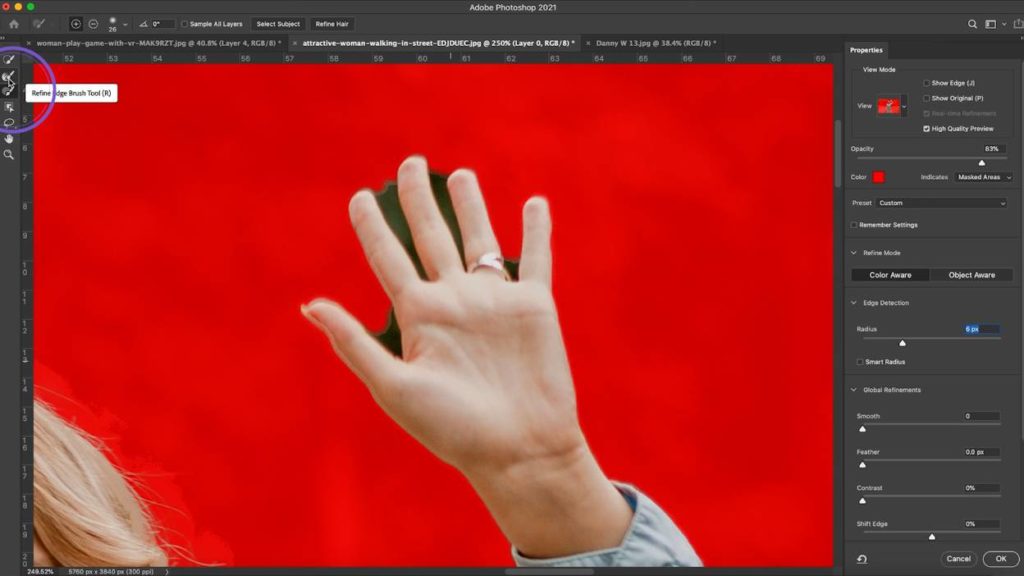
- In the top toolbar, click on the “Select and Mask” button.
- Choose the automatic function by clicking on the “Automatic” tab.
- Click on the “Apply” button to remove the background.
How to Remove Background With Magic Wand
Another way to remove background from a photo is using the magic wand tool in Photoshop. This tool allows you to select and delete areas of an image quickly and easily. To use the magic wand, follow these steps:
- Open your image in Photoshop.
- Select the “Select” menu and choose “Magic Wand.”
- Choose the color range you want to select (e.G., White or black).
- Click on the area of the image you want to remove.
- Hold down the Shift key and click on other areas to add them to the selection.
- Once you’ve selected the area, go to the “Select” menu and choose “Invert” to invert the selection.
- Then, go to the “Image” menu and choose “Cut” to remove the background.
How to Remove Background With Selection Tool
If you want more control over the removal process, you can use the selection tool in Photoshop. This tool allows you to select specific areas of an image and delete them manually. To use the selection tool, follow these steps:
- Open your image in Photoshop.
- Select the “Select” menu and choose “Rectangular Marquee.”
- Choose the size and shape of the marquee tool.
- Click on the area of the image you want to remove.
- Hold down the Shift key and click on other areas to add them to the selection.
- Once you’ve selected the area, go to the “Select” menu and choose “Invert” to invert the selection.
- Then, go to the “Image” menu and choose “Cut” to remove the background.
Tips And Tricks
Here are some tips and tricks to keep in mind when removing backgrounds from photos:
- Use the automatic function first, as it can save you time and effort.
- Choose a color range that matches the area of the image you want to remove.
- Hold down the Shift key while selecting areas to add them to the selection.
- Invert the selection before cutting to remove the background.
- Save your work regularly to avoid losing progress.
Conclusion
Removing backgrounds from photos can be a tedious task, but with Photoshop, it’s easier than ever. Whether you use the automatic function, magic wand tool, or selection tool, the process is straightforward and efficient. Remember to save your work regularly and experiment with different techniques until you achieve the desired result. Happy editing!
Faqs
- What is The Best Way to Remove Background From a Photo?
The best way to remove background from a photo is using the automatic function in Photoshop, as it uses AI-powered tools to automate the process. - How do I Use The Magic Wand Tool in Photoshop?
To use the magic wand tool in Photoshop, select the “Select” menu and choose “Magic Wand.” Choose the color range you want to select (e.G., White or black), click on the area of the image you want to remove, hold down the Shift key, and click on other areas to add them to the selection. - How do I Use The Selection Tool in Photoshop?
To use the selection tool in Photoshop, select the “Select” menu and choose “Rectangular Marquee.” Choose the size and shape of the marquee tool, click on the area of the image you want to remove, hold down the Shift key, and click on other areas to add them to the selection. - What Are Some Tips For Removing Backgrounds From Photos?
Some tips for removing backgrounds from photos include using the automatic function first, choosing a color range that matches the area of the image you want to remove, holding down the Shift key while selecting areas, inverting the selection before cutting, and saving your work regularly. - Can I Use Photoshop on my Smartphone or Tablet?
Yes, you can use Photoshop on your smartphone or tablet using the mobile version of the software. However, the mobile version may not have all the features available on the desktop version.
Frequently Asked Questions
- What is the best way to remove background from a photo?
- How do I use the magic wand tool in Photoshop?
- How do I use the selection tool in Photoshop?
- What are some tips for removing backgrounds from photos?
- Can I use Photoshop on my smartphone or tablet?
Frequently Asked Questions (continued)
- What is the difference between a photomontage and a sticker?
- How do I save my work in Photoshop?
- What is the best format to save an image in Photoshop?
- Can I use other software besides Photoshop to remove background from photos?
- Are there any tutorials available online for removing backgrounds from photos?


