
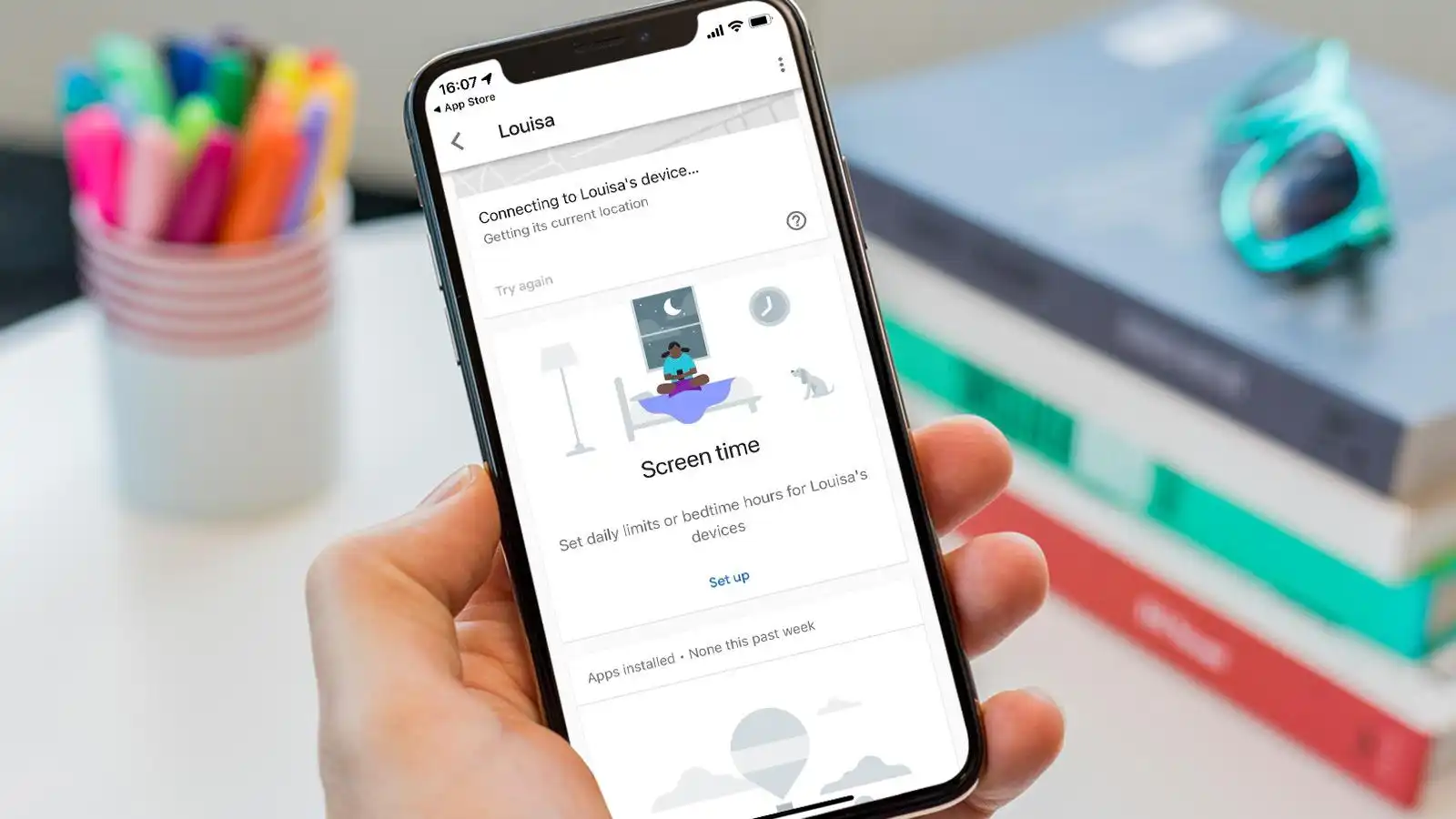
How to Capsize Phone on Family Link
As a parent, it’s natural to feel apprehensive when introducing new devices to your children. One way to mitigate these concerns is by setting up parental controls through services like Family Link. However, what happens if you need to capsize phone, i.E., Transfer or change the device while keeping the service active? This guide will walk you through the process of capsize phone on Family Link, exploring two primary methods: Using the Family Link app and resetting the old smartphone.
Informazioni Preliminari
Before proceeding with the change of phone on Family Link, it’s essential to understand the various available solutions based on your specific requirements. You might be looking to format the old phone or simply transfer the parental control without losing any data. There are several options you can consider:
- If you want to format the old phone after transferring the parental control to a new device, you can use the Family Link app installed on the parent’s smartphone.
- Alternatively, if you don’t wish to format the old device but want to reset only the Google account associated with Family Link, you can operate directly from the settings of the old Android smartphone of your son.
Capsize Phone And Maintain Services
Transferring services while capsize phone might seem complicated, but by following these steps, you’ll find it to be any more facile than imagined. We will explore two forms:
Using The Family Link App (Direct Approach)
This method involves directly managing the transfer from your smartphone using the Family Link app.
- Open the Family Link app on your smartphone.
- Tap on the three hyphens in the top-left corner or swipe left to right to access the lateral menu.
- Select your child’s name and tap on Controls.
- Navigate to Devices, then select the device you want to transfer (your son’s old phone).
- Choose Reset Device and delete given. In the next screen, choose why you want to reset the device (Device lost or stolen, or Reset for other reasons).
- Confirm the operation by tapping on Ahead in the bottom-right corner.
Using Android Settings (Without Resetting Device)
If you don’t want to reset the old device but need to capsize phone on Family Link, follow these steps:
- Open the Settings app on your son’s old smartphone.
- Tap on Google Account or Account and Synchronisation.
- Select Google in the account section.
- Tap on Delete account or Remove account.
- Confirm the operation by tapping on Done.
Like Capsize Phone on Family Link (App)
This method involves using the Family Link app to manage the transfer process. This app provides an intuitive way to maintain services and settings while changing devices.
- Open the Family Link app on your smartphone.
- Tap on the three hyphens in the top-left corner or swipe left to right to access the lateral menu.
- Select your child’s name and tap on Controls.
- Navigate to Devices, then select the device you want to transfer (your son’s old phone).
- Choose Reset Device and delete given. In the next screen, choose why you want to reset the device (Device lost or stolen, or Reset for other reasons).
App Family Link (Reset of Old Smartphone)
The most drastic solution is to reset the old smartphone using the Family Link app.
- Open the Family Link app on your smartphone.
- Tap on the three hyphens in the top-left corner or swipe left to right to access the lateral menu.
- Select your child’s name and tap on Controls.
- Navigate to Devices, then select the device you want to transfer (your son’s old phone).
- Choose Reset Device and delete given.
Like Capsize Phone on Family Link (Sito Web)
If you don’t have access to your son’s old smartphone or prefer not to use the app, you can utilize the website of Family Link from any computer or mobile device with a browser.
- Open the Family Link website.
- If prompted, log in to your Google account using the correct email and password.
- Follow the same steps as above to complete the procedure.
Capsize Phone: Conclusion
Transferring services while capsize phone on Family Link is achievable with these methods. Choose the approach that best suits your needs, and follow the detailed instructions provided.
Faqs
- What happens if my child’s device gets lost or stolen?
- If the device gets lost or stolen, you can reset it using the Family Link app to prevent unauthorized access.
- Can I capsize phone without losing any data on my son’s old device?
- Yes, you can maintain some of your data while changing devices by setting up a backup for important information.
- How do I transfer parental control without resetting the old device?
- You can operate directly from the settings of the old Android smartphone of your son to keep the Google account associated with Family Link intact.
This guide is designed to provide detailed insights and explanations, ensuring that you have all necessary information for a smooth transition.


