
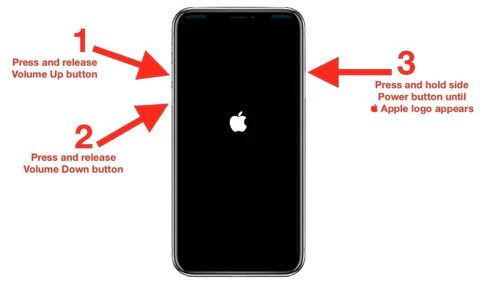
How to Revive Your Iphone: A Step-by-step Guide
Are you tired of dealing with a dead iPhone? Do you want to learn how to revive it without spending hours trying to fix it? Look no further! In this article, we will guide you through the process of reviving your iPhone in just 5 minutes.
Reviving Your Iphone Without Touching It
Before we dive into the more complex procedures, let’s cover the basics. If your iPhone is simply not turning on, try the following:
- Press And Hold The Sleep/wake Button: This will turn off your iPhone.
- Wait for 30 seconds.
- Press and hold the Sleep/Wake button again to turn it back on.
That’s it! If this doesn’t work, don’t worry, we have more advanced solutions below.
Reviving Your Iphone in Case of a Problematic Standby/reactive Button
If your iPhone’s standby/reactivate button is broken or malfunctioning, you can try the following:
- Access Assistivetouch: Go to Settings > Accessibility > Touch > AssistiveTouch.
- Turn on AssistiveTouch.
- Access Device > Another > Restart.
This will force restart your iPhone without using the physical buttons.
Reviving Your Iphone Using a Computer or Mac
If you’re experiencing issues with your iPhone and can’t revive it, try connecting it to a computer or Mac via USB cable. This will allow you to:
- Enter Recovery Mode: Press and hold the Sleep/Wake button and the Volume Down button at the same time.
- Release the buttons when the Apple logo appears.
If this doesn’t work, consult our dedicated guide on how to reset your iPhone.
Troubleshooting: What If My Iphone Still Won’t Revive?
If you’ve tried all of the above steps and still can’t revive your iPhone, don’t panic! You have several options:
- Contact Apple Support: Reach out to Apple’s customer support team for further assistance.
- Visit an Apple Store or authorized service provider.
Tips And Tricks
- If your iPhone is running iOS 11 or later, you can use the built-in “Turn Off” feature in Settings > General > Shut Down.
- To access AssistiveTouch on older iPhones, go to Settings > Accessibility > Touch > AssistiveTouch.
Conclusion
Reviving an iPhone can seem like a daunting task, but with these simple steps, you’ll be back up and running in no time. Remember to always try the basic procedures before resorting to more advanced solutions. If you’re still having trouble, don’t hesitate to reach out to Apple’s support team.
Faqs
- Q: Why Won’t my Iphone Turn On?
A: Try pressing and holding the Sleep/Wake button for 30 seconds to restart it. - Q: How do I Access Assistivetouch?
A: Go to Settings > Accessibility > Touch > AssistiveTouch and toggle it on. - Q: Can I Revive my Iphone Using a Computer or Mac?
A: Yes, try connecting your iPhone to a computer or Mac via USB cable and follow the on-screen instructions. - Q: What if my Iphone’s Standby/reactivate Button is Broken?
A: Use AssistiveTouch as described above. - Q: How do I Contact Apple Support?
A: Visit their website, call their customer support hotline, or visit an Apple Store. - Q: Why Won’t my Iphone Revive After Trying All of The Steps Above?
A: Try resetting your iPhone by connecting it to a computer or Mac via USB cable and following the on-screen instructions.


