
How to Unblock a Person on Facebook: A Step-by-step Guide
Are you tired of being blocked by someone on Facebook? Do you want to reconnect with them, but don’t know how? Look no further! In this article, we’ll guide you through the process of unblocking a person on Facebook, both on mobile and desktop.
Why Unblock Someone on Facebook?
Before we dive into the steps, let’s talk about why you might want to unblock someone on Facebook. Perhaps you had a disagreement with someone in the past, but now you’re ready to move forward and reconnect. Maybe you forgot that you blocked them in the first place! Whatever your reason, unblocking someone on Facebook is a simple process that can help you rekindle friendships or connections.
Prerequisites: Unblocking Someone on Facebook
Before we begin, there are a few things you should know:
- Blocking someone on Facebook will conceal their profile from you and remove them from your friends list.
- If the person you blocked was part of your friends list before, they’ll be automatically removed when you block them.
- You can unblock someone at any time, but keep in mind that they won’t receive a notification about being unblocked.
How to Unblock Someone on Facebook (Mobile)
To unblock someone on Facebook using the mobile app:
- Access Facebook’s Settings: Open the Facebook app and tap on the three horizontal lines (☰) on the top-right corner of your screen.
- Select Settings And Privacy: Tap on “Settings” followed by “Privacy.”
- Block Someone: Choose the option to block someone from the menu that appears.
- Find Blocked Users: Tap on “Persons blocked” to view the list of people you’ve blocked.
- Unblock a User: Find the person you want to unblock, and tap on the “Unblock” button next to their name.
How to Unblock Someone on Facebook (Desktop)
To unblock someone on Facebook using your computer:
- Go to Facebook’s Settings: Click on your profile picture in the top-right corner of the screen.
- Select Settings And Privacy: Choose “Settings and privacy” from the dropdown menu.
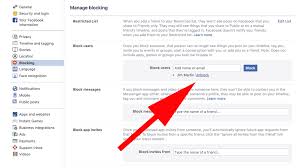
- Block Someone: Select “Blocking” from the left-hand menu, then choose “Block someone.”
- View Blocked Users: In the “Blocked users” section, click on “See your list of blocked people.”
- Unblock a User: Find the person you want to unblock and click on the “Unblock” button next to their name.
How to Re-add Someone as a Friend After Unblocking
If you want to re-add someone as a friend after unblocking them, follow these steps:
- Search For The Person: Use Facebook’s search bar to find the person you unblocked.
- Select The Person: Click on their profile picture or name to visit their profile.
- Add Them as a Friend: Click on the “Add to friends” button.
Tips And Variations
- If you’re having trouble finding someone in your blocked users list, try using Facebook’s search function.
- Remember that unblocking someone doesn’t automatically add them back to your friend list.
- Be aware that blocking someone will remove their posts from your News Feed.


