
The Ultimate Guide to Selecting Everything on Word: A Step-by-step Tutorial
Are you tired of manually selecting text in Microsoft Word? Do you wish there was an easier way to choose everything on the page? Look no further! In this comprehensive guide, we will walk you through the process of selecting everything on Word for Windows, Mac, online, and even mobile devices.
Why Select Everything on Word?
Selecting everything on Word can be a game-changer for anyone who frequently uses the program. Whether you’re working on a large document, creating a presentation, or editing multiple files at once, being able to select everything with ease can save you time and reduce frustration.
Selezionare #Everything in *Word For Windows
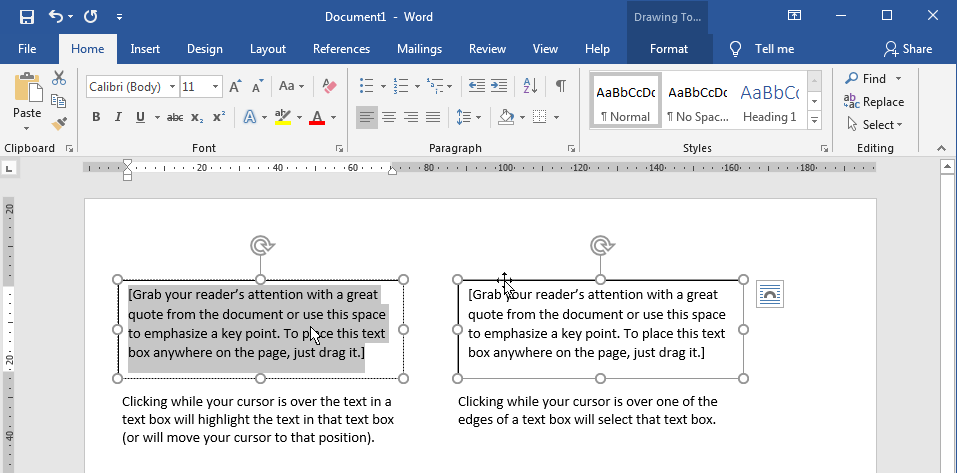
To start, open Microsoft Word on your Windows computer and navigate to the Home tab. Click on the “Select” button located in the top-right corner of the screen. From the dropdown menu, choose “Select All.” Alternatively, you can use the keyboard shortcut Ctrl+A (Windows) or Command+A (Mac) to select everything.
Selezionare #Everything in *Word For Mac
If you’re using a Mac, the process is similar. Open Microsoft Word and navigate to the Home tab. Click on the “Select” button located in the top-right corner of the screen. From the dropdown menu, choose “Select All.” Alternatively, you can use the keyboard shortcut Command+A (Mac) or Ctrl+A (Windows) to select everything.
Selezionare #Everything in *Word Online
Want to work on a document online without installing Microsoft Word? You’re in luck! With Microsoft Word Online, you can access your documents directly from the browser. Simply log in to your Microsoft account and navigate to the Word Online homepage. From there, select the “New” button to create a new document or choose an existing file to edit.
Selezionare #Everything in *Word For Smartphone And Tablet
Need to work on a document while on-the-go? Microsoft Word has got you covered! With the mobile app, you can access your documents directly from your smartphone or tablet. To select everything, tap on a phrase or word within the document and hold down for a few seconds until the blue indicators appear. Tap again on an indicator and choose “Select All” from the menu.
Additional Keyboard Shortcuts
To take your productivity to the next level, here are some additional keyboard shortcuts you can use to select text in Word:
- Double-click: Selects a word
- Ctrl+Click (Windows) or Command+Click (Mac): Selects an entire phrase
- Triple-click: Selects an entire paragraph
- Shift + Click: Selects a block of text
Tips And Variations
When working with multiple documents or files, it’s essential to understand how to select everything efficiently. Here are some additional tips and variations:
- Use the “Select All” button in the Home tab to select everything on the page.
- Press Ctrl+A (Windows) or Command+A (Mac) to select everything using the keyboard shortcut.
- For online documents, use the “Select All” button within the browser interface.
- When working with mobile devices, tap and hold for a few seconds until the blue indicators appear, then tap again on an indicator and choose “Select All” from the menu.
Conclusion
Selecting everything on Word can be a time-saving and productivity-boosting feature. With this comprehensive guide, you’ve learned how to select everything on Word for Windows, Mac, online, and even mobile devices. Whether you’re working on a single document or managing multiple files, being able to select everything with ease will make your workday more efficient.
Frequently Asked Questions (FAQs)
- Q: Can I Select Everything in Word Using The Keyboard Shortcut?
A: Yes, press Ctrl+A (Windows) or Command+A (Mac) to select everything. - Q: How do I Select Everything on a Mobile Device?
A: Tap and hold for a few seconds until the blue indicators appear, then tap again on an indicator and choose “Select All” from the menu. - Q: What if I’m Working With Multiple Files or Documents?
A: Use the “Select All” button within the Home tab to select everything on the page. - Q: Can I Use Additional Keyboard Shortcuts to Select Text in Word?
A: Yes, try double-clicking, Ctrl+Click (Windows) or Command+Click (Mac), triple-clicking, and Shift + Click for more options.
By following this comprehensive guide, you’ll be able to master the art of selecting everything on Microsoft Word. Whether you’re working on a single document or managing multiple files, being able to select everything with ease will save you time and boost your productivity. Happy editing!


