
How to Erase Messages on Your Smartphone, Tablet, or Computer
Are you tired of cluttered messages on your device? Do you want to erase old conversations and free up storage space? Look no further! In this tutorial, we will guide you through the process of erasing messages on various platforms, including Android, iOS, Instagram, Facebook, WhatsApp, Messenger, Telegram, Skype, Teams, and Vinted.
Why Erase Messages?
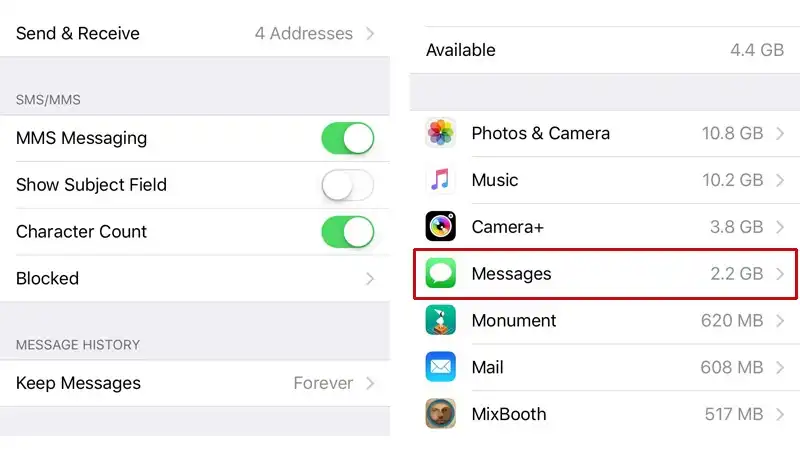
Erasin’ messages can help declutter your device and free up storage space. It’s also a great way to protect your privacy and prevent sensitive information from being misinterpreted or shared inadvertently.
Step 1: Choose Your Device
Before we begin, make sure you’re using the correct device:
- Android
- IOS (iPhone, iPad)
- Computer (Windows, macOS)
Erasin’ Messages on Android
To erase messages on Android, follow these steps:
- Open The Messages App: Find the Messages icon and tap it to open.
- Select The Conversation: Choose the conversation you want to delete.
- Tap And Hold: Tap and hold on the message you want to delete.
- Choose Delete: Select “Delete” from the menu.
Erasin’ Messages on Ios
To erase messages on iOS, follow these steps:
- Open The Messages App: Find the Messages icon and tap it to open.
- Select The Conversation: Choose the conversation you want to delete.
- Swipe Left: Swipe left on the message you want to delete.
- Choose Delete: Select “Delete” from the menu.
Erasin’ Messages on Instagram
To erase messages on Instagram, follow these steps:
- Open The Instagram App: Find the Instagram icon and tap it to open.
- Select The Conversation: Choose the conversation you want to delete.
- Tap And Hold: Tap and hold on the message you want to delete.
- Choose Delete: Select “Delete” from the menu.
Erasin’ Messages on Facebook
To erase messages on Facebook, follow these steps:
- Open The Messenger App: Find the Messenger icon and tap it to open.
- Select The Conversation: Choose the conversation you want to delete.
- Tap And Hold: Tap and hold on the message you want to delete.
- Choose Delete: Select “Delete” from the menu.
Erasin’ Messages on Whatsapp
To erase messages on WhatsApp, follow these steps:
- Open The Whatsapp App: Find the WhatsApp icon and tap it to open.
- Select The Conversation: Choose the conversation you want to delete.
- Tap And Hold: Tap and hold on the message you want to delete.
- Choose Delete: Select “Delete” from the menu.
Erasin’ Messages on Messenger
To erase messages on Messenger, follow these steps:
- Open The Messenger App: Find the Messenger icon and tap it to open.
- Select The Conversation: Choose the conversation you want to delete.
- Tap And Hold: Tap and hold on the message you want to delete.
- Choose Delete: Select “Delete” from the menu.
Erasin’ Messages on Telegram
To erase messages on Telegram, follow these steps:
- Open The Telegram App: Find the Telegram icon and tap it to open.
- Select The Conversation: Choose the conversation you want to delete.
- Tap And Hold: Tap and hold on the message you want to delete.
- Choose Delete: Select “Delete” from the menu.
Erasin’ Messages on Skype
To erase messages on Skype, follow these steps:
- Open The Skype App: Find the Skype icon and tap it to open.
- Select The Conversation: Choose the conversation you want to delete.
- Tap And Hold: Tap and hold on the message you want to delete.
- Choose Delete: Select “Delete” from the menu.
Erasin’ Messages on Teams
To erase messages on Teams, follow these steps:
- Open The Teams App: Find the Teams icon and tap it to open.
- Select The Conversation: Choose the conversation you want to delete.
- Tap And Hold: Tap and hold on the message you want to delete.
- Choose Delete: Select “Delete” from the menu.
Erasin’ Messages on Vinted
To erase messages on Vinted, follow these steps:
- Open The Vinted App: Find the Vinted icon and tap it to open.
- Select The Conversation: Choose the conversation you want to delete.
- Tap And Hold: Tap and hold on the message you want to delete.
- Choose Erase Conversation: Select “Erase conversation” from the menu.
Tips And Reminders
- Always back up your data before erasing messages.
- Be careful when deleting conversations, as it may affect multiple devices.
- If you’re unsure about any step, consult our tutorials or seek help from a professional.
Conclusion
Erasin’ messages on your device can be a great way to declutter and free up storage space. By following these steps, you’ll be able to erase old conversations and sensitive information with ease. Remember to always back up your data before making any changes, and don’t hesitate to seek help if you’re unsure about anything.
Faqs
- Q: Can I Erase Messages on Multiple Devices at Once?
A: Yes, but be careful not to affect other devices that may have shared conversations. - Q: Will Erasing Messages Delete my Entire Conversation History?
A: No, erasing individual messages will not delete your entire conversation history. - Q: Can I Undo Deleted Messages on Some Platforms?
A: Check the platform’s settings or tutorials for information on undoing deleted messages. - Q: How do I Prevent Sensitive Information From Being Misinterpreted or Shared Inadvertently?
A: Always be cautious when sharing sensitive information, and consider using encryption or other security measures. - Q: Can I Erase Messages That Have Been Sent to Multiple People at Once?
A: Check the platform’s settings or tutorials for information on erasing messages sent to multiple people. - Q: Will Erasing Messages Affect my Online Identity or Reputation?
A: Erasing messages will not directly affect your online identity or reputation, but be mindful of how your actions may be perceived by others. - Q: Can I Erase Messages That Have Been Forwarded to me From Someone Else?
A: Check the platform’s settings or tutorials for information on erasing forwarded messages. - Q: How do I Prevent Messages From Being Stored in The Cloud?
A: Check the platform’s settings or tutorials for information on disabling cloud storage or syncing features.
References
- Android Developer Documentation
- IOS Developer Documentation
- Instagram Help Center
- Facebook Help Center
- WhatsApp Support Center
- Messenger Help Center
- Telegram Help Center
- Skype Support Center
- Teams Help Center
- Vinted Help Center


