
Printing in Stairs on Autocad: A Step-by-step Guide
Are you tired of struggling to print your designs in stairs on AutoCAD? Look no further! In this article, we will guide you through the process of printing in stairs on AutoCAD, making it easy and straightforward.
Understanding Autocad Interface
Before diving into the tutorial, it’s essential to understand the basics of the AutoCAD interface. The software offers two primary options for working: Pattern and Layout. Both options have their own set of tools and settings that can be customized to suit your needs.
Printing in Stairs on Layout
To print in stairs on a Layout, follow these steps:
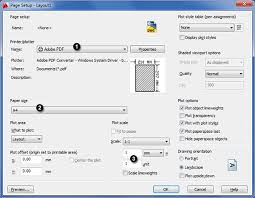
- Position Yourself: Ensure you are in the correct panel by clicking on the button labeled “Layout” in the bottom left corner of the window.
- Access Settings Page: Right-click on the “Layout” button and select “Management settings page.”
- Choose Printer/plotter: Select your printer from the menu to the right, ensuring it is set to the correct plotter settings.
- Set Dimensions: Enter the dimensions of the blade in the center of the page, taking care to set the format adapt correctly.
- Configure Stairs: In the section “Area of Press,” select “Layout” as the chosen element and then click on “Stairs” under the same tab. Set the stairs to 1:1, Ensuring that both “Mm” and “Unit” are set to 1.
Printing in Stairs on Pattern
To print in stairs on a Pattern, follow these steps:
- Convert Pattern to Layout: Click on the button labeled “Pattern” and select the option to convert it to a Layout.
- Access Settings Page: Right-click on the “Layout” button and select “Management settings page.”
- Choose Printer/plotter: Select your printer from the menu to the right, ensuring it is set to the correct plotter settings.
- Configure Stairs: In the section “Area of Press,” select one of the four options: Extensions, Window, Limits, or Monitor. For most cases, setting “Window” will suffice.
Alternative Printing Options
In addition to printing in stairs on Layout and Pattern, there are other options available:
- Extensions: Prints all objects present within the area of press.
- Limits: Prints a pre-defined area with the command “limits.”
- Monitor: Prints everything visible on the monitor.
Conclusion
Printing in stairs on AutoCAD is now a breeze! By following these simple steps, you can ensure that your designs are printed accurately and efficiently. Remember to explore other printing options available within AutoCAD to further customize your workflow.
Frequently Asked Questions (FAQs)
- What is The Difference Between Pattern And Layout in Autocad?
Pattern is used for drafting and designing, while Layout is used for printing and plotting. - How do I Convert a Pattern to a Layout?
Click on the “Pattern” button and select the option to convert it to a Layout. - What Are The Settings Available Under Area of Press?
Options include Window, Extensions, Limits, and Monitor. - Can I Print Transparency in Autocad?
Yes, this feature is helpful for printing 3D objects, allowing you to see them beneath polygons. - How do I Access The Secondary Settings Panel?
Click on the “Print” button and navigate to the right-hand section of the window. - What is The Purpose of Setting The Stairs Parameter in Autocad?
Setting this parameter allows you to customize the scale of your printed design. - Can I Save my Printed Label Separately From The Blade?
Yes, actuating a label option will allow you to apply it directly to the blade and save it independently. - What is The Purpose of Setting The Printer/plotter Settings in Autocad?
This ensures that your print job is sent to the correct device and configured correctly for optimal results.
Remember, these FAQs are here to help you navigate any questions or concerns regarding printing in stairs on AutoCAD!


