
How to Reset Your Modem: A Step-by-step Guide
Have you ever experienced slow internet speeds or connectivity issues? If so, it may be time to reset your modem! In this article, we’ll guide you through the process of resetting your modem, including the steps for different types of modems and routers.
Why Reset Your Modem?
Resetting your modem can resolve various issues, such as:
- Slow internet speeds
- Connectivity problems
- Firmware updates
- Factory settings restoration
Before You Begin
Before you reset your modem, make sure to:
- Backup your settings: This will ensure that you don’t lose any important configurations.
- Power cycle the router: Unplug and replug the power cord to the router to ensure it’s fully shut down.
Resetting Your Modem
There are two ways to reset your modem: Using the web interface or physically pressing a button.
Method 1: Using The Web Interface
Step 1: Access The Web Interface
Open a web browser and type in the IP address of your router (usually 192.168.1.1, 192.168.1.254, Or 192.168.0.1). Log in using your admin username and password.
Step 2: Backup Your Settings
Access the settings menu and look for a backup option. This may vary depending on your router’s firmware.
Step 3: Reset The Modem
Follow the instructions to reset the modem to its factory settings.
Method 2: Physically Pressing a Button
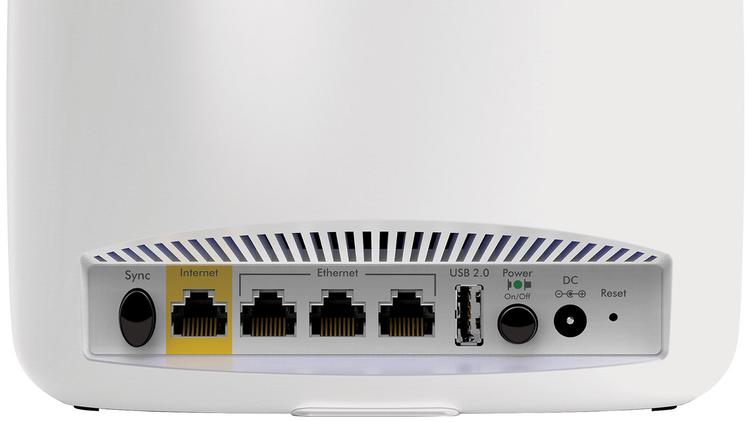
Step 1: Locate The Reset Button
Find the physical reset button on the back or bottom of your modem. This may be labeled as “Reset” or have an icon of a cogwheel.
Step 2: Press And Hold The Button
Press and hold the reset button using a paper clip, pin, or similar object for 30 seconds to 1 minute. Release the button and wait for the lights on your modem to stabilize.
Specific Instructions For Popular Modem Brands
Tim Modem
- Access the web interface and click on the “Gateway” icon.
- Click on the “Reset” button in the settings menu.
- Confirm that you want to reset the modem.
Alternatively, press and hold the physical reset button for 7-10 seconds.
Fastweb Modem
- Press and hold the physical reset button for 7-10 seconds.
Windtre Modem
- Access the web interface and click on the “Maintenance” menu.
- Click on the “Rescue/Recovery” option.
- Select the “Settings of factory” option.
- Confirm that you want to reset the modem.
Alternatively, press and hold the physical reset button for 30 seconds.
Tp-link Modem
- Access the web interface and click on the “Advanced” menu.
- Click on the “Instrument system” option.
- Select the “Backup & Recovery” option.
- Click on the “Recovery Settings of Factory” option.
Alternatively, press and hold the physical reset button for 10 seconds.
Vodafone Modem
- Access the web interface and click on the “Settings” menu.
- Click on the “Configuration” option.
- Select the “Reset” or “Ripristina” option.
Alternatively, press and hold the physical reset button for 30 seconds.
Conclusion
Resetting your modem can resolve various issues and restore it to its factory settings. Remember to backup your settings before resetting your modem and follow the specific instructions for your modem brand. If you’re still experiencing problems after resetting your modem, it may be time to contact your internet service provider for further assistance.
Frequently Asked Questions
- Q: Why do I Need to Backup my Settings?
A: Backing up your settings ensures that you don’t lose any important configurations. - Q: How Long Does The Reset Process Take?
A: The reset process typically takes 30 seconds to 5 minutes, depending on the modem brand and firmware. - Q: Can I Reset my Modem Without Power-cycling It?
A: No, it’s recommended to power cycle the router before resetting the modem. - Q: Will Resetting my Modem Delete All my Saved Settings?
A: Yes, resetting your modem will delete all your saved settings and restore it to its factory settings. - Q: Can I Reset my Modem Multiple Times?
A: Yes, you can reset your modem multiple times, but be aware that doing so may cause issues with your internet connection.
Additional Resources
For more information on resetting your modem or troubleshooting common issues, refer to the following resources:
Remember to always follow proper safety precautions when working with electrical devices.


