
How to Update Internet Explorer: A Step-by-step Guide
As a computer user, you’re likely familiar with the browser that comes pre-installed on your Windows device – Internet Explorer (IE). While IE is still available for use, it’s essential to update it regularly to ensure safety and security. In this article, we’ll guide you through the process of updating Internet Explorer on various versions of Windows.
Why Update Internet Explorer?
Updating Internet Explorer is crucial to prevent malware and cyber threats from targeting your computer. The browser can be exploited by hackers if not updated regularly, leading to data breaches and other security issues. Additionally, updating IE ensures that you have access to the latest features and improvements.
Update Internet Explorer on Windows 7
If you’re using Windows 7, updating Internet Explorer is relatively straightforward. Here’s how:
- Open Internet Explorer: Launch the browser by clicking on its icon.
- Click on The Gear Icon: In the top-right corner of the window, click on the gear icon to open the menu.
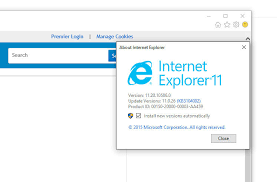
- Select ‘About Internet Explorer’: From the drop-down menu, choose ‘About Internet Explorer.’
- Check For Updates: If an update is available, you’ll see a notification. Click on it to install the latest version.
- Restart Your Computer: Once the update is installed, restart your computer to ensure that the changes take effect.
Update Internet Explorer on Windows 10
Updating Internet Explorer on Windows 10 is similar to updating it on Windows 7. Here’s how:
- Open The Start Menu: Click on the Start button (usually located at the bottom-left corner of the screen).
- Click on ‘Settings’: From the menu, select ‘Settings.’
- Select ‘Update & Security’: In the Settings window, click on ‘Update & Security.’
- Check For Updates: In the Update & Security window, check if there are any updates available for Internet Explorer.
- Install The Update: If an update is available, install it and restart your computer.
Update Internet Explorer on Windows 8.1
Updating Internet Explorer on Windows 8.1 Involves a few more steps than updating it on other versions of Windows. Here’s how:
- Open The Start Screen: Click on the Start button to open the Start screen.
- Type ‘Windows Update’: In the search bar, type ‘Windows Update.’
- Click on ‘Settings’: From the menu, select ‘Settings.’
- Select ‘Update & Security’: In the Settings window, click on ‘Update & Security.’
- Check For Updates: In the Update & Security window, check if there are any updates available for Internet Explorer.
- Install The Update: If an update is available, install it and restart your computer.
Other Ways to Update Internet Explorer
While updating Internet Explorer through Windows Update is the recommended method, you can also download the latest version directly from Microsoft’s website. Here’s how:
- Visit The Microsoft Website: Go to the Microsoft website (www.Microsoft.Com) and navigate to the Internet Explorer section.
- Download The Latest Version: Click on the ‘Download’ button to download the latest version of Internet Explorer.
- Install The Update: Once the download is complete, install the update by following the prompts.
Conclusion
Updating Internet Explorer is a crucial step in maintaining your computer’s safety and security. By following the steps outlined in this guide, you can ensure that your browser is up-to-date and protected from malware and cyber threats. Remember to always be cautious when downloading updates or software from the internet, and never install suspicious files.
Frequently Asked Questions (FAQs)
- Q: Why do I Need to Update Internet Explorer?
A: Updating Internet Explorer ensures that your browser is secure and protected from malware and cyber threats. - Q: How Often Should I Update Internet Explorer?
A: It’s recommended to update Internet Explorer regularly, at least once a month. - Q: Can I Update Internet Explorer Manually?
A: Yes, you can download the latest version of Internet Explorer directly from Microsoft’s website if you prefer not to use Windows Update. - Q: Will Updating Internet Explorer Affect Other Software on my Computer?
A: No, updating Internet Explorer should not affect other software on your computer. - Q: Can I Still Use Internet Explorer After Updating It?
A: Yes, you can continue to use Internet Explorer as before, with the added security and features provided by the latest update. - Q: What if I’m Using a Different Browser Like Google Chrome or Mozilla Firefox? Do I Still Need to Update Internet Explorer?
A: Even if you’re using a different browser, it’s still recommended to keep Internet Explorer up-to-date for safety and security reasons. - Q: Can I Roll Back to an Older Version of Internet Explorer After Updating It?
A: No, it’s not possible to roll back to an older version of Internet Explorer once you’ve updated it. - Q: Will Updating Internet Explorer Affect my Windows Operating System?
A: Updating Internet Explorer should not affect your Windows operating system.
We hope this guide has been helpful in explaining how to update Internet Explorer on various versions of Windows. If you have any further questions or concerns, feel free to ask!


