
How to Cut a Song With Itunes: A Step-by-step Guide
Are you tired of listening to songs with tedious silences or unwanted parts? Do you want to cut out the unnecessary bits and create a new, edited version of your favorite song? Look no further! In this article, we will guide you through the process of cutting a song with iTunes, a user-friendly music player that offers advanced editing features.
Why Use Itunes For Song Editing?
ITunes is more than just a music player; it’s also a powerful tool for editing and managing your digital music collection. With its intuitive interface and robust features, you can easily trim unwanted parts from songs, create custom playlists, and even convert audio files to different formats. In this tutorial, we will show you how to use iTunes to cut a song with ease.
Prerequisites: Downloading And Installing Itunes
Before you start cutting songs with iTunes, you need to download and install the software on your computer. If you’re using a Windows PC, follow these steps:
- Download Itunes: Go to the official Apple website and click on the “Download” button to get the latest version of iTunes.
- Run The Installer: Once downloaded, run the installer file (iTunesSetup.Exe) and follow the prompts to install the software.
- Wait For Installation: The installation process should take a few minutes, depending on your computer’s speed.
If You’re Using a Mac
If you’re using a Mac, chances are iTunes is already pre-installed on your computer. However, if you’ve uninstalled it or want to reinstall it, follow these steps:
- Open The App Store: Go to the App Store and search for “iTunes.”
- Download And Install: Click on the “Get” button to download and install iTunes.
- Wait For Installation: The installation process should take a few minutes.
Cutting a Song With Itunes: A Step-by-step Guide
Now that you have iTunes installed, let’s dive into the step-by-step guide on how to cut a song:
Step 1: Open Itunes And Login
- Open Itunes: Launch iTunes on your computer.
- Login With Your Apple ID: If prompted, log in with your Apple ID and password.
Step 2: Access The Bookstore
- Click on The Bookstore Icon: In the top menu bar, click on “Bookstore.”
- Select an Album or Playlist: Choose an album or playlist that contains the song you want to cut.
Step 3: Select The Song
- Find The Song: Locate the song you want to cut and select it by clicking on it.
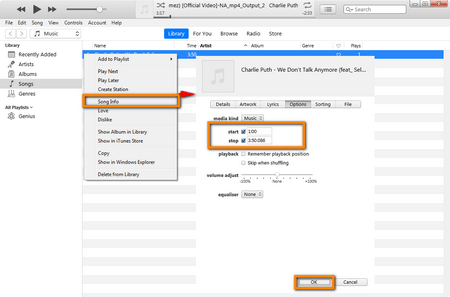
- Right-click (or Control-click) on The Song: A context menu will appear; click on “Get Info.”
- Select The “Info” Tab: In the next window, switch to the “Info” tab.
Step 4: Trim The Song
- Click on The “Options” Tab: In the “Info” window, click on the “Options” tab.
- Check The “Start” And “Stop” Boxes: Place a checkmark in the boxes next to “Start” and “Stop.”
- Enter The Start And Stop Times: Type in the desired start and stop times for your edited song (e.G., 0:01 And 2:57).
Step 5: Save The Edited Song
- Click on The “OK” Button: Click “OK” to save the changes.
- Convert The Song to Aac Format: In the next window, select “Create Version > #Create version AAC.”
- Save The Edited Song: The edited song will be saved in your iTunes library.
Step 6: Repeat And Refine
You can repeat this process as many times as you like to refine your edit. Simply select a different part of the song, trim it, and save it as a new version.
Tips And Variations
- To cut out an entire section of a song, simply set both start and stop times to zero.
- If you want to remove unwanted parts from multiple songs, consider using a third-party audio editor like Audacity or GarageBand.
- For more advanced editing features, explore the “Advanced” tab in iTunes.
Conclusion
Cutting a song with iTunes is a straightforward process that requires minimal technical expertise. By following these steps, you can edit your favorite songs to create new, custom versions for personal enjoyment or sharing with friends. Happy editing!


